Database & Content Isolation
Pro lets you configure how each tenant site's data is isolated from others.
Database Options
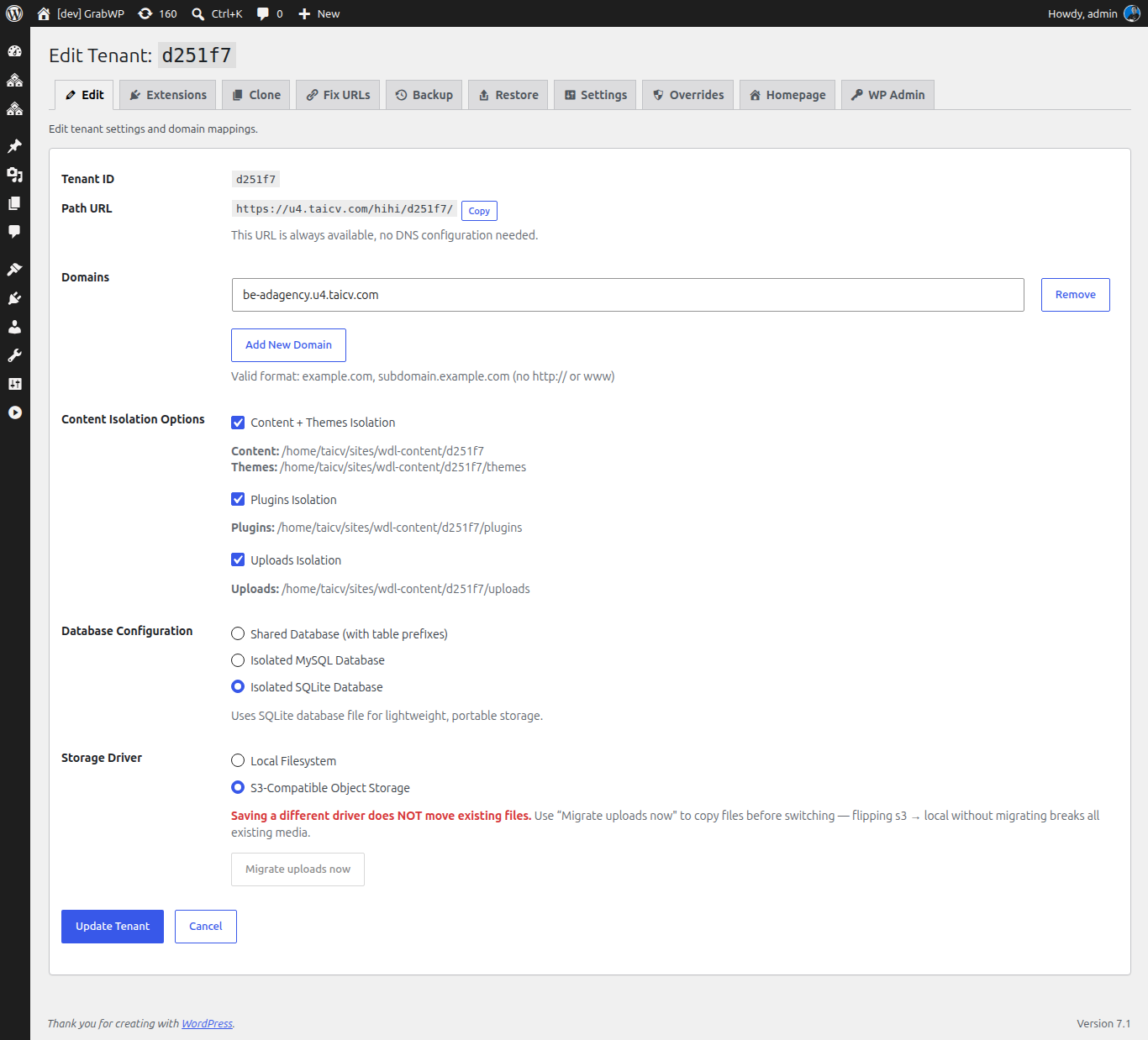
Go to GrabWP Tenancy → Tenants → Edit the site. The Pro fields appear in the edit form below the domain settings.
Shared Database (Default)
All sites share one MySQL database with unique table prefixes - same as the free plugin. Simplest setup, lowest overhead.
Isolated MySQL Database
Each site connects to its own MySQL database. Complete database-level isolation.
To configure:
- Open Edit for the site
- Under Database Type, select Isolated MySQL Database
- Enter the database credentials (host, name, user, password)
- Save
Isolated SQLite Database
Each site uses a SQLite file instead of MySQL.
To configure:
- Open Edit for the site
- Under Database Type, select Isolated SQLite Database
- Save - a SQLite file is created automatically
Content Isolation
Control what is isolated within each tenant site. In the Edit form for the site:
| Setting | What it controls |
|---|---|
| Content + Themes Isolation | Tenant gets its own wp-content and themes directories |
| Plugins Isolation | Tenant gets its own plugins directory |
| Uploads Isolation | Tenant gets its own uploads directory |
Toggle each setting per site as needed.
Setting Defaults for New Sites
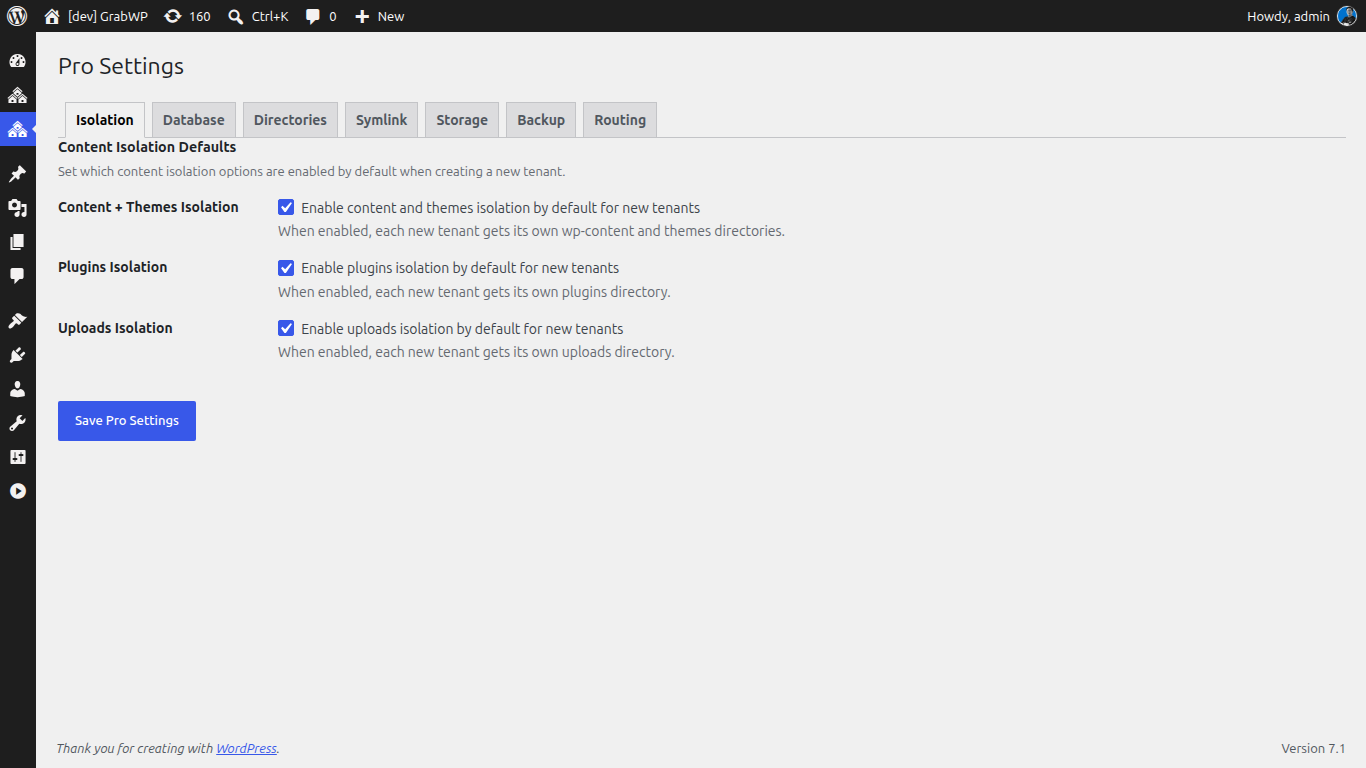
Go to GrabWP Tenancy → Pro Settings to set default isolation options. All newly created sites inherit these defaults - you can override them per site at any time.
Default directory and upload paths are configured on the same Pro Settings screen (see Installing Pro). Use the toggles below for default content, plugins, and uploads isolation for new sites:
Per-Tenant Setting Overrides
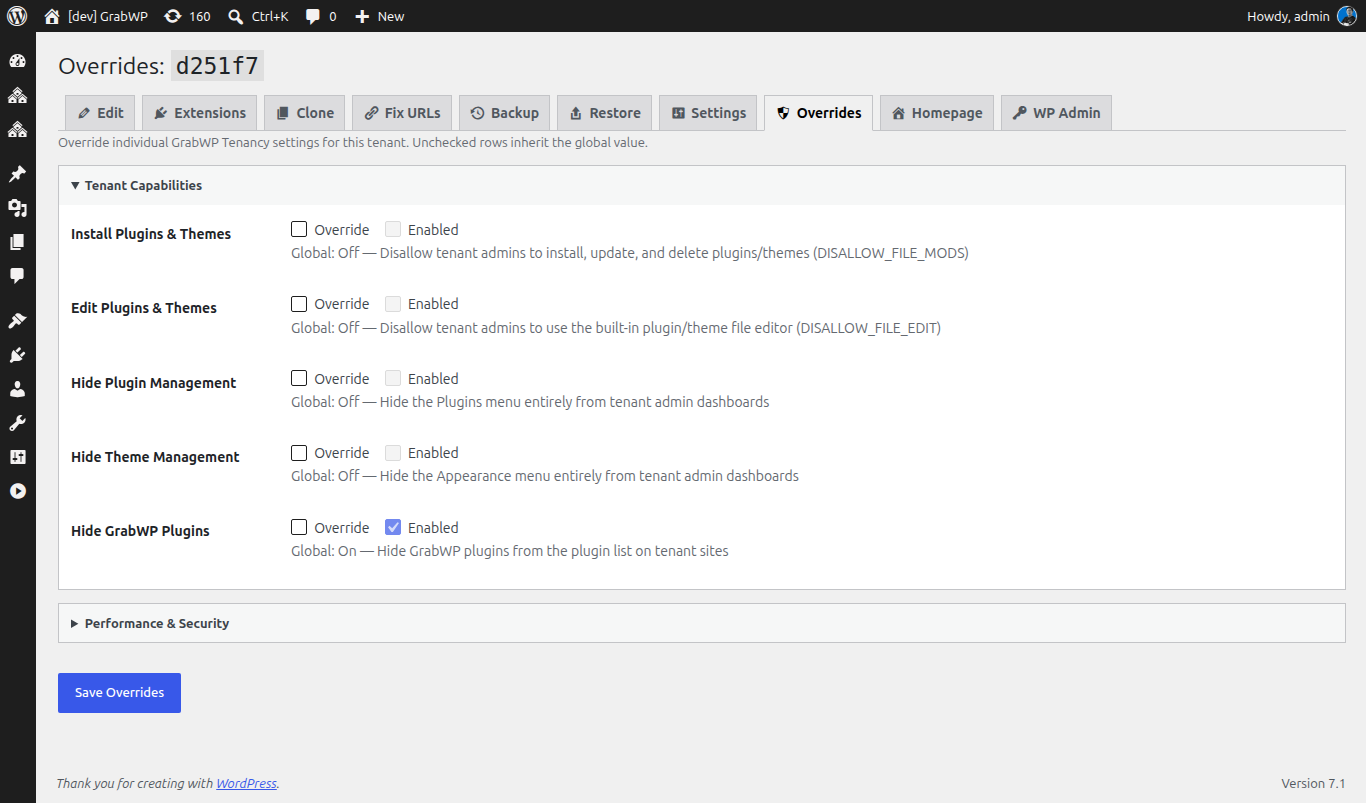
Pro also lets you override individual GrabWP Tenancy settings for one tenant without changing the global defaults.
- Go to GrabWP Tenancy → Tenants
- Open the tenant's action pages and select the Overrides tab (Tenant Overrides)
- For each setting, check Override, then set On/Off (or the setting's own control)
- Click Save Overrides
Unchecked rows inherit the global value. Each row shows a Global: hint with the current global value so you can compare before overriding. Clear every override checkbox to make the tenant inherit all global settings again.