Per-Site Plugins & Themes
With Pro, each tenant site can have its own set of plugins and themes - separate from your main site and from each other.
Before You Start
Plugins and themes isolation must be enabled for the site first:
- Go to GrabWP Tenancy → Tenants → Edit the site
- Under the Pro isolation fields, enable Plugins Isolation and/or Content + Themes Isolation
- Save
Once enabled, the Extensions link appears in the tenant's row in the tenant list.
Managing Extensions for a Site
- Go to GrabWP Tenancy → Tenants
- Find the site and click the Extensions row action link
- You'll see all plugins and themes available from your main installation
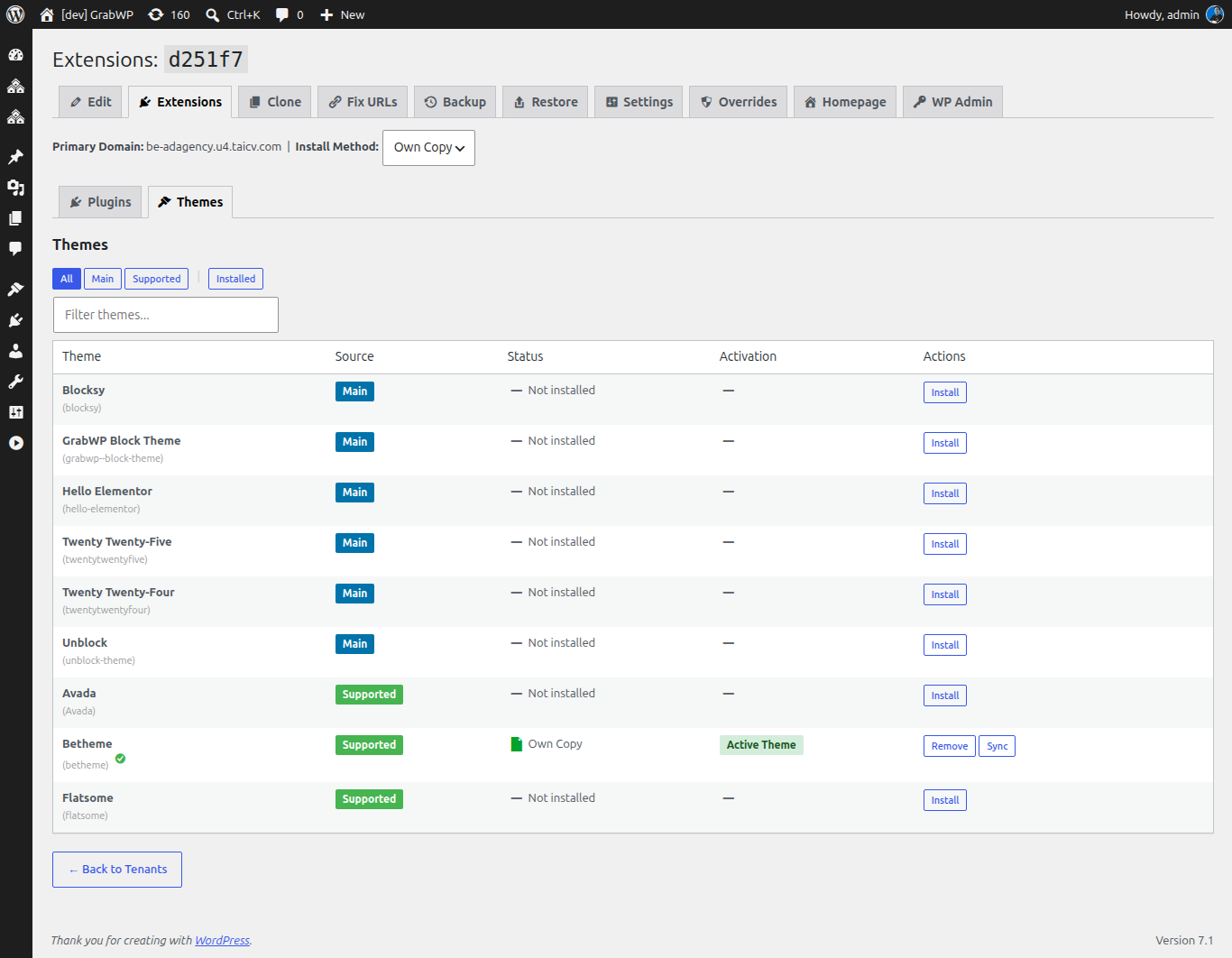
Making a Plugin Available to a Site
- Find the plugin in the list
- Click Install - it's installed into the tenant site's directory (copied or symlinked, based on the Install Method setting)
- The tenant admin can then activate it from their own Plugins page
Removing a Plugin from a Site
- Find the plugin in the list
- Click Remove - it's removed from the tenant site's directory
Themes
The Extensions page has two sub-tabs: Plugins (default) and Themes. The Themes tab works the same way as Plugins: Install / Remove / activate per tenant, with the same Install Method (Symlink or Own Copy).
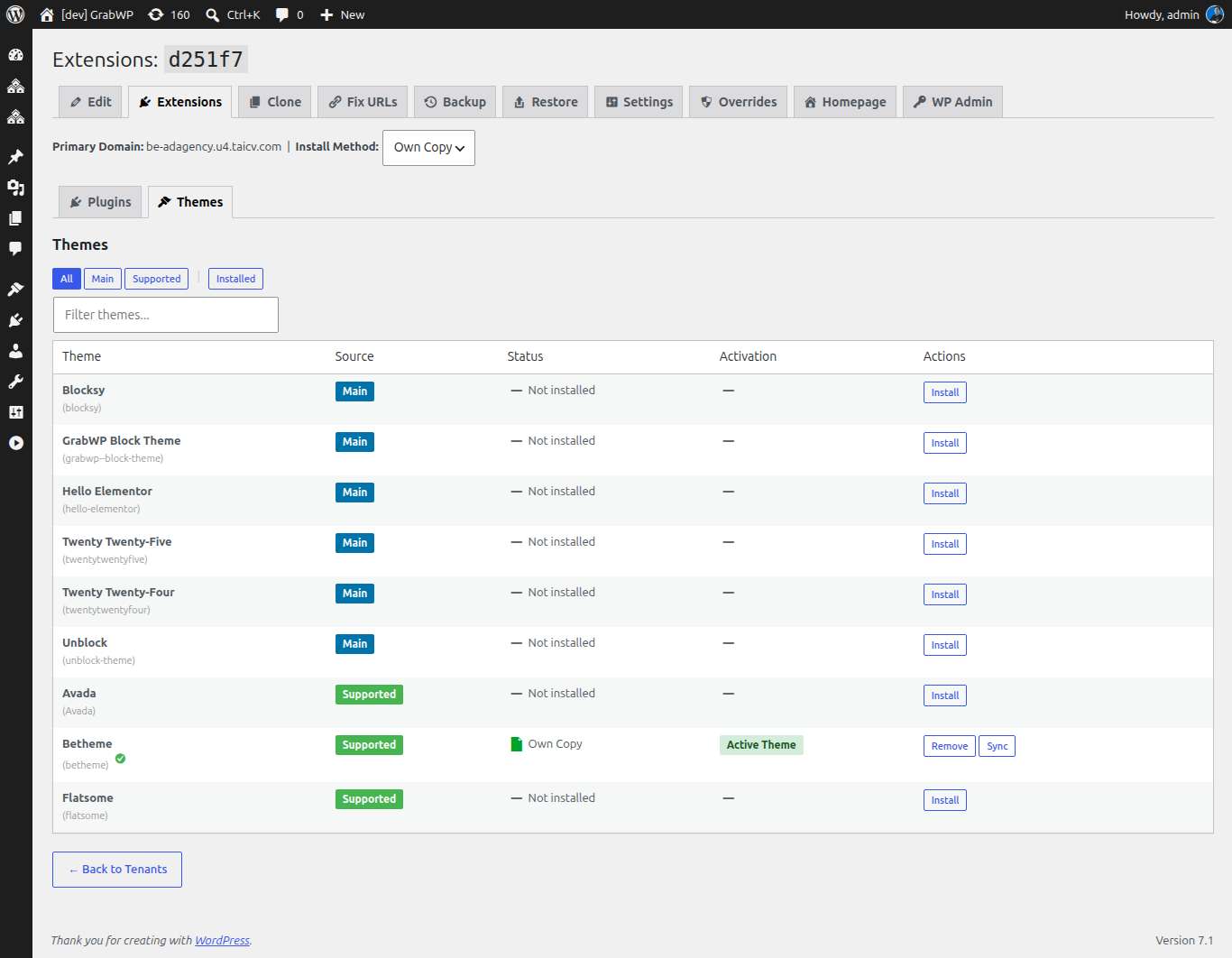
Plugin and theme actions (install, remove, sync, convert, copy to main, activate, deactivate) update the affected row in place instead of reloading the whole page, so the current tab and scroll position are kept.
Installation Methods
At the top of the Extensions page, you can set the Install Method for the site:
| Method | How it works | When to use |
|---|---|---|
| Symlink | A symlink points to the main site's plugin files | Saves disk space; plugin updates on the main site apply automatically |
| Own Copy | Plugin files are copied into the tenant's directory | Tenant needs fully independent files |
Changing the method and saving reconverts all installed extensions automatically.