Pro Settings
Navigate to Tenancy → Pro Settings (page=grabwp-tenancy-pro-settings).
The page title is Pro Settings. Tabs: Isolation, Database, Directories, Symlink, Storage, Backup, Routing. The active tab is remembered. Click Save Pro Settings on any tab to store the form.
These values are defaults for new tenants, plus site-wide storage, symlink, and backup offload. An existing tenant keeps its own config until you edit that tenant.
Isolation
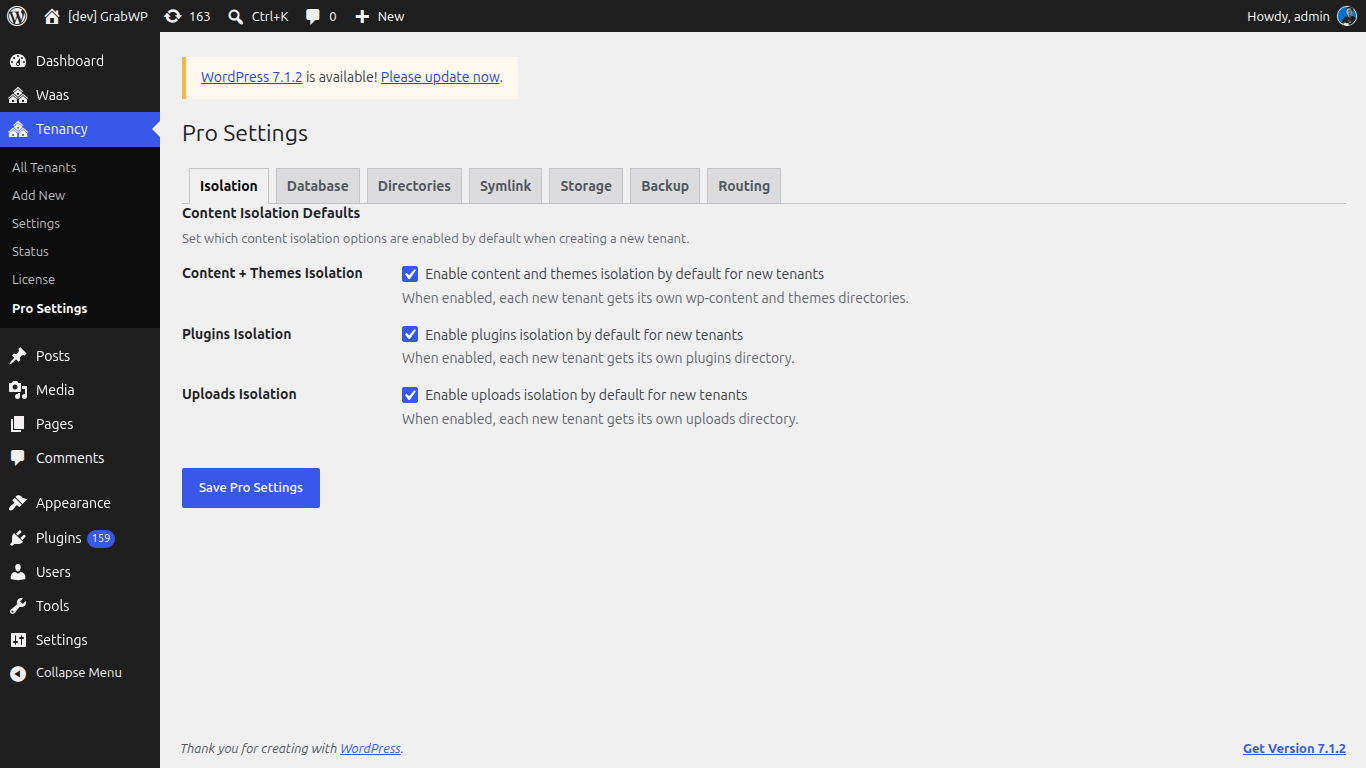
Content Isolation Defaults. See the field table in Database & Content Isolation.
Database
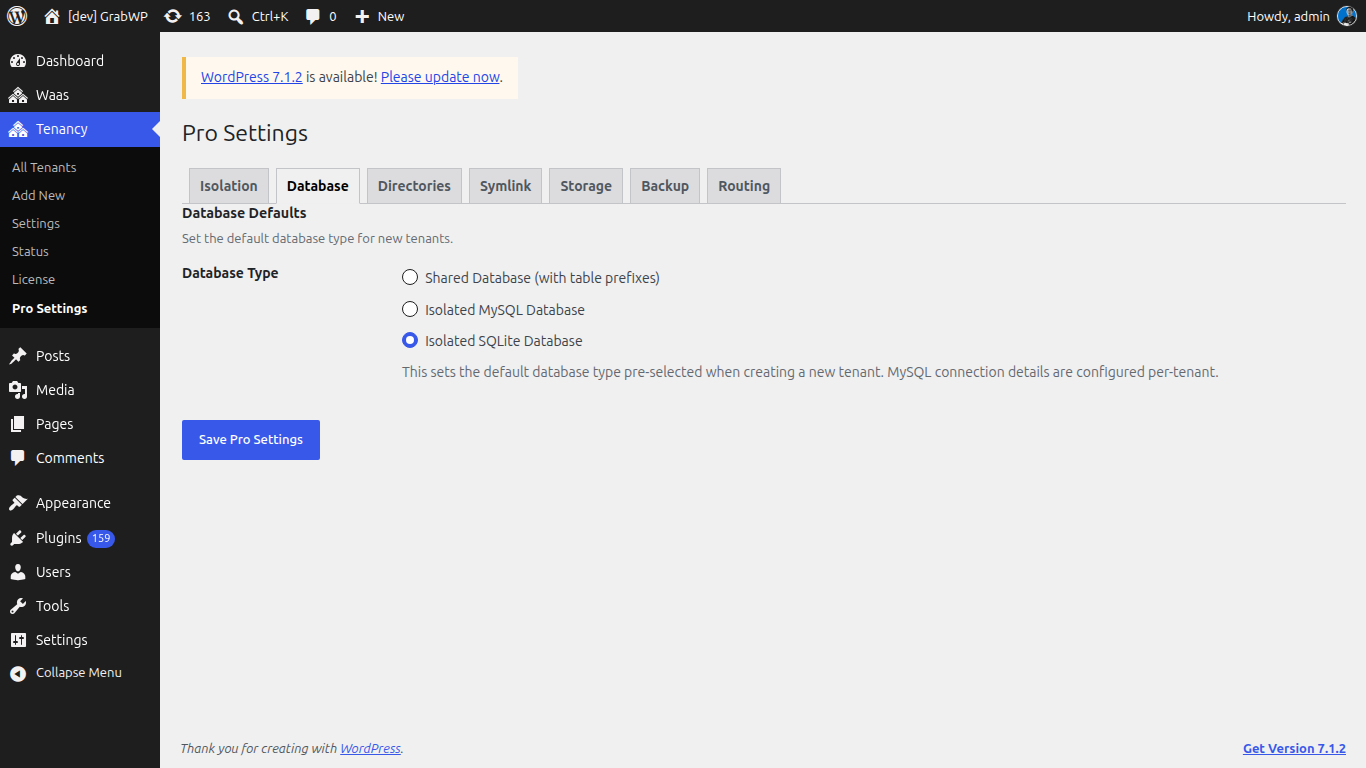
Database Defaults and, when Isolated MySQL Database is selected, Default MySQL Connection (MySQL Host, MySQL Database, MySQL Username). The password is set on each tenant, not here.
Directories
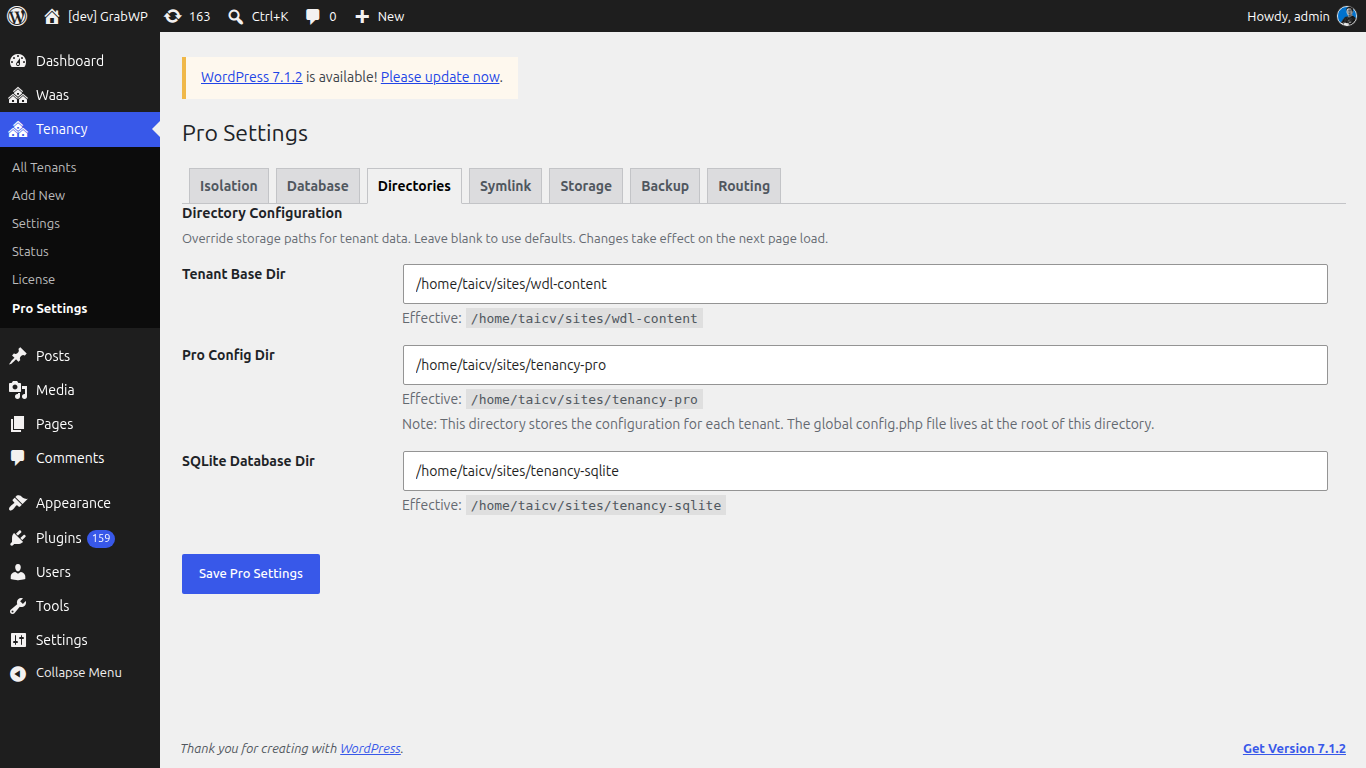
Directory Configuration. Leave a field blank to keep the default. The Effective: line shows the path in use. If the path was set in wp-config.php, the field is disabled and marked set in wp-config.php.
| Field | Default location |
|---|---|
| Tenant Base Dir | wp-content/grabwp-tenancy |
| Pro Config Dir | wp-content/grabwp-tenancy-pro (tenant config.php files, and the global config at the root of this directory) |
| SQLite Database Dir | wp-content/grabwp-tenancy-sqlite |
Changes apply on the next page load. A Directory validation errors: notice lists paths WordPress rejected.
Symlink
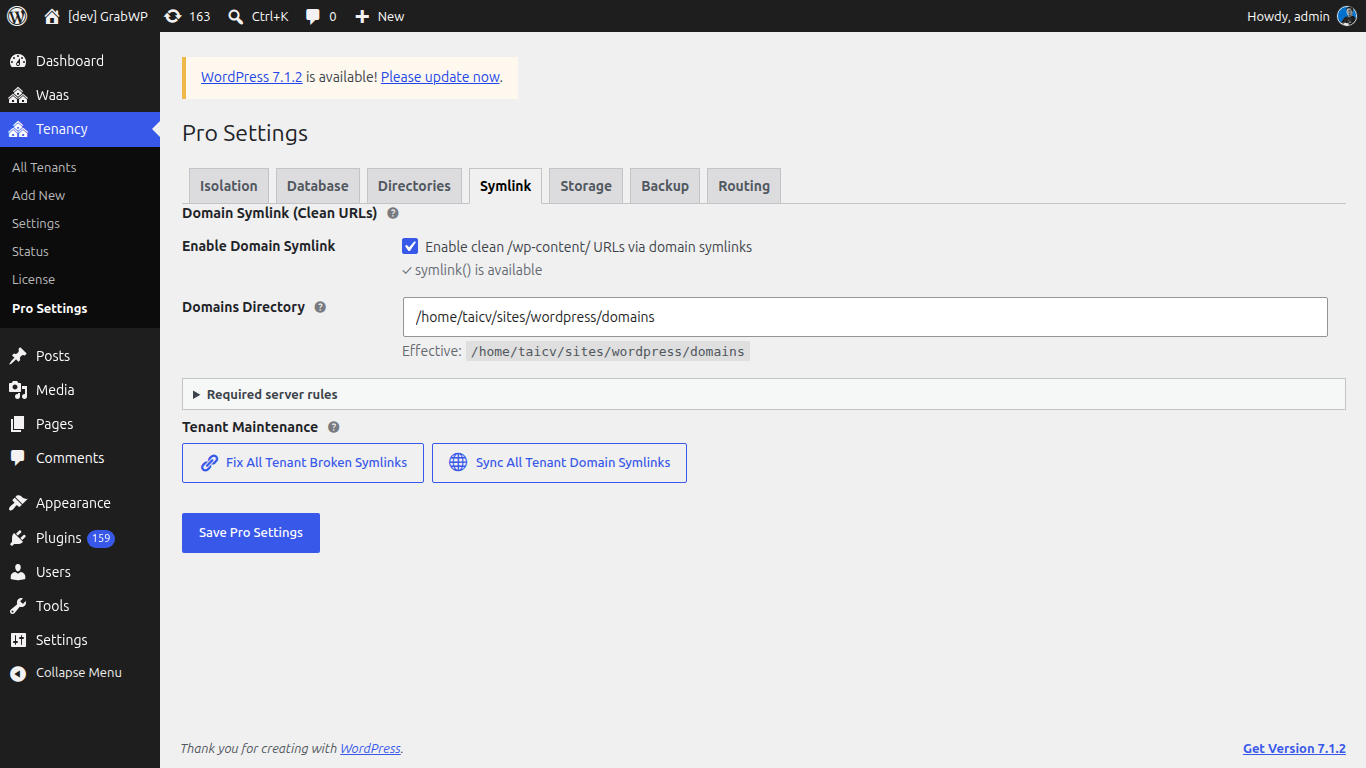
Domain Symlink (Clean URLs) rewrites tenant asset URLs so they are served from /wp-content/ through a per-domain symlink. This is separate from how visitors open the site. Visitors still use the tenant domain.
| Field | Notes |
|---|---|
| Enable Domain Symlink | Enable clean /wp-content/ URLs via domain symlinks. Disabled when symlink() is missing. The row shows symlink() is available or symlink() is not available. Feature cannot be enabled. |
| Domains Directory | Absolute path for the symlinks. Blank uses the default. Effective: shows the path. The directory is created automatically. |
Expand Required server rules and copy the Nginx block, or the LiteSpeed and Apache block for wp-content/uploads/.htaccess, then restart the web server. The paths in that block match Domains Directory on this screen.
Tenant Maintenance:
| Button | Notes |
|---|---|
| Fix All Tenant Broken Symlinks | Repairs broken plugin and theme symlinks on every tenant. Disabled when symlink() is missing. |
| Sync All Tenant Domain Symlinks | Creates missing domain symlinks and removes stale ones. Disabled until domain symlinks are enabled, a domains directory is set, and symlink() is available. |
Storage
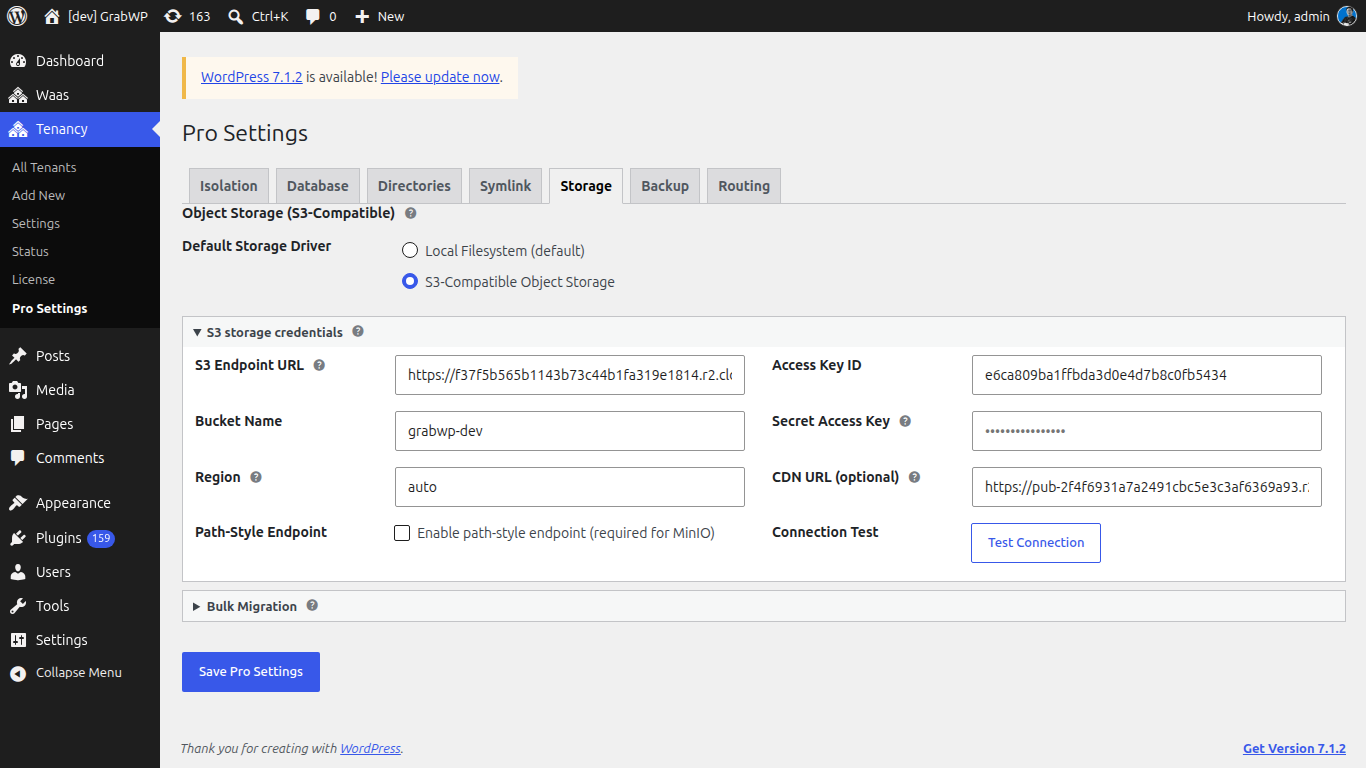
Object Storage (S3-Compatible) is for tenant uploads. Providers called out in the help text: Cloudflare R2, AWS S3, MinIO, Backblaze B2.
| Field | Notes |
|---|---|
| Default Storage Driver | Local Filesystem (default) or S3-Compatible Object Storage. |
Choosing S3 opens S3 storage credentials:
| Field | Notes |
|---|---|
| S3 Endpoint URL | Full endpoint URL. |
| Bucket Name | Bucket for uploads. |
| Region | auto for Cloudflare R2. Examples: us-east-1, eu-west-1. |
| Path-Style Endpoint | Enable path-style endpoint (required for MinIO). |
| Access Key ID | Access key. |
| Secret Access Key | Leave blank to keep the saved secret. |
| CDN URL (optional) | Public URL prefix. If empty, pre-signed URLs are used. |
| Connection Test | Test Connection. Success: Connection successful! |
After S3 is saved and configured, Bulk Migration can show Migrate All Tenants to S3 and Migrate All Tenants to Local. Confirm This will migrate uploads for ALL tenants. Continue? For large sites, the same screen lists WP-CLI under WP-CLI reference:
wp grabwp-pro storage migrate --all --to=s3
Per-tenant driver and Migrate uploads now are on the tenant Edit screen. See Database & Content Isolation.
Backup
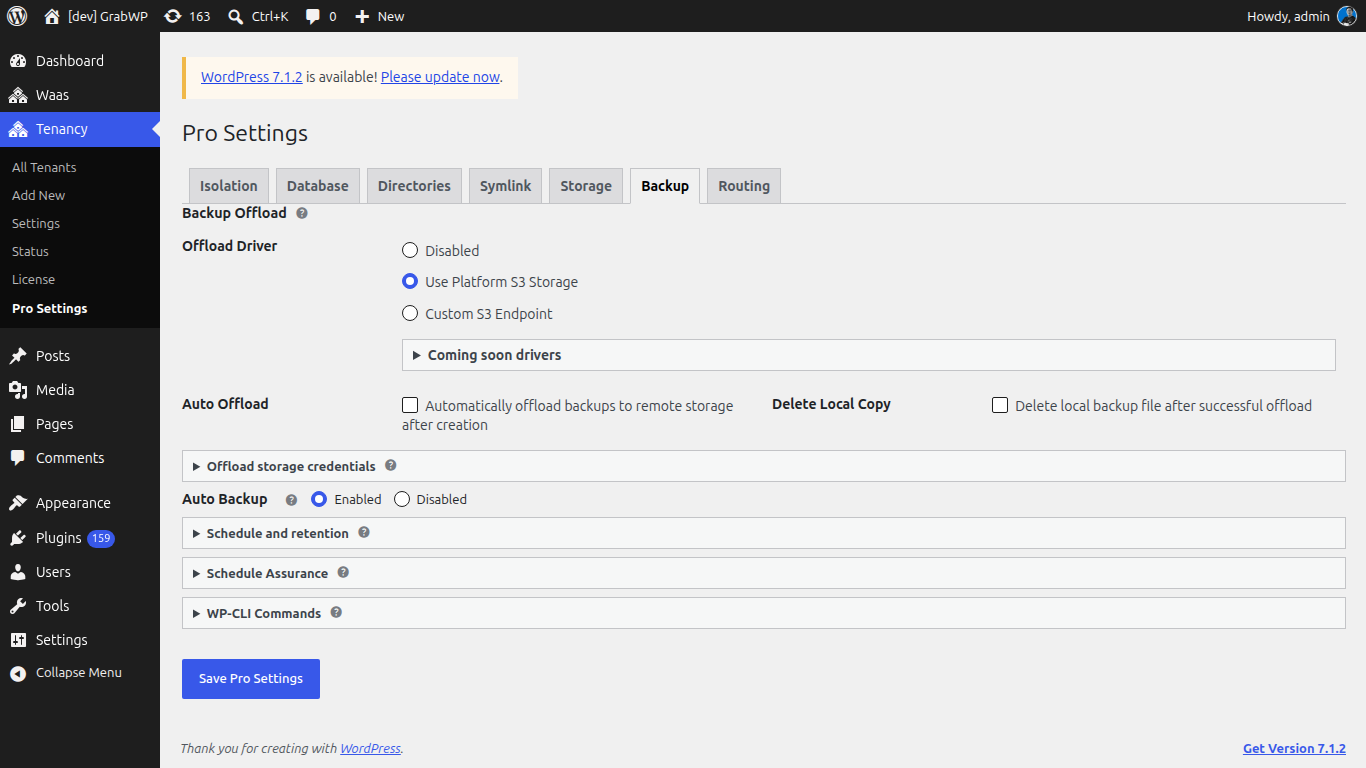
Backup Offload
| Field | Notes |
|---|---|
| Offload Driver | Disabled, Use Platform S3 Storage (needs S3 on the Storage tab first), or Custom S3 Endpoint. |
| Coming soon drivers | Google Drive (Coming Soon) and FTP / SFTP (Coming Soon) are disabled. |
| Auto Offload | Automatically offload backups to remote storage after creation. |
| Delete Local Copy | Delete local backup file after successful offload. |
Offload storage credentials (after you pick a driver):
- Use Platform S3 Storage: Backup Prefix and Test Connection.
- Custom S3 Endpoint: S3 Endpoint URL, Bucket Name, Region, Backup Prefix, Access Key ID, Secret Access Key, Path-Style Endpoint, Test Connection. Leave the secret blank to keep the saved key.
Auto Backup
Global schedule for tenants that inherit it. Each tenant can override this on Auto Backup Settings. See Backup & Restore.
| Field | Notes |
|---|---|
| Auto Backup | Enabled or Disabled. |
| Default Schedule | Manual only (no schedule), Daily, Weekly, Every two weeks, Monthly. Under Schedule and retention. |
| Backups to Keep | 1 to 30. Older local and remote archives are pruned after a successful run. |
Schedule Assurance shows WP-Cron Status (Active (WordPress pseudo-cron) or Disabled (system cron required)) and Next Scheduled Backup. If WP-Cron is disabled, the notice says scheduled backups will not run until a system cron is configured.
WP-CLI Commands on the same tab:
wp grabwp backup run <tenant_id>
wp grabwp backup schedule <tenant_id> --enabled=enabled --schedule=daily --retain=7
wp grabwp backup show <tenant_id>
wp grabwp backup reschedule-all
Routing
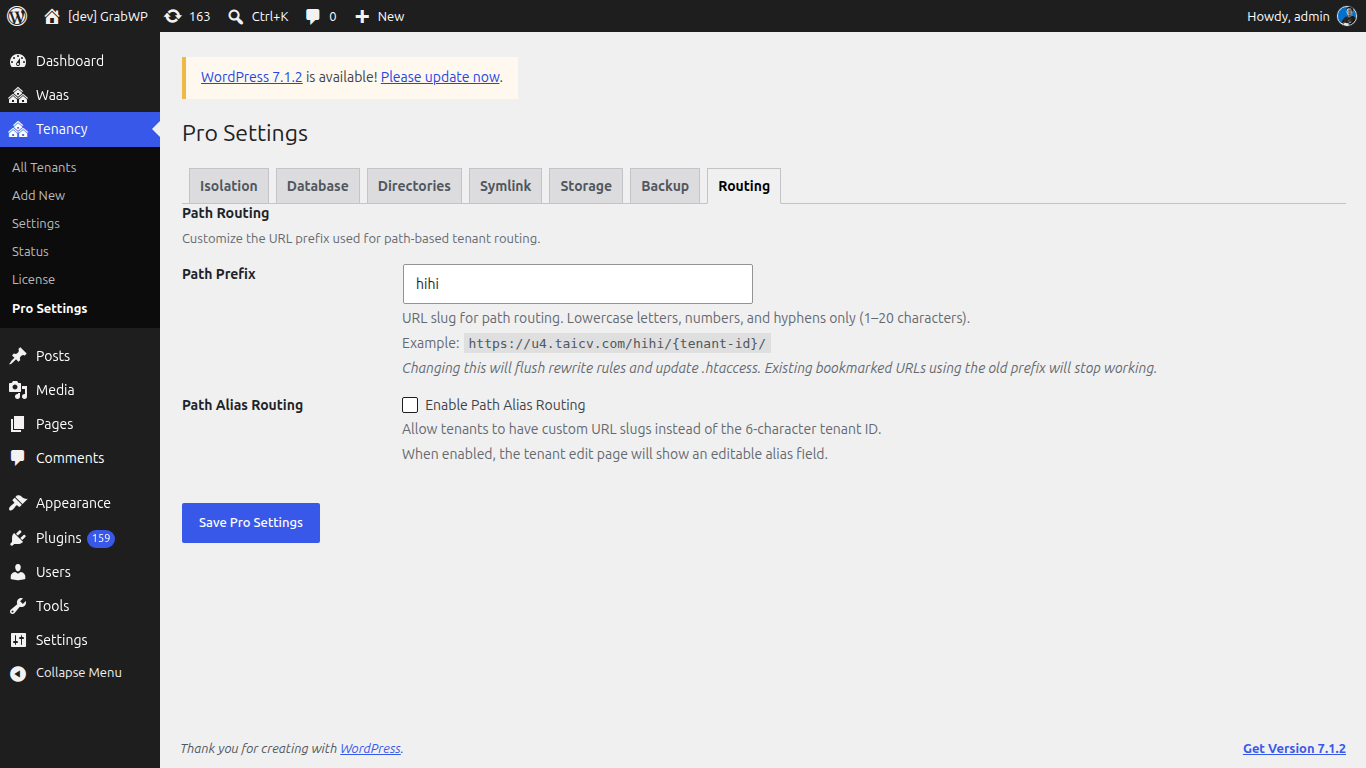
Visitors should use the tenant's own domain. See Domain & DNS Setup.
This tab only changes the temporary preview address shown as Path URL on Edit (or the Path Alias field when alias routing is on).
| Field | Notes |
|---|---|
| Path Prefix | Slug used in that preview address. Lowercase letters, numbers, and hyphens, 1 to 20 characters. Default site. Saving flushes rewrite rules and updates .htaccess. Old preview bookmarks stop working. |
| Path Alias Routing | Enable Path Alias Routing. When on, Edit shows Path Alias (3 to 30 characters) and Copy URL instead of the plain Path URL row. |
Note: Leave this tab alone unless you need to change the preview address used before a domain is connected.
Verify: Save Pro Settings returns you to this screen without an error notice. Create a tenant and confirm Database and Isolation on All Tenants match the defaults you saved.