Configure WaaS General Settings
The WaaS General Settings define your platform identity - domain, authentication, and the pages customers interact with.
Navigate to WaaS → Settings → General (/wp-admin/admin.php?page=grabwp-tenancy-waas-settings).
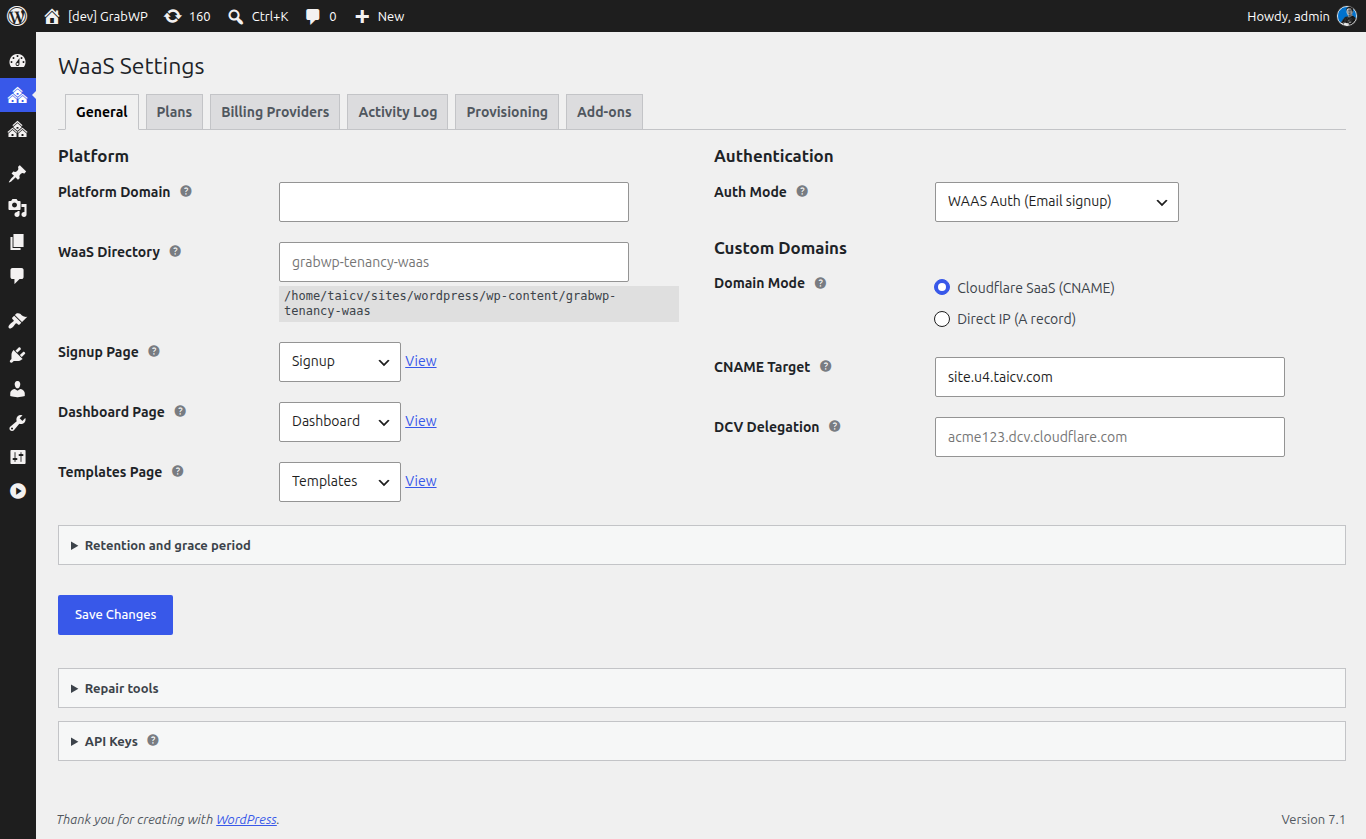
Platform Settings
Platform Domain
The domain used for tenant subdomains.
| Field | Example | Notes |
|---|---|---|
| Platform Domain | yoursaas.com | Tenants get subdomains like customer.yoursaas.com |
Enter your root domain without http:// or trailing slash. Wildcard DNS must point *.yoursaas.com to your server.
DNS Setup: Add a wildcard A record in your DNS:
This ensures all subdomains resolve to your server.
WaaS Data Directory
Where WaaS stores its operational data (templates, provisioning intents, etc.).
| Field | Default |
|---|---|
| WaaS Data Directory | grabwp-tenancy-waas |
Relative to your WordPress uploads directory. The default is usually fine.
Authentication Mode
How customers authenticate on your platform.
| Mode | Description |
|---|---|
| WaaS Auth (recommended) | Creates a new user during signup. Customers log in via OTP (one-time password sent to email). No WordPress login form needed. |
| WP Auth | Requires an existing WordPress account before creating a site. Customers use standard WordPress login. |
Recommended: Use WaaS Auth for a self-service SaaS experience.
Pages Configuration
WaaS needs three WordPress pages for the customer-facing frontend. You can either create them manually or use the auto-create button.
Auto-Create Pages
Click the Create/Repair Signup and Dashboard Pages button at the bottom of the settings page. This creates the three pages with the correct shortcodes automatically.
Manual Setup
If you prefer to create pages yourself:
- Create a page named Signup with content:
[grabwp_waas_signup] - Create a page named Dashboard with content:
[grabwp_waas_dashboard] - Create a page named Templates with content:
[grabwp_waas_templates]
Then select each page in the dropdowns:
| Setting | Page | Content |
|---|---|---|
| Signup Page | Signup | [grabwp_waas_signup] or Signup block |
| Dashboard Page | Dashboard | [grabwp_waas_dashboard] or Dashboard block |
| Templates Page | Templates | [grabwp_waas_templates] or Template Browser block |
Tip: You can also use Gutenberg blocks instead of shortcodes. See Set Up Frontend Pages for details.
Custom Domains Settings
Configure how tenant custom domains work. This determines the DNS instructions shown to your customers.
| Setting | Options | Description |
|---|---|---|
| Domain Mode | Cloudflare SaaS / Direct IP | How customers connect their domains |
| CNAME Target | e.g., cdn.saas.yoursaas.com | (Cloudflare mode) Value customers set in their CNAME record |
| Server Public IP | e.g., 203.0.113.50 | (Direct IP mode) Value customers set in their A record |
For this tutorial: Choose either mode. Details in Managing Custom Domains.
Activity Log
| Setting | Default | Description |
|---|---|---|
| Retention (days) | 90 | How long to keep activity log entries (7–365 days) |
| Grace Period (days) | 7 | Days before tenant is suspended after subscription cancellation. 0 = immediate suspension. |
API Keys
API keys allow external systems to interact with your WaaS platform via REST API.
To generate a key:
- Enter an optional Key Label (e.g., "CI/CD pipeline")
- Click Generate New API Key
- Copy the key immediately - it is shown only once
Existing keys are listed with their label, prefix, and creation date. Click Revoke to deactivate a key.
Note: API keys are for programmatic access only. Most setups don't need them unless you're integrating with external tools.
Save Settings
Click Save Settings. Verify the success message appears at the top of the page.
Next: Create Plans