Configure Pro Settings
Pro Settings control how tenant sites are isolated and where their data is stored. These are defaults - individual tenants can override them later.
Navigate to Tenancy → Pro Settings (/wp-admin/admin.php?page=grabwp-tenancy-pro-settings).
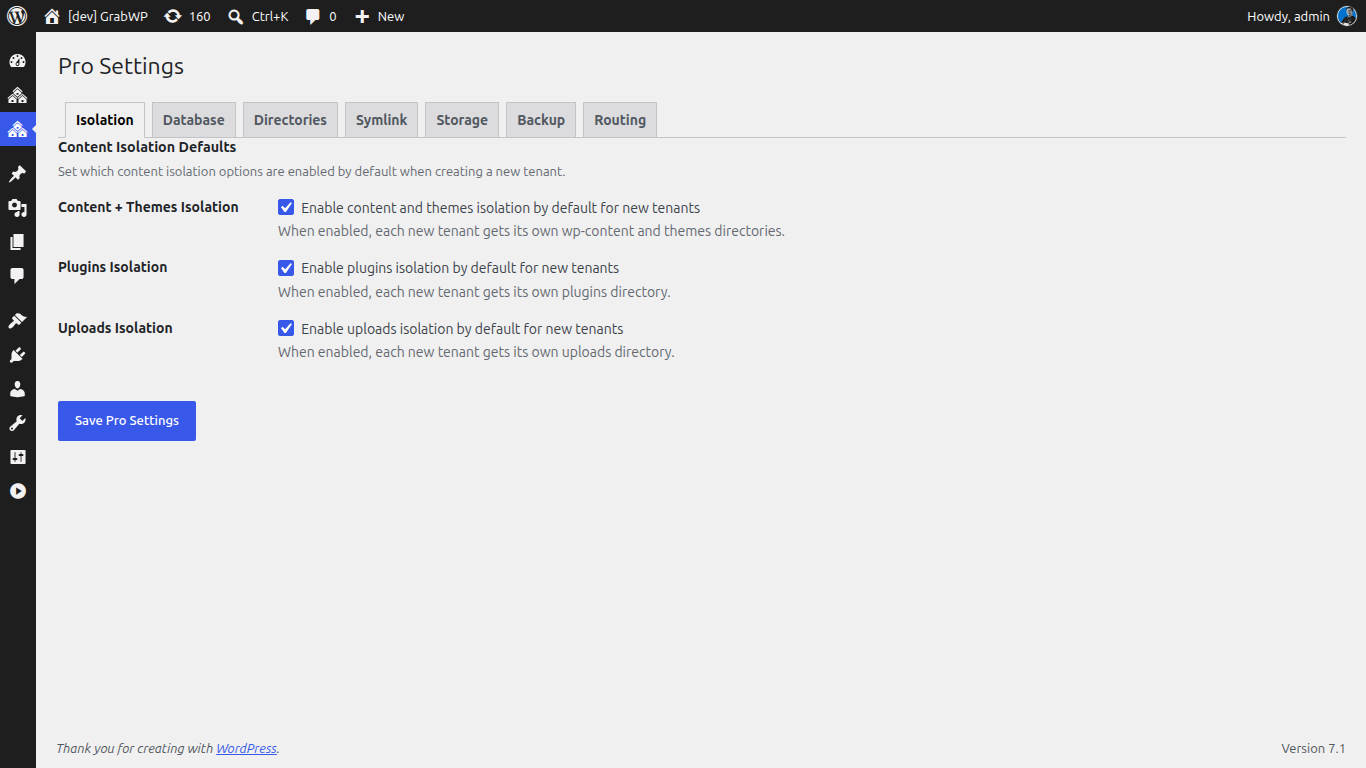
Content Isolation Defaults
These settings determine what gets isolated for each new tenant.
| Setting | Recommended | What it does |
|---|---|---|
| Content + Themes Isolation | On | Each tenant gets its own wp-content and themes directories |
| Plugins Isolation | Off (for most setups) | Each tenant gets its own plugins directory. Increases disk usage. |
| Uploads Isolation | On | Each tenant gets its own uploads directory (media files) |
Tip: Keep Plugins Isolation off unless tenants need different plugin sets. With it off, all tenants share the same plugins (controlled via Tenant Extensions), saving disk space.
Database Defaults
Choose how tenant databases are structured.
| Option | Best for | Description |
|---|---|---|
| Shared | Getting started, small scale | All tenants share one MySQL database with table-prefix isolation. Simplest setup. |
| MySQL Isolated | Production, compliance | Each tenant gets a dedicated MySQL database. Better isolation but requires more database resources. |
| SQLite Isolated | Lightweight tenants | Each tenant gets a SQLite file. No extra MySQL setup needed. Requires the SQLite Database Integration plugin. |
For this tutorial: Start with Shared. You can migrate tenants to isolated databases later.
MySQL Isolated Settings (if selected)
If you choose MySQL Isolated, configure default credentials:
| Field | Description |
|---|---|
| MySQL Host | Database server (e.g., localhost or localhost:3306) |
| MySQL Database | Default database name for new tenants |
| MySQL Username | Database user with CREATE TABLE permissions |
Note: These are defaults. You can set per-tenant credentials when creating individual tenants.
Directory Configuration
Where GrabWP stores tenant data on disk.
| Field | Default | Description |
|---|---|---|
| Tenant Base Dir | wp-content/grabwp-tenancy | Root directory for tenant uploads and data |
| Pro Config Dir | wp-content/grabwp-tenancy-pro | Configuration files for each tenant |
| SQLite Database Dir | wp-content/grabwp-tenancy-sqlite | SQLite database files (if using SQLite isolation) |
Usually the defaults are fine. Only change these if you need tenant data on a different partition or mount point.
You can also lock these paths via
wp-config.phpconstants. If a constant is set, the field shows "set in wp-config.php" and cannot be changed from the UI.
Domain Symlink
Enable clean URLs for tenant content directories. Instead of serving tenant assets from a path like /wp-content/grabwp-tenancy/tenant-123/uploads/, symlinks let them appear under the tenant's own domain path.
| Field | Description |
|---|---|
| Enable Domain Symlink | Turn on symlink-based clean URLs. Requires symlink() PHP function. |
| Domains Directory | Absolute path where domain symlinks are created |
Requires Nginx configuration. The settings page shows a copy-paste ready Nginx config block. Add it to your server configuration and reload Nginx.
For this tutorial: You can skip this initially and enable it later when setting up custom domains.
Object Storage (S3)
Offload tenant media to S3-compatible storage. This section is covered in detail in S3 Object Storage.
| Field | Description |
|---|---|
| Storage Driver | Local (default) or S3 |
For this tutorial: Leave as Local. Configure S3 later if needed.
Save Settings
Click Save Settings at the bottom of the page. A success message confirms the save.