Create Plans
Plans define what your customers can sign up for - free trials, basic tiers, premium offerings. Each plan has pricing, features, and can be linked to a billing provider product.
Navigate to WaaS → Settings → Plans (/wp-admin/admin.php?page=grabwp-tenancy-waas-settings&tab=plans).
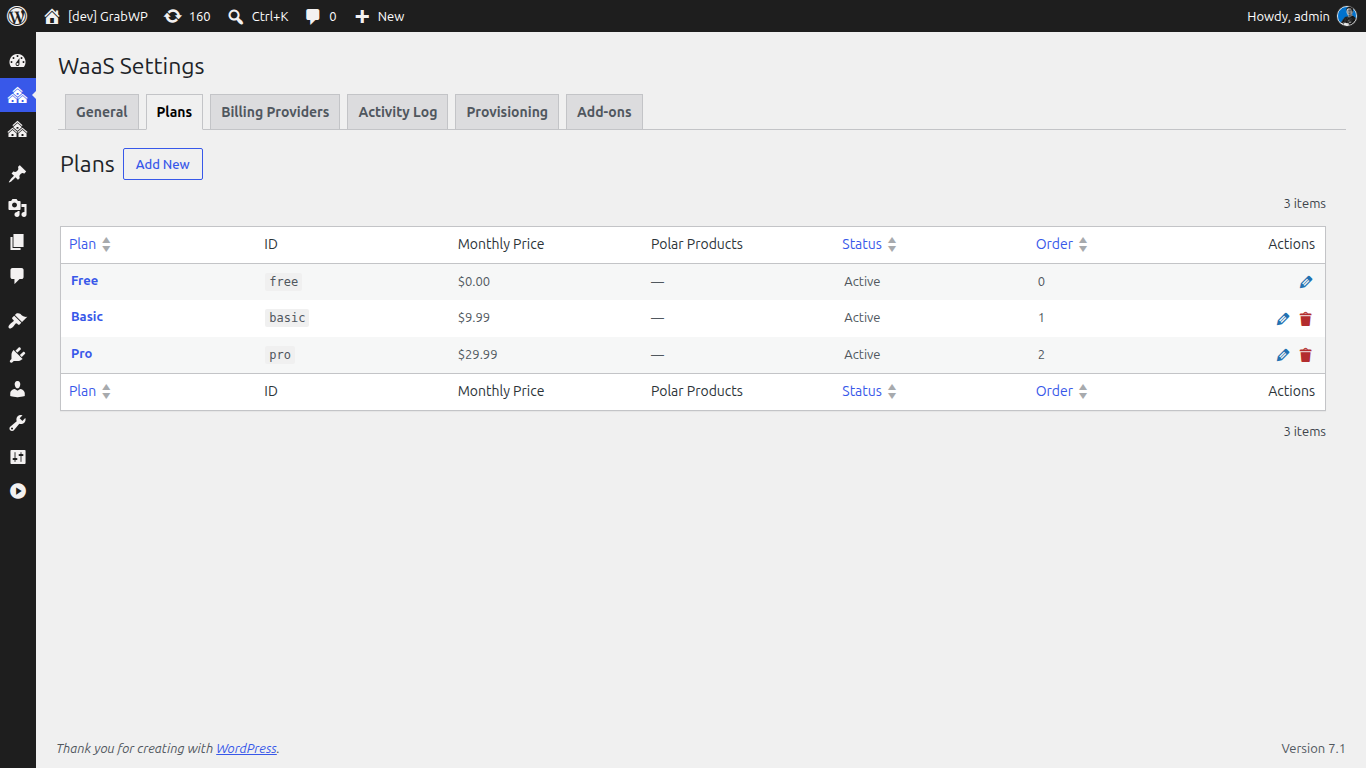
Plan Overview
A WaaS installation starts with a default free plan. You'll create plans to match your offering. For this tutorial, we set up:
- Free - no payment, limited features
- Pro - monthly paid plan via Polar
Create the Free Plan
If a free plan already exists, click Edit to update it. Otherwise click Add New Plan.
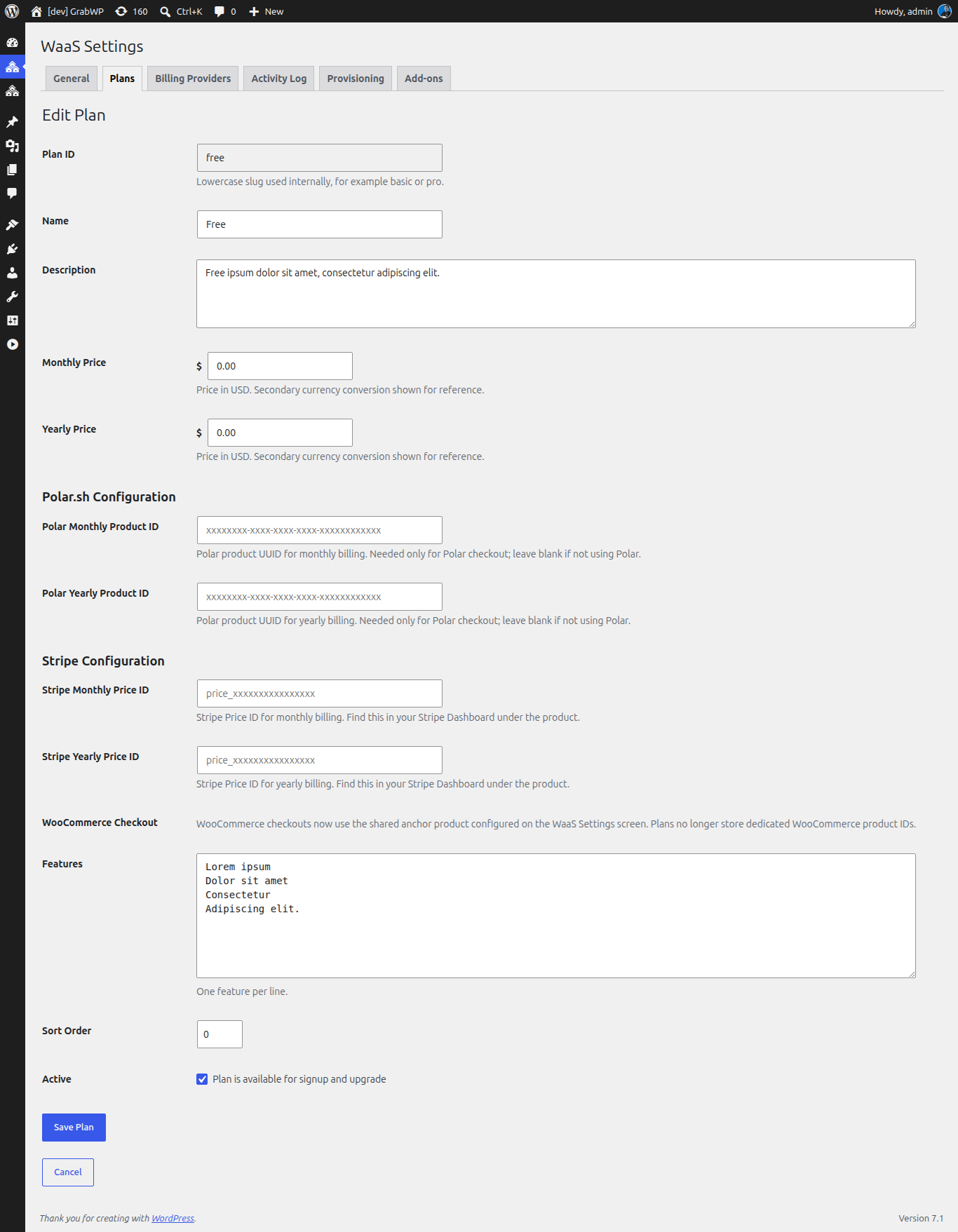
Fill in:
| Field | Value | Notes |
|---|---|---|
| Plan ID | free | Lowercase slug. Cannot be changed after creation. |
| Name | Free | Display name shown to customers |
| Description | Get started with a free WordPress site | Shown on the signup page |
| Monthly Price | 0 | Zero = free plan, no payment required |
| Yearly Price | 0 | Leave at zero |
| Features | See below | One feature per line |
| Sort Order | 0 | Lower numbers appear first |
| Active | Checked | Plan is available for signup |
Features Format
Enter one feature per line in the Features textarea. These are displayed as a feature list on the pricing/signup page.
1 WordPress site
500 MB storage
Community support
Basic themes
Click Save Plan.
Create a Paid Plan (Pro)
Click Add New Plan and fill in:
| Field | Value | Notes |
|---|---|---|
| Plan ID | pro | |
| Name | Pro | |
| Description | Everything you need to grow your business | |
| Monthly Price | 9.99 | Price in your primary currency |
| Yearly Price | 99.99 | Optional - leave blank if you only offer monthly |
| Polar Monthly Product ID | (set after Polar setup) | UUID from Polar. See Set Up Billing. |
| Polar Yearly Product ID | (set after Polar setup) | UUID from Polar, if offering yearly billing |
| Features | See below | |
| Sort Order | 1 | |
| Active | Checked |
Pro Features
1 WordPress site
10 GB storage
Custom domain support
Priority support
Premium themes & plugins
Daily backups
Click Save Plan.
Plan Restrictions on Templates
When editing a template, you can restrict it to specific plans. For example, a premium template might only be available on the Pro plan.
See Set Up Templates for details.
Reordering Plans
Plans appear on the signup page in Sort Order ascending (lowest first). Update the Sort Order field on each plan to control display order.
Next: Set Up Billing