Dashboard, Activity Log, and Provisioning
Use the WaaS dashboard for revenue and subscription totals. Use Activity Log to inspect recorded events. Use Provisioning when a signup or upgrade job needs a retry or should be closed.
WaaS Dashboard
Navigate to Waas → Dashboard (/wp-admin/admin.php?page=grabwp-tenancy-waas).
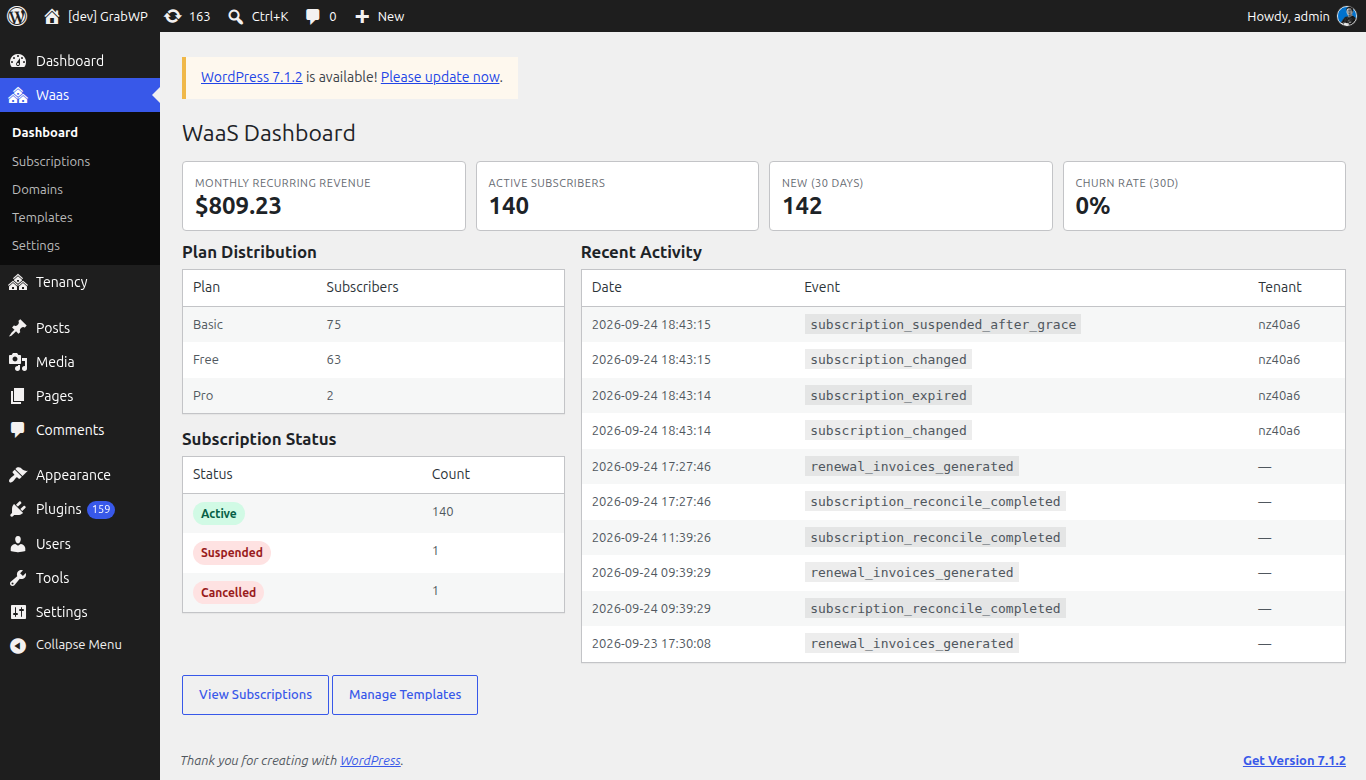
The page heading is WaaS Dashboard.
Summary cards
| Card | Notes |
|---|---|
| Monthly Recurring Revenue | Current MRR, shown with a dollar amount. |
| Active Subscribers | Count of active subscriptions. |
| New (30 days) | Signups in the last 30 days. |
| Churn Rate (30d) | Churn over the last 30 days, as a percent. |
Plan Distribution
Shown when at least one plan has subscribers. Columns are Plan and Subscribers.
Subscription Status
Shown when subscriptions exist. Columns are Status and Count. Each status is a badge. Click it to open Subscriptions filtered to that status. See Managing Subscriptions.
Recent Activity
Shown when log rows exist. Columns are Date, Event, and Tenant. Event is the event code. This panel is a short list. The full log is on Activity Log.
Actions
- View Subscriptions opens the subscriptions list.
- Manage Templates opens the template library.
- View Partners is added when the partner plugin is active.
Verify: the four summary cards render, and View Subscriptions opens page=grabwp-tenancy-waas-subscriptions.
Activity Log
Navigate to Waas → Settings → Activity Log (/wp-admin/admin.php?page=grabwp-tenancy-waas-settings&tab=activity).
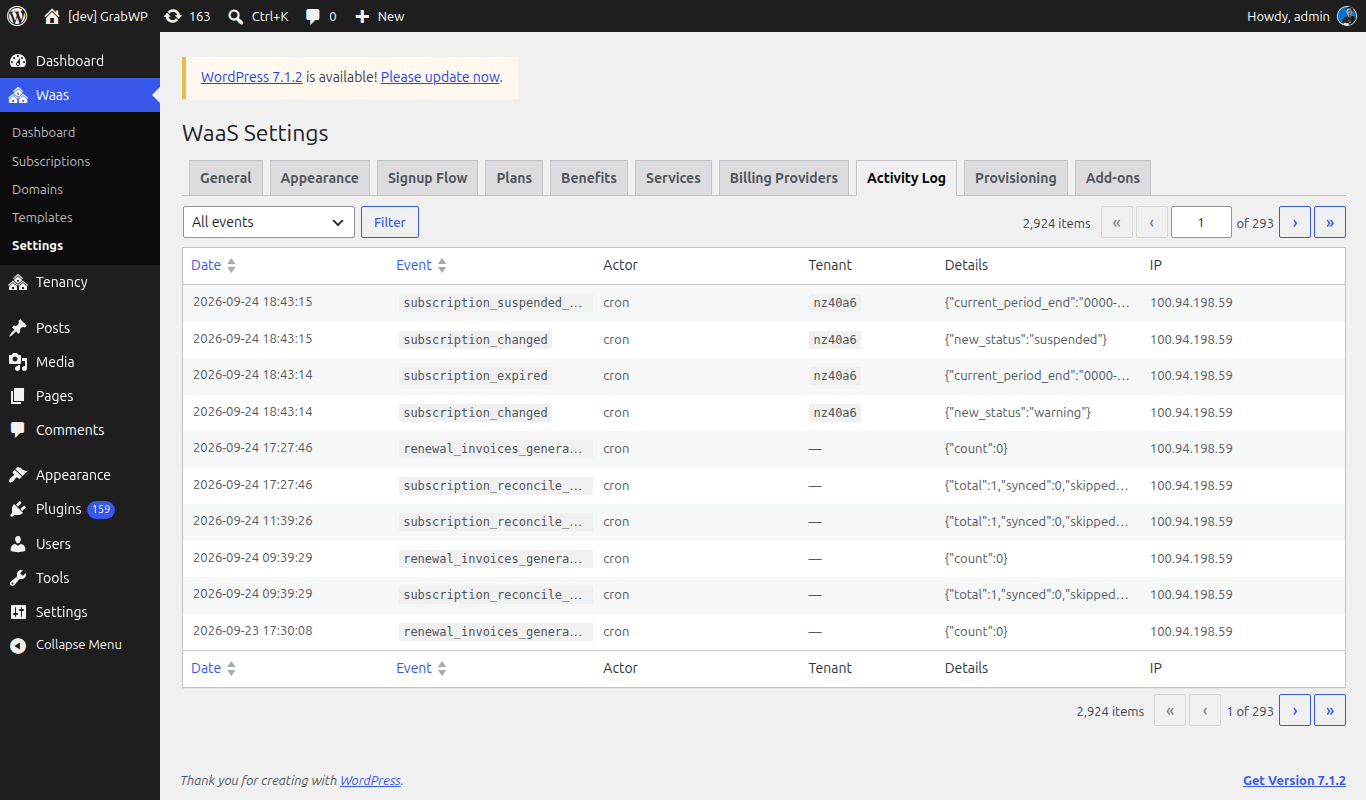
| Column | Notes |
|---|---|
| Date | When the event was stored. Sortable. |
| Event | Event code. Sortable. |
| Actor | cron, another actor type, or the WordPress user's display name when an actor id is stored. |
| Tenant | Tenant id, when the event has one. |
| Details | A short JSON summary. Hover the cell for the fuller payload. |
| IP | Request IP, when one was recorded. |
Filter with the event dropdown, then click Filter. All events clears the event filter. The dropdown options are:
tenant_createdtenant_deletedtenant_updatedtoken_generatedapi_requestsettings_changedsubscription_createdsubscription_changedwebhook_received
The table can also show event codes that are not in that dropdown, such as renewal and reconcile events. Those rows still appear under All events.
How long rows are kept is Retention (days) under Waas → Settings → General, in the Retention and grace period section (7 to 365). See Configure WaaS General Settings.
Verify: choose subscription_changed, click Filter, and confirm the Event column only lists that code. Choose All events and click Filter to see the full log again.
Provisioning
Navigate to Waas → Settings → Provisioning (/wp-admin/admin.php?page=grabwp-tenancy-waas-settings&tab=provisioning).
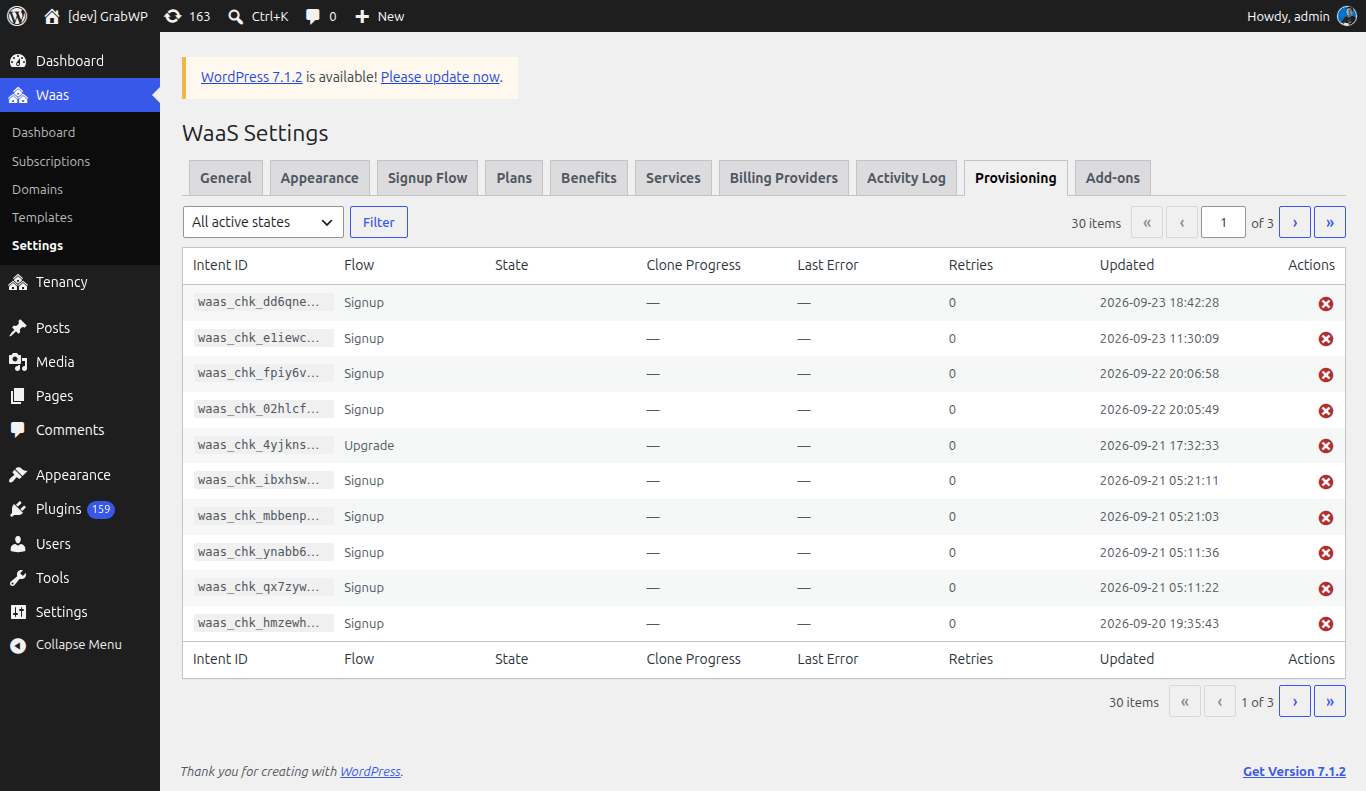
Each row is a provisioning intent: the job that creates or updates a tenant after signup, upgrade, or an add-on purchase.
| Column | Notes |
|---|---|
| Intent ID | Intent id. |
| Flow | Signup, Upgrade, or Addon_purchase. |
| State | Current state, shown as a badge. |
| Clone Progress | Clone step and total, as step / total, while a clone is in progress. |
| Last Error | Latest error text, when there is one. |
| Retries | How many retries have been recorded. |
| Updated | Last update time. |
| Actions | Retry and Dismiss. |
Filter with All active states or one of these states, then click Filter:
| State | What it means on this screen |
|---|---|
checkout_pending | Checkout has not completed. |
payment_confirmed | Payment is confirmed and provisioning continues. |
finalizing | The job is finishing the tenant. |
tenant_created | The tenant record exists and later steps are still running. |
clone_running | A template clone is in progress. Clone Progress shows the step count. |
failed_retriable | The job failed and can be queued again. |
Completed jobs are not listed in this active set. Dismiss moves an intent to failed_terminal.
Retry
Retry (the update icon) is shown when the state is failed_retriable or clone_running.
- Click Retry on that row.
Verify: the notice Intent re-queued for retry. appears. The intent returns to failed_retriable, Retries is reset to 0, and the job is scheduled to run again.
Dismiss
- Click Dismiss (the dismiss icon).
- Confirm Mark this intent as dismissed (failed_terminal)?
Verify: the notice Intent dismissed. appears and the intent leaves the active list.
Related: Managing Subscriptions