Email Settings and Templates
The Email tab controls who gets admin notifications, the footer on every email, when trial reminders go out, and the text of each template.
Navigate to Waas → Settings → Email (/wp-admin/admin.php?page=grabwp-tenancy-waas-settings&tab=email).
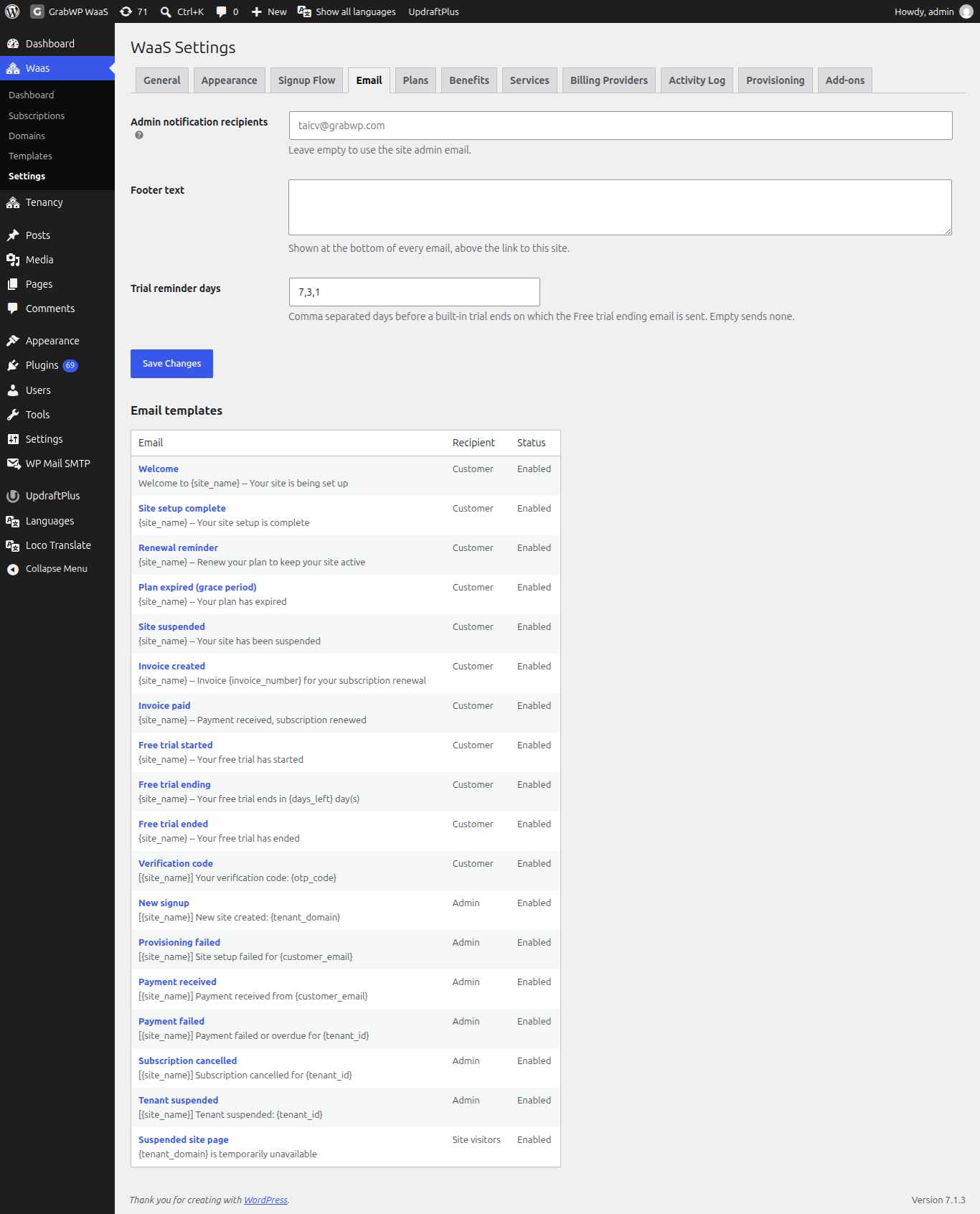
Email settings
| Field | Notes |
|---|---|
| Admin notification recipients | Comma-separated email addresses. Invalid addresses are dropped. Leave empty to use the site admin email. |
| Footer text | Shown at the bottom of every email, above the link to this site. |
| Trial reminder days | Comma-separated days before a built-in trial ends on which Free trial ending is sent. Default 7,3,1. Empty sends none. |
Click Save Changes.
Email templates
The Email templates table has three columns: Email, Recipient, and Status. Email shows the template name and its current subject. Status is Enabled or Disabled, plus Customized when you changed the default. All templates are enabled by default.
Customer
| Default subject | |
|---|---|
| Welcome | Welcome to {site_name} -- Your site is being set up |
| Site setup complete | {site_name} -- Your site setup is complete |
| Renewal reminder | {site_name} -- Renew your plan to keep your site active |
| Plan expired (grace period) | {site_name} -- Your plan has expired |
| Site suspended | {site_name} -- Your site has been suspended |
| Invoice created | {site_name} -- Invoice {invoice_number} for your subscription renewal |
| Invoice paid | {site_name} -- Payment received, subscription renewed |
| Free trial started | {site_name} -- Your free trial has started |
| Free trial ending | {site_name} -- Your free trial ends in {days_left} day(s) |
| Free trial ended | {site_name} -- Your free trial has ended |
| Verification code | [{site_name}] Your verification code: {otp_code} |
Verification code is required for signup and login. It cannot be turned off, and its body must contain {otp_code}.
Admin
Sent to Admin notification recipients.
| Default subject | |
|---|---|
| New signup | [{site_name}] New site created: {tenant_domain} |
| Provisioning failed | [{site_name}] Site setup failed for {customer_email} |
| Payment received | [{site_name}] Payment received from {customer_email} |
| Payment failed | [{site_name}] Payment failed or overdue for {tenant_id} |
| Subscription cancelled | [{site_name}] Subscription cancelled for {tenant_id} |
| Tenant suspended | [{site_name}] Tenant suspended: {tenant_id} |
Site visitors
| Default subject | |
|---|---|
| Suspended site page | {tenant_domain} is temporarily unavailable |
This is the page visitors see on a suspended site, not an email. It is always on and has no Send test email button.
Edit a template
- Click the template name in the Email column.
- Set Enabled (Send this email), Subject, and HTML body. The header, colors, and footer are added automatically. A plain-text version is generated from the HTML.
- Click a button under Tokens to insert that token at the cursor in the subject or body.
- Click Save template.
Preview opens the rendered email in a new tab. Send test email sends it to your own user email. Both use sample token values and the subject and body currently in the form. Reset to default appears once the template is customized.
Click All email templates to go back to the list.
Verify: after Save template, the notice Settings saved. appears on the edit screen. Back on the list, the row shows Customized in Status. Send test email shows Test email sent to your address.
Related: Configure the Signup Flow