Benefits, Services, and Add-ons
Benefits are the capabilities a tenant receives. Services are the paid extras customers can buy on top of a plan. The Add-ons tab is a separate catalog of installable plugins.
Benefits
Navigate to Waas → Settings → Benefits (/wp-admin/admin.php?page=grabwp-tenancy-waas-settings&tab=benefits).
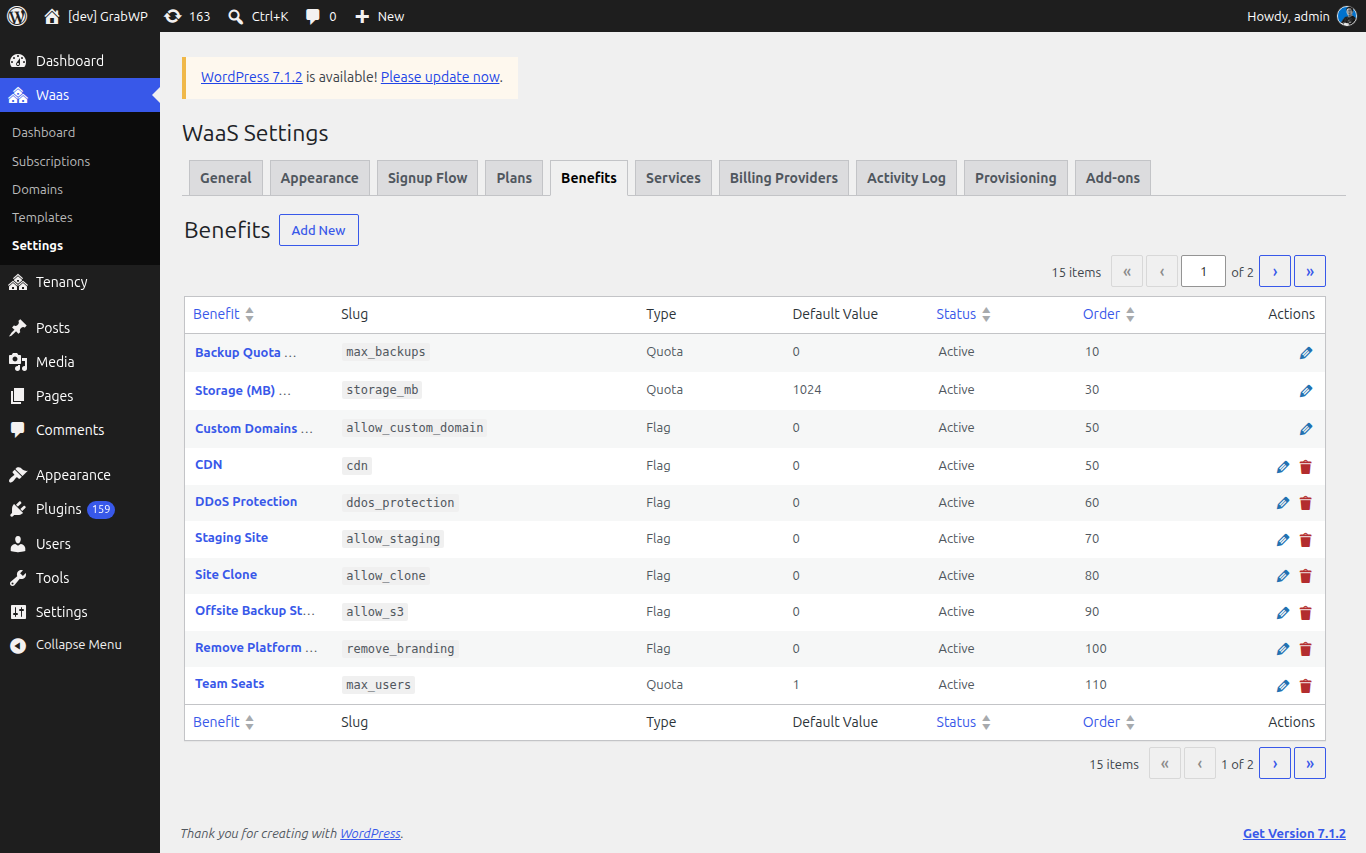
The list columns are Benefit, Slug, Type, Default Value, Status, Order, and Actions. Edit opens the benefit. Delete asks Delete this benefit? System benefits show a System badge and have no delete button.
Add a benefit
Click Add New.
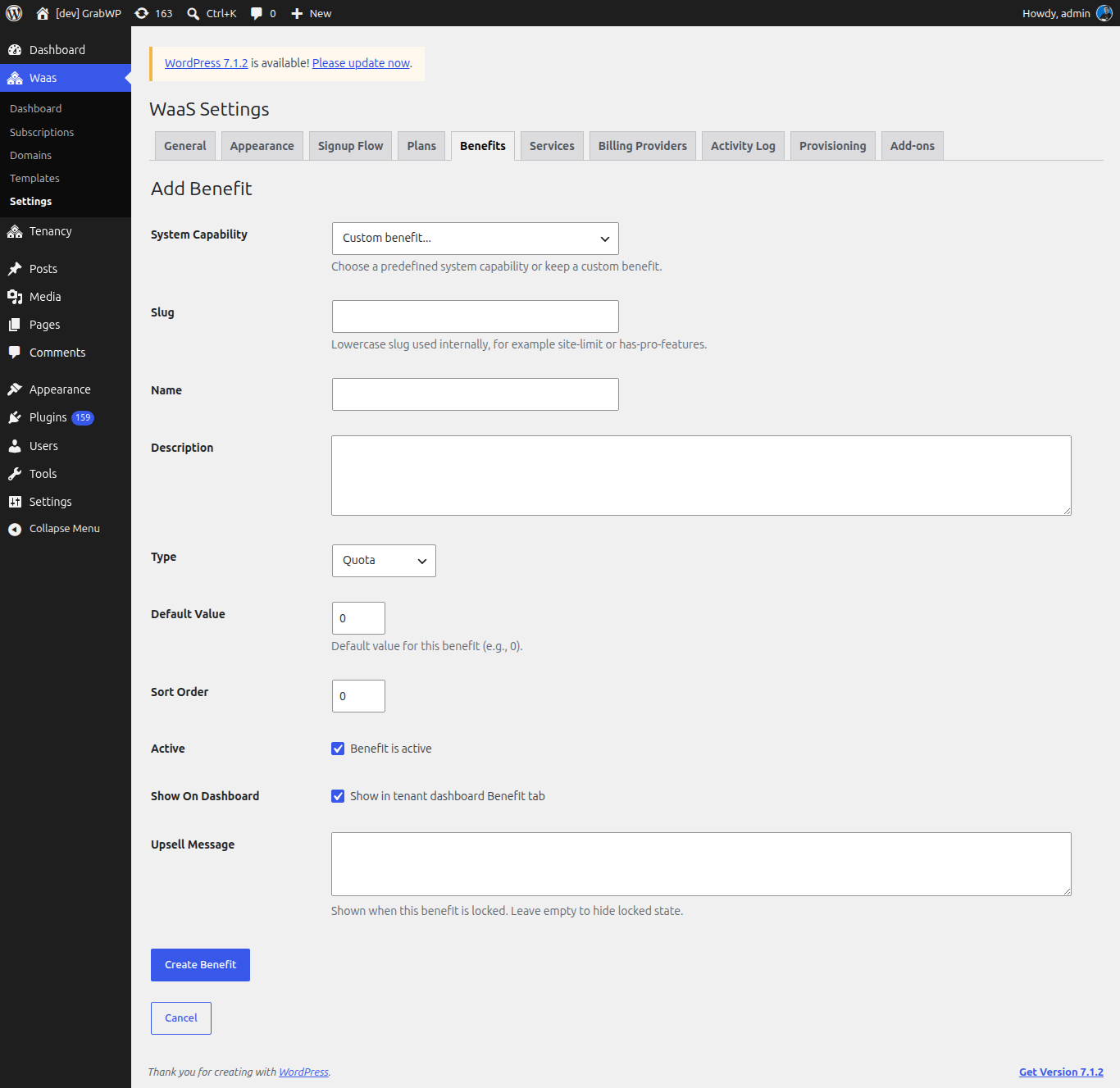
| Field | Notes |
|---|---|
| System Capability | Custom benefit... or one of the predefined capabilities below. Shown only when creating. Choosing one fills the slug and locks the type. |
| Slug | Lowercase letters, numbers, and hyphens. Read-only after save. |
| Name | Label tenants and plan forms use. |
| Description | Shown on the tenant Benefit tab. |
| Type | Quota, Flag, or Custom HTML. Locked for a system capability. |
| Default Value | Quota: a number. Flag: Enabled by default. Custom HTML: the visual editor. |
| Sort Order | Whole number, minimum 0. Lower numbers are listed first. |
| Active | Benefit is active. Inactive benefits stay out of plan and service assignment lists that load active benefits only. |
| Show On Dashboard | Show in tenant dashboard Benefit tab. |
| Upsell Message | Text shown when the benefit is locked. Leave it empty and that message is omitted. |
Click Create Benefit.
Verify: the notice Benefit saved. appears and the row is on the list.
Edit a benefit
Click the benefit name or the edit icon.
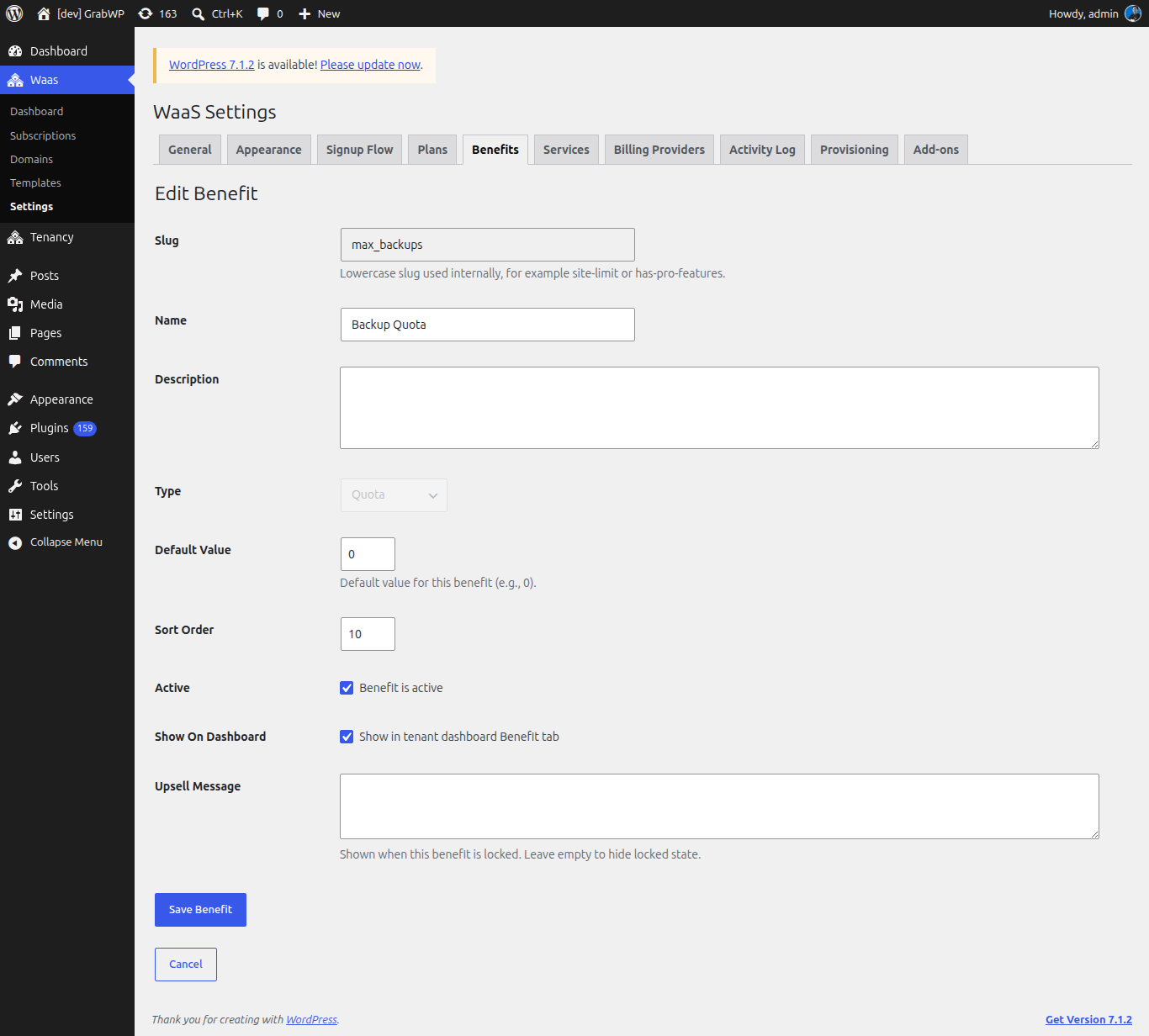
Slug is read-only. On a system benefit, Type is locked. Click Save Benefit. Cancel returns to the list.
Verify: the notice Benefit saved. appears.
Benefit types
| Type | What you store | What the tenant sees when it is included |
|---|---|---|
| Quota | A number | A limit. Backup Quota and Storage (MB) also show usage, as N of M used. Other quotas show N included when usage is not tracked. |
| Flag | On or off | Included when the value is on. The related tools open inside the benefit panel for the system flags below. |
| Custom HTML | HTML from the editor | That HTML, when the tenant's value is not empty. |
System capabilities
| Name | Slug | Type | Tenant panel |
|---|---|---|---|
| Backup Quota | max_backups | Quota | Backup tools, with usage against the quota. |
| Storage (MB) | storage_mb | Quota | Storage usage, in megabytes. |
| Custom Domains | allow_custom_domain | Flag | Custom domain tools when the flag is on. |
A capability that is already created is left out of the System Capability dropdown.
Services
A service is an extra a tenant can buy during signup (Optional Services) or later from the dashboard Service tab. Services are stored separately from the plugin Add-ons catalog.
Navigate to Waas → Settings → Services (/wp-admin/admin.php?page=grabwp-tenancy-waas-settings&tab=services).
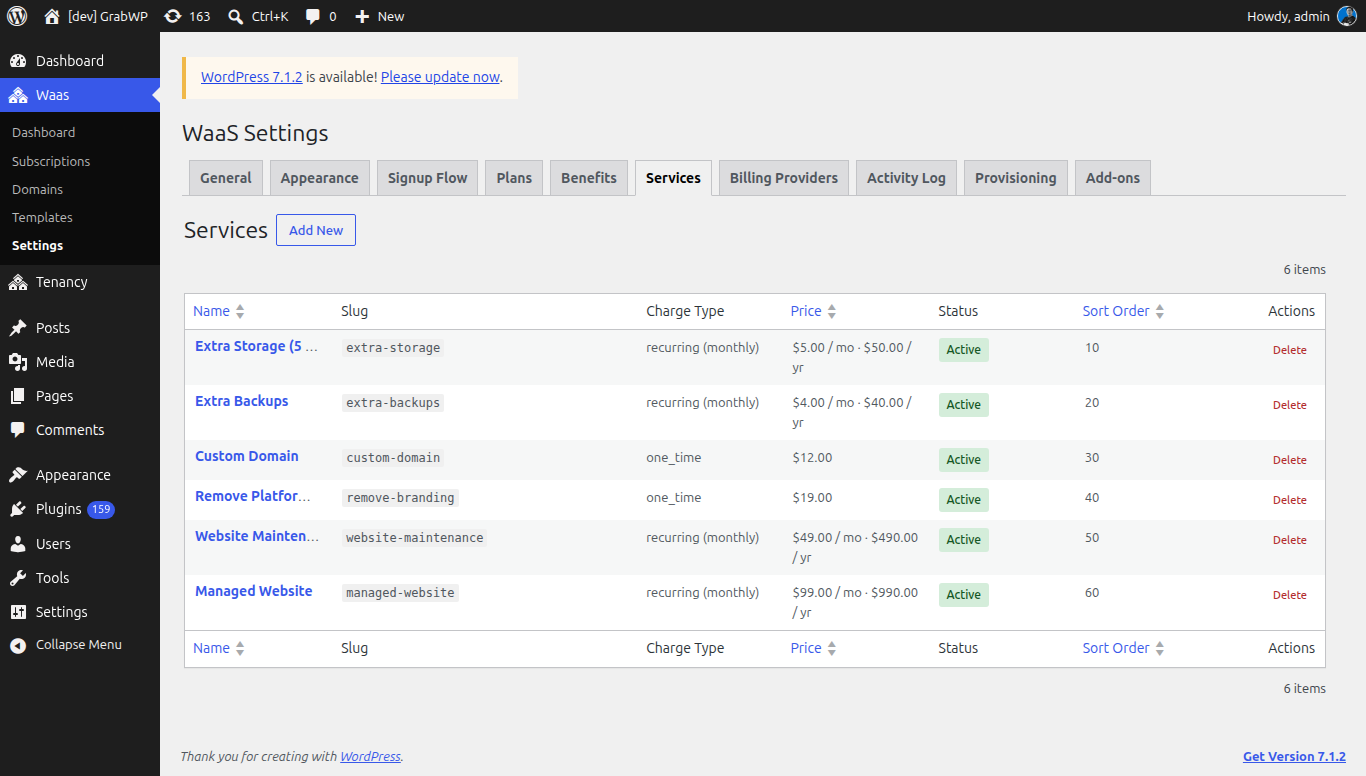
Columns are Name, Slug, Charge Type, Price, Status, Sort Order, and Actions. A recurring price is shown as monthly and yearly amounts. Click the name to edit. Delete asks Are you sure you want to delete this service? If the service is in use, the notice is Failed to delete service. It may be in use.
Add a service
Click Add New. The form has three tabs: Name and price, Benefits, and Display & Availability.
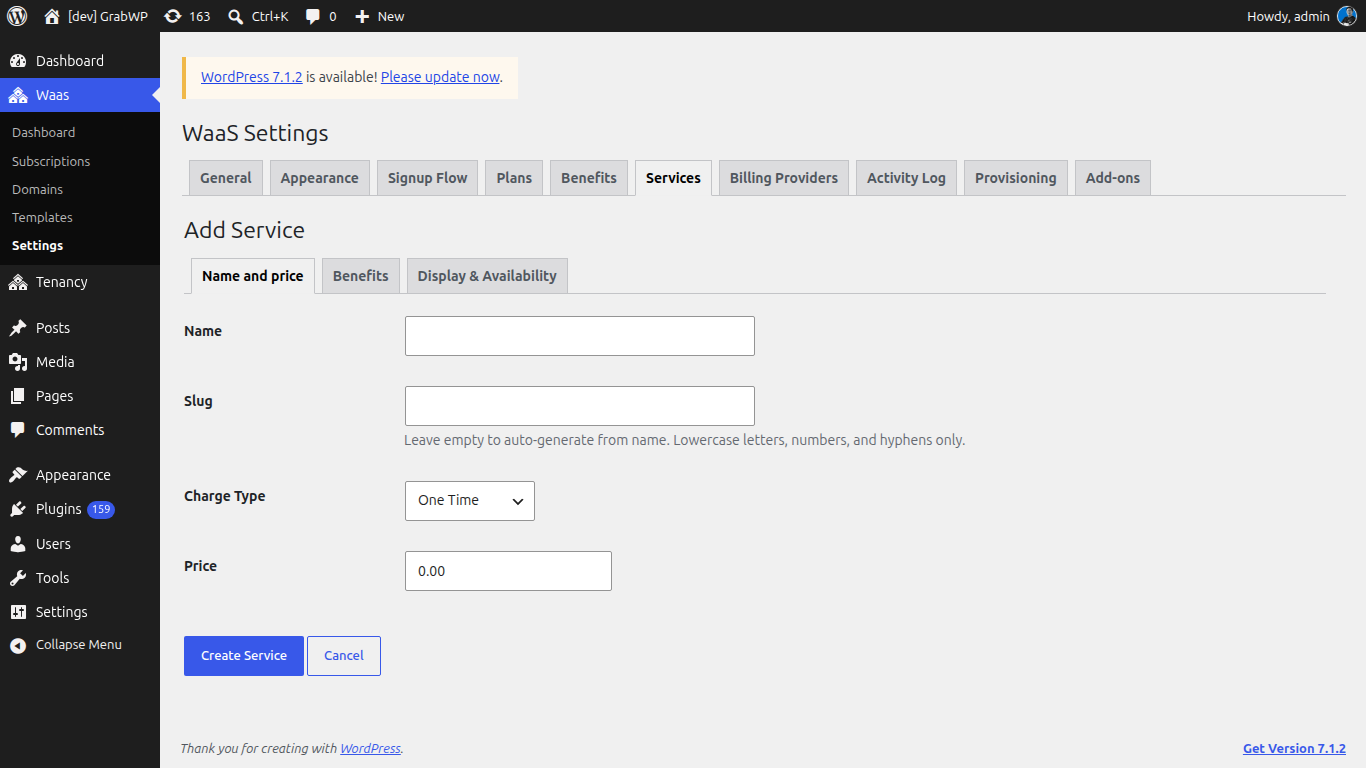
| Field | Notes |
|---|---|
| Name | Customer-facing name. |
| Slug | Leave empty to generate it from the name. Lowercase letters, numbers, and hyphens. Read-only after save. |
| Charge Type | One Time, Non-Recurring, or Recurring. |
| Price | Shown for One Time and Non-Recurring. |
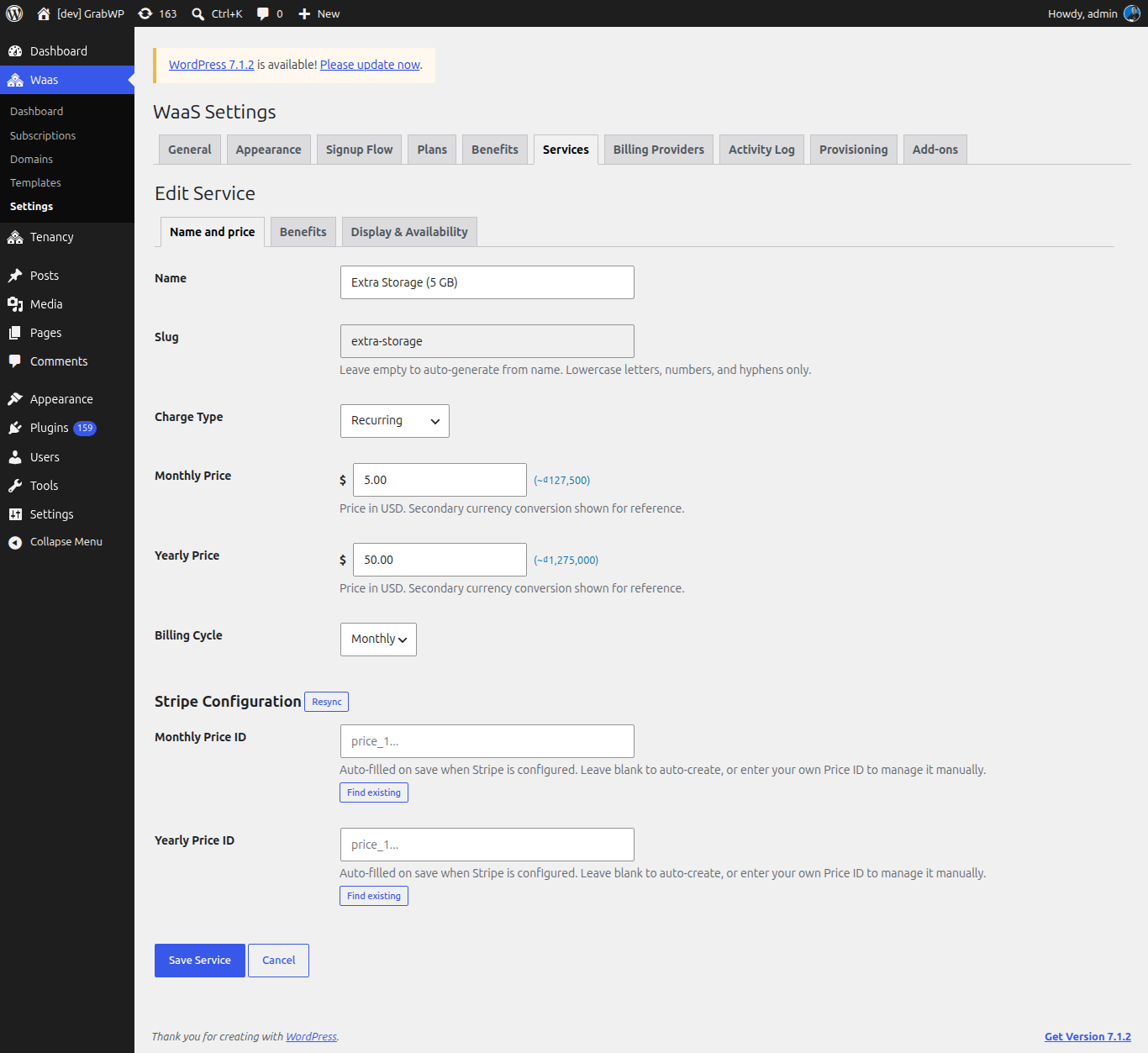
| Monthly Price | Shown for Recurring. Price is in your primary currency. A secondary-currency estimate appears when one is configured. |
| Yearly Price | Shown for Recurring. |
| Billing Cycle | Monthly or Yearly. Shown for Recurring. This is the service's own cycle. |
One Time and Non-Recurring use the single Price and are not billed on a renewal cycle. Recurring uses Monthly Price and Yearly Price.
When Charge Type is Recurring and a billing provider defines service fields, that provider's configuration is shown under the prices. With Stripe enabled, the heading is Stripe Configuration, with Resync, Monthly Price ID, Yearly Price ID, and Find existing. Leave a price id blank to auto-create it on save when Stripe is configured, or paste your own id. Provider setup lives on Waas → Settings → Billing Providers.
Benefits this service grants
Open Benefits. The intro line is Specify which benefits this service provides.
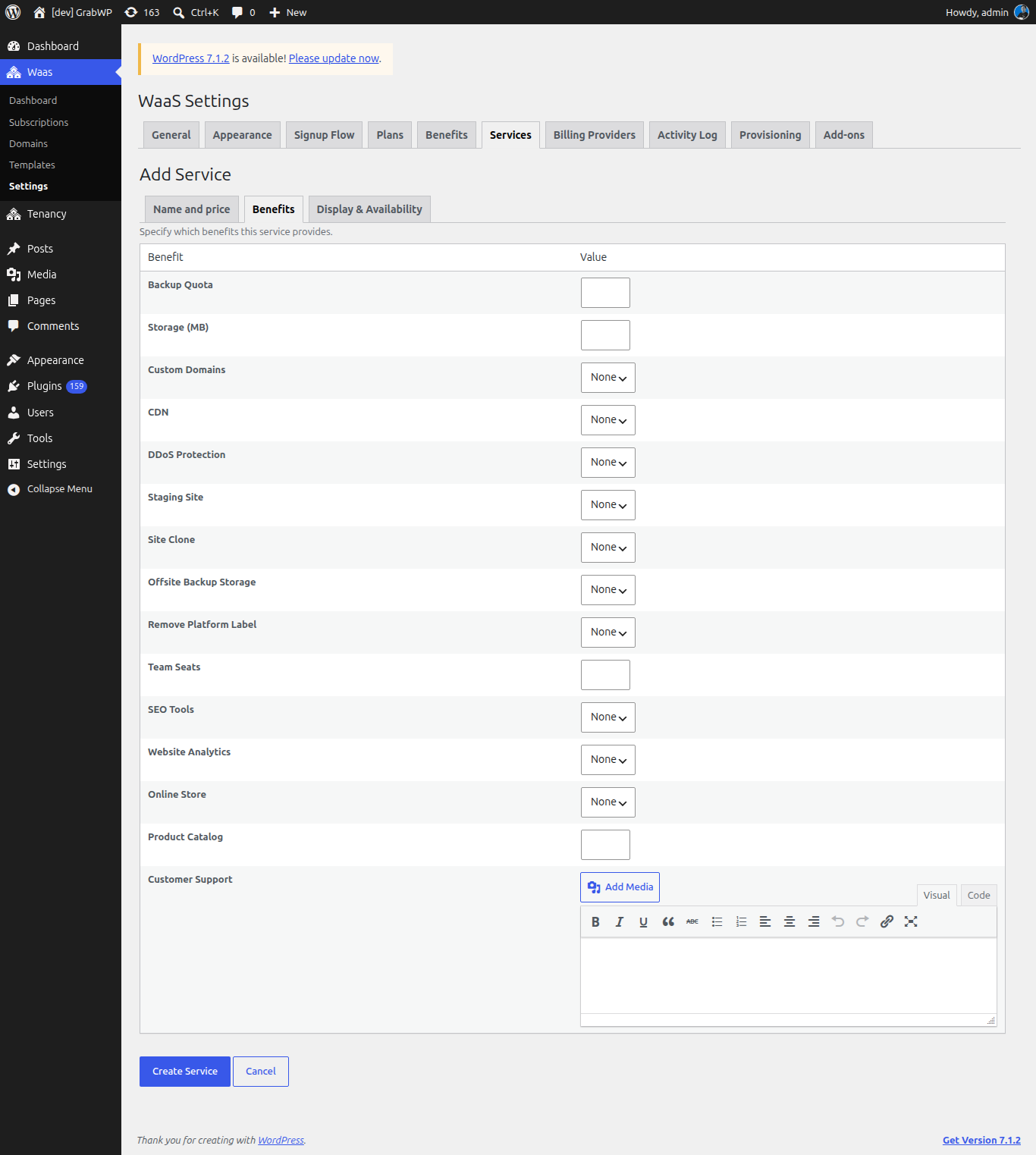
| Benefit type | Value control |
|---|---|
| Quota | A number. |
| Flag | None, Yes, or No. |
| Custom HTML | The visual editor. |
The same table is on Edit Service.
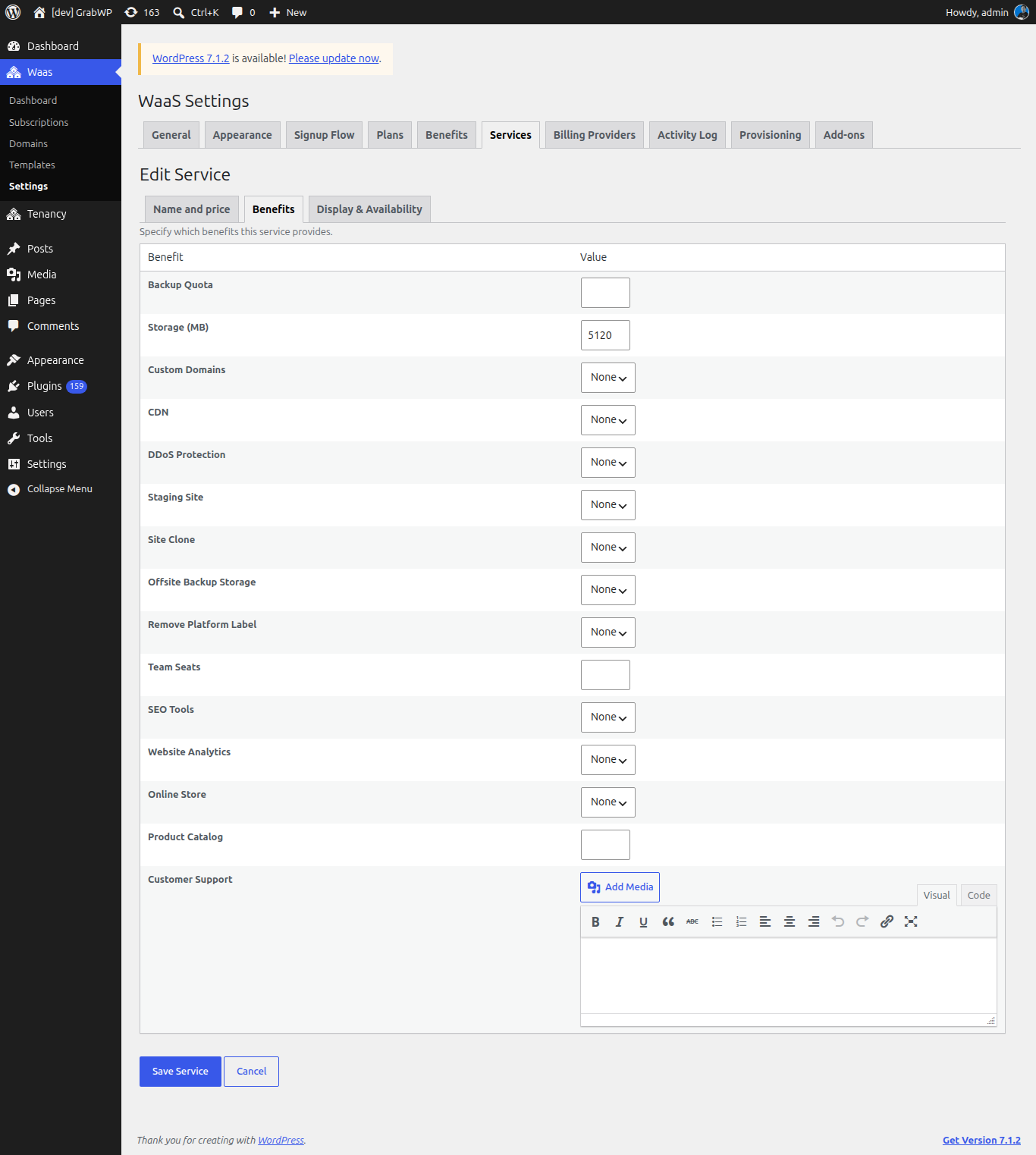
Display and which plans can sell it
Open Display & Availability.
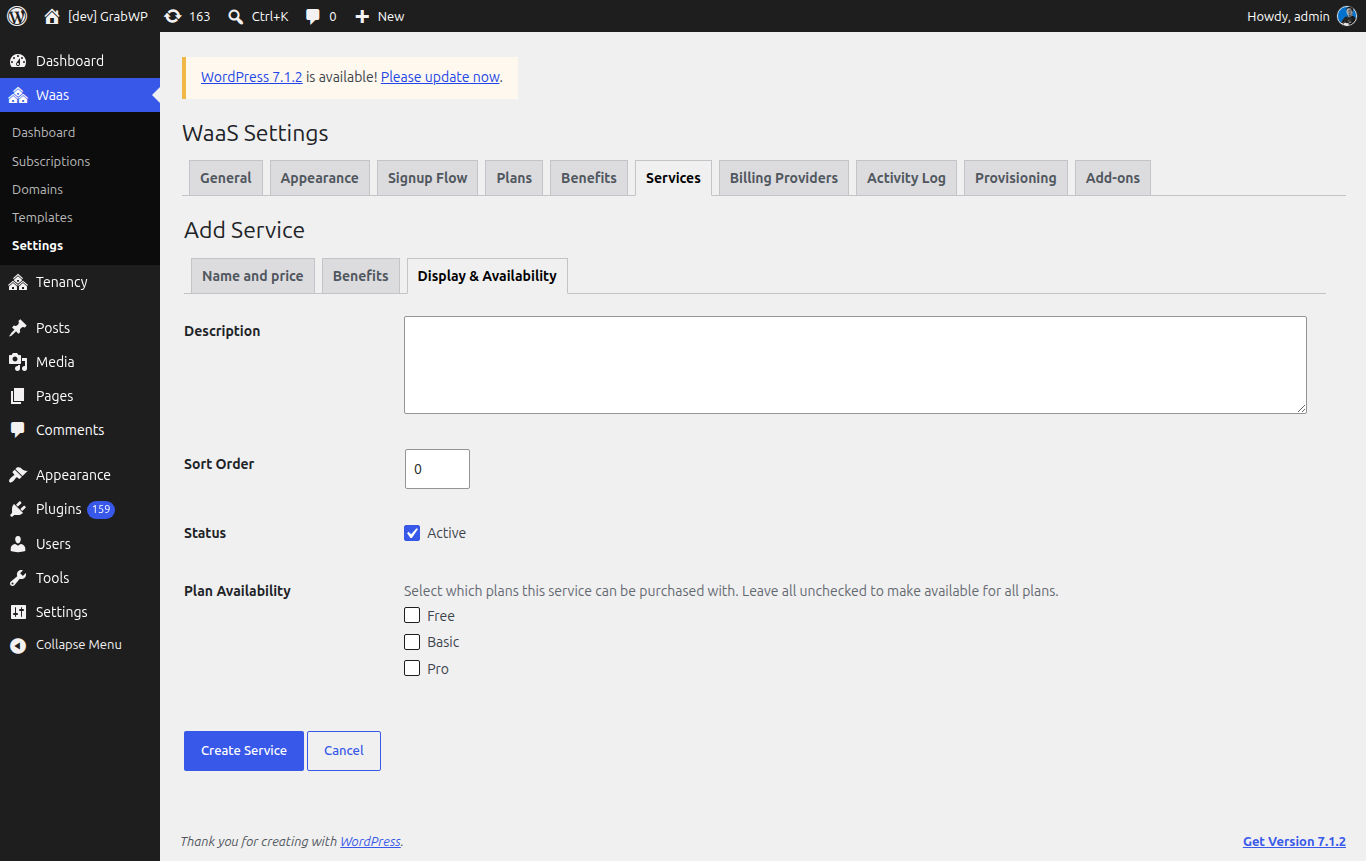
| Field | Notes |
|---|---|
| Description | Shown on service cards. |
| Sort Order | Whole number, minimum 0. Lower numbers are listed first. |
| Status | Active. Inactive services are not offered. |
| Plan Availability | Check the plans that may sell this service. Leave every box unchecked to offer it on all plans. |
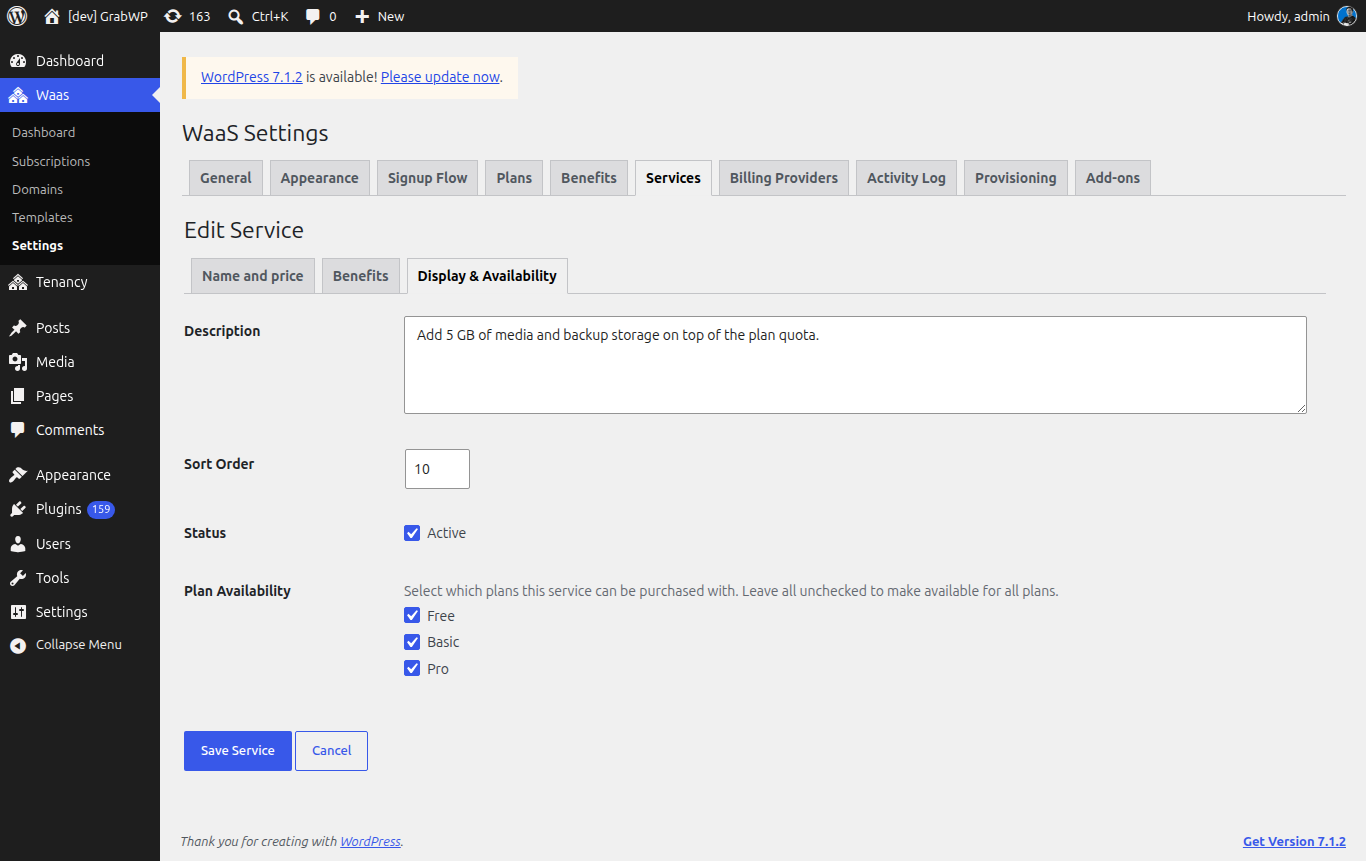
Click Create Service or Save Service.
Verify: the notice Service saved. appears and the row shows the charge type and Active or Inactive.
Attach benefits and services to a plan
Open Waas → Settings → Plans, then Add New Plan or edit a plan, and open Benefits & Services. Plan fields are also covered in Create Plans.
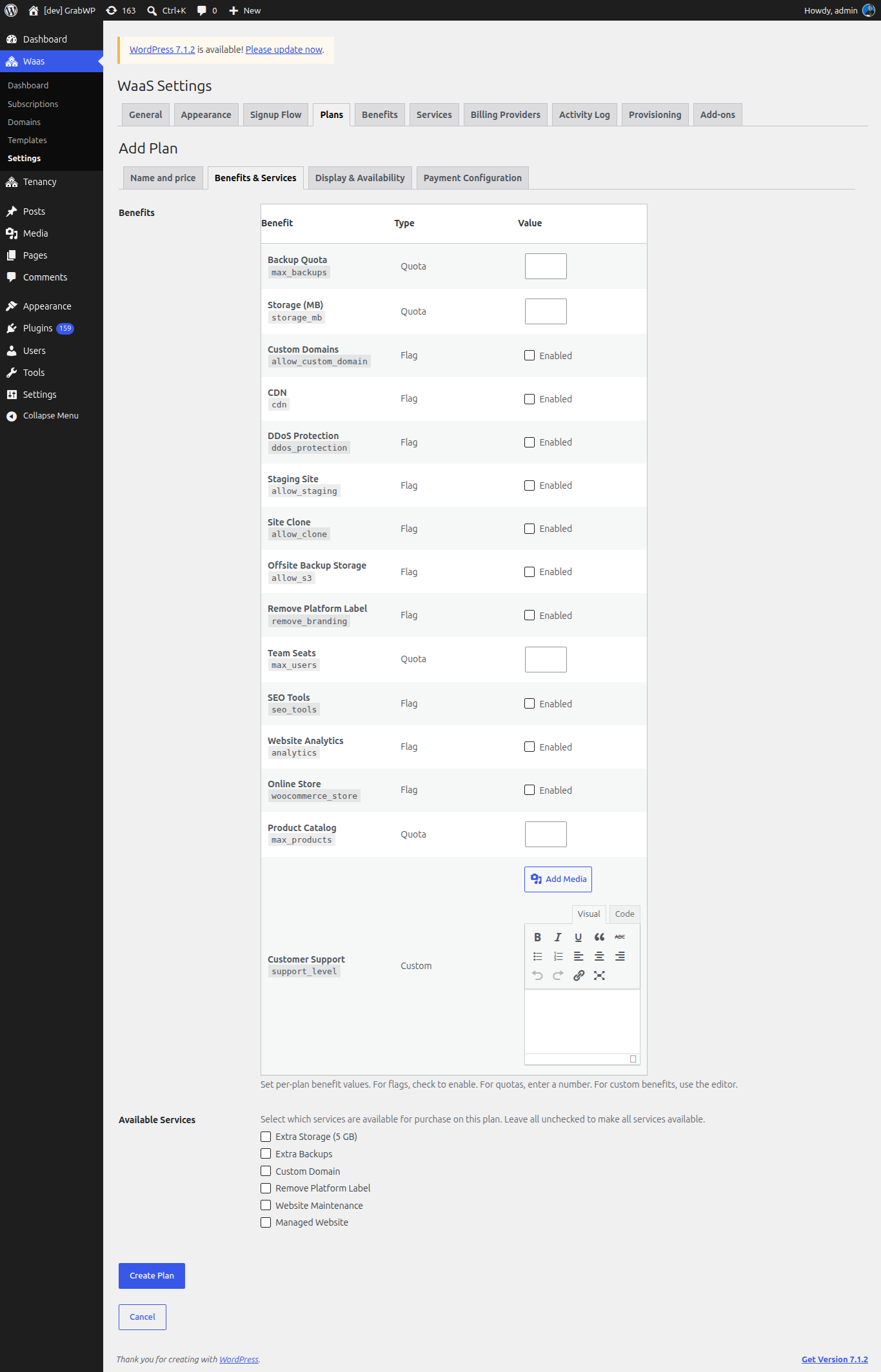
Benefits lists every active benefit:
| Type | Value |
|---|---|
| Quota | A number, minimum 0. |
| Flag | Check Enabled. |
| Custom HTML | The editor. |
The help under the table is: set per-plan benefit values. For flags, check to enable. For quotas, enter a number. For custom benefits, use the editor.
Available Services lists active services. Check the ones this plan may sell. Leave every box unchecked to make all services available. This is the same rule as Plan Availability on the service form.
Save the plan.
Verify: reopen Benefits & Services and confirm the values and checked services are still there.
What tenants see
On the customer dashboard, the tabs are Benefit and Service.
Benefit lists benefits that have Show On Dashboard checked. Each one is Included or Locked.
- Included Backup Quota, Storage (MB), and Custom Domains embed those tools in the panel.
- A Manage link is shown when a benefit points at Plan & Billing, Overview, or Service.
- A locked benefit shows Locked. The Upsell Message is printed when you set one. If a service the tenant can still buy grants that benefit, the button is Buy Service. Otherwise the link is Plan & Billing.
- If nothing is visible, the tab says No benefits are available for this site yet.
Service has two sections:
- Active Services. Recurring ones show a Recurring badge and Renews or Ends with a date. Cancel asks Cancel this service? It will keep working until the end of your current billing period, then stop. The confirm button is Cancel service.
- Available Services. Cards show the description, price (or Free), and Buy. A recurring service with both prices shows Billing cycle with Monthly and Yearly options.
If neither section has rows, the tab says No services are active or available for your plan.
Signup shows services on the Optional Services step of the signup flow. Card text follows that step's Details setting (Description or Benefits).
Add-ons tab
Add-ons lists installable GrabWP plugins. It does not create services.
Navigate to Waas → Settings → Add-ons (/wp-admin/admin.php?page=grabwp-tenancy-waas-settings&tab=addons).
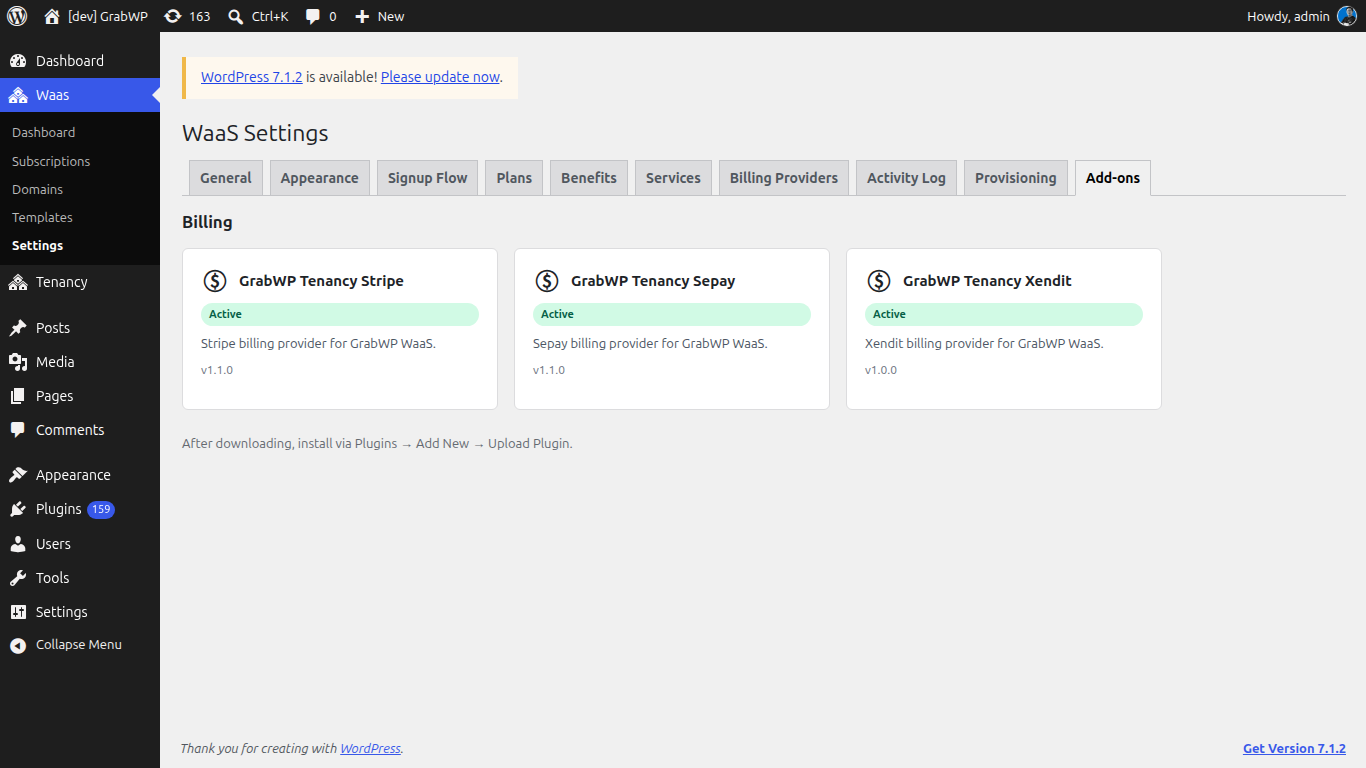
Cards are grouped by category. Each card shows the name, a state badge, a short description, and a version (v plus the version number).
| Badge | Meaning |
|---|---|
| Available | Not installed. |
| Installed | Present, not active. |
| Active | The plugin is active. |
| Update Available | A newer package is in the catalog. |
| Requires WaaS Update | The card shows Requires WaaS plus the required version. Download ZIP is not offered. |
When a download is allowed, the card has Download ZIP. After downloading, install via Plugins → Add New → Upload Plugin.
If the catalog is empty, the notice is No add-ons available right now.
Verify: a downloaded plugin appears under Plugins after you upload and activate it, and its card badge changes to Active.