Set Up Frontend Pages
Your WaaS platform needs three customer-facing pages: Signup, Dashboard, and Templates. Each page can use either a shortcode or a Gutenberg block.
Quick Setup (Auto-Create)
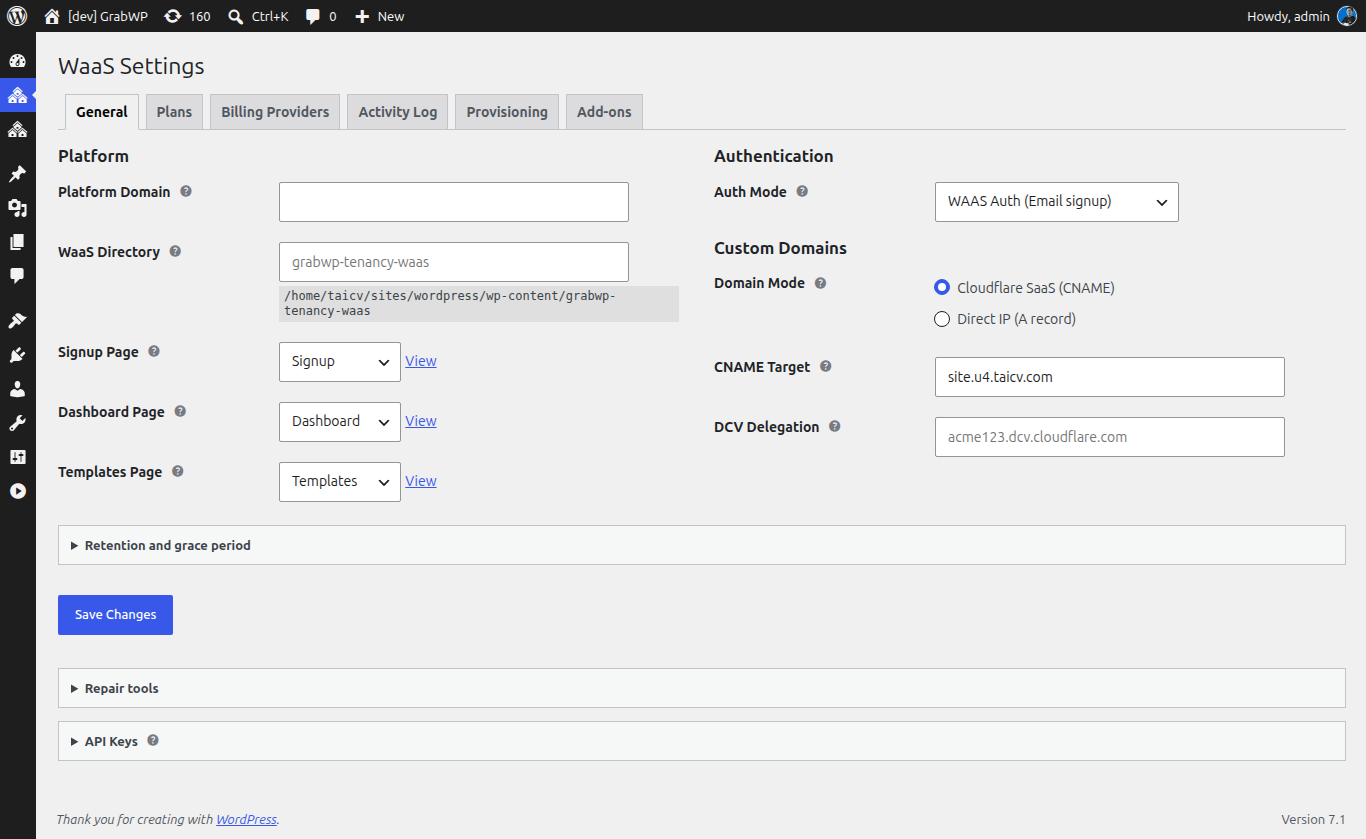
The fastest way: go to WaaS → Settings → General and click the Create/Repair Signup and Dashboard Pages button. This creates all three pages with the correct shortcodes.
Then select each page in the corresponding dropdown and save settings.
Manual Setup
Option A: Using Shortcodes
Create three WordPress pages with these shortcodes:
1. Signup Page
Create a new page (e.g., title: "Signup", slug: /signup/).
Add this shortcode as the page content:
[grabwp_waas_signup]
This renders the complete signup flow:
- Plan selection
- Template picker (if templates exist)
- Site details form (subdomain, email)
- Payment redirect (for paid plans)
- Provisioning status
2. Dashboard Page
Create a new page (e.g., title: "Dashboard", slug: /dashboard/).
[grabwp_waas_dashboard]
This renders the tenant owner dashboard:
- Site overview and quick links
- Subscription status and billing
- Custom domain management
- Backup and restore
- Account settings (email, password)
3. Templates Page
Create a new page (e.g., title: "Templates", slug: /templates/).
[grabwp_waas_templates]
This renders the template browser gallery with:
- Template cards with thumbnails and descriptions
- Tag-based filtering (pills and dropdowns)
- Search
- Pagination
- Preview and "Use this template" buttons
Customize the template browser with shortcode attributes. See Shortcode Reference for all options.
Common configurations:
// Show all templates, default filters
[grabwp_waas_templates]

// Show 9 templates per page, industry tags as pills
[grabwp_waas_templates per-page="9" filter-tags="industry"]

// Curated gallery, no filters, no pagination
[grabwp_waas_templates tags="featured" tags-browser="no" per-page="0"]
Option B: Using Gutenberg Blocks
If you prefer the block editor, use the Gutenberg blocks instead of shortcodes.
1. Signup Block
- Edit your Signup page
- Click + (block inserter) and search for "WaaS Signup"
- Insert the block
- Save the page
2. Dashboard Block
- Edit your Dashboard page
- Search for "WaaS Dashboard"
- Insert the block - supports wide and full-width alignment
- Save
3. Template Browser Block
- Edit your Templates page
- Search for "GrabWP Template Browser"
- Insert the block
- Configure via the Settings sidebar (click the gear icon):
| Control | What it does |
|---|---|
| Limit by tags | Server-side filter - only load templates with these tags |
| Show tag browser toolbar | Toggle the filter toolbar on/off |
| Pill filter groups | Which tag groups show as pill buttons vs. dropdowns |
| Cards per page | Number of template cards per page (0 = show all) |
- Save the page
Note: Blocks show a placeholder in the editor. The full gallery renders only on the frontend.
See Block Walkthrough for detailed block usage.
Link Pages in WaaS Settings
After creating the pages, connect them:
- Go to WaaS → Settings → General
- Set each dropdown:
- Signup Page → your Signup page
- Dashboard Page → your Dashboard page
- Templates Page → your Templates page
- Click Save Settings
Shortcode vs Block Comparison
| Feature | Shortcode | Block |
|---|---|---|
| Ease of use | Paste shortcode text | Visual editor insert |
| Configuration | Attributes in shortcode string | Inspector sidebar controls |
| Preview in editor | Shows shortcode text | Shows placeholder |
| Frontend output | Identical | Identical |
| Theme compatibility | Works everywhere | Requires block-compatible theme |
Both produce the same frontend output. Choose whichever you're more comfortable with.
Test the Pages
After setup, visit each page on the frontend:
- Signup page - should show plan selection and signup form
- Templates page - should show the template gallery with your templates
- Dashboard page - should show login/OTP form (when not logged in) or the dashboard (when logged in)
Next: Go-Live Checklist