Configure the Signup Flow
A signup flow preset decides which steps customers see, the order of those steps, and which steps share one screen. The signup shortcode and the WaaS Signup block both load a preset by slug.
Navigate to Waas → Settings → Signup Flow (/wp-admin/admin.php?page=grabwp-tenancy-waas-settings&tab=signup_flow).
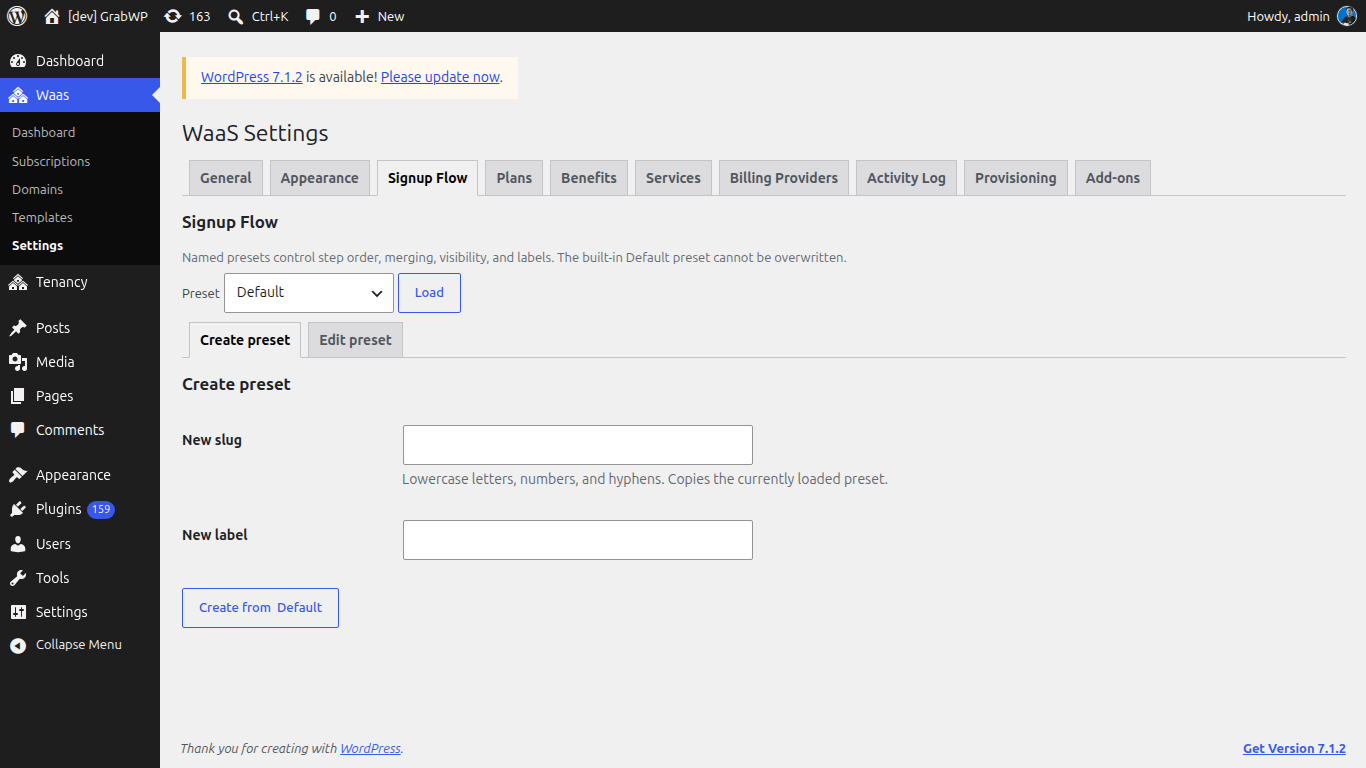
Named presets control step order, merging, visibility, and labels. The built-in Default preset cannot be overwritten.
Load a preset
- Choose a preset in Preset.
- Click Load.
Switching presets does not save. Load only opens that preset.
The built-in Default preset
Open Edit preset while Default is loaded.
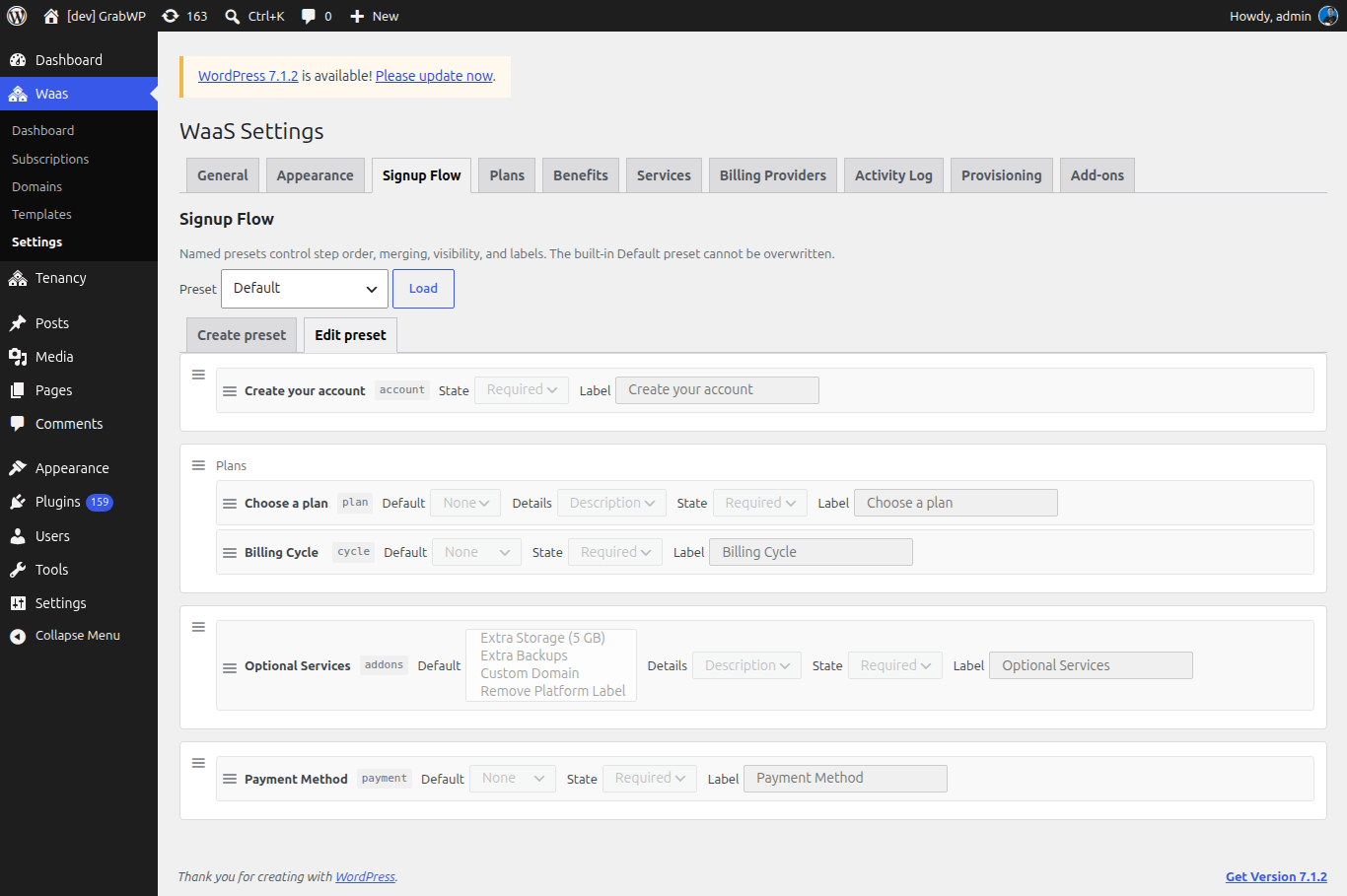
Default is read-only. Its fields are disabled, and Save preset and Delete preset are not shown. Create your own preset when you need a different order or different labels.
Default uses these groups:
| Group heading | Steps on that screen |
|---|---|
| (none) | Create your account (account) |
| Plans | Choose a plan (plan) and Billing Cycle (cycle) |
| (none) | Optional Services (addons) |
| (none) | Payment Method (payment) |
Steps in the same group render as one signup screen, under one heading, with one set of navigation controls.
Note: Verify your email (
otp) and Create your website (free) are not cards in the builder. The form adds them when they apply: email verification when WaaS Auth is on and the visitor is logged out, and the free-site step when there are no plans and the account step is not shown.
Create a preset
- Load the preset you want to copy (Default, or one you already saved).
- Open Create preset.
- Enter New slug (lowercase letters, numbers, and hyphens).
- Enter New label (the name shown in the Preset dropdown and in the block inspector).
- Click Create from followed by the loaded preset's label (for example Create from Default).
Verify: the notice Signup flow preset saved. appears, and the new preset is available in Preset.
Edit a preset
- Load the preset you created.
- Open Edit preset.
- Set Preset label if you want a different display name.
- Drag a step by its handle to reorder it or move it into another group. Steps that are not on the canvas sit in the palette. Drag one onto a group to place it.
- Click Add group to add an empty group, then drag steps into it. Use the group text field (placeholder Group heading) when that screen needs a heading.
- Click Remove group to drop a group. A group must contain at least one step before you save.
- Click Save preset.
Verify: the notice Signup flow preset saved. appears. Reload the preset and confirm the groups and labels stuck.
To remove a custom preset, open it and click Delete preset. Verify: the notice Signup flow preset deleted. appears. Default cannot be deleted.
Tip: With JavaScript off, the same screen uses Up, Down, Remove, Add step, and Add as new group instead of drag-and-drop.
Step controls
Each placed step shows its built-in name, its id, and these controls:
| Control | Notes |
|---|---|
| Default | Value prefilled on the signup form. None leaves it unset. Optional Services accepts more than one service. Choosing a value is what unlocks Hidden for Choose a plan. |
| Details | Shown on Choose a plan and Optional Services. Chooses what each card shows under its name and price: Description, Features (plans only), or Benefits. |
| State | Required, Optional, or Hidden. |
| Label | Heading for this step. Leave it matching the placeholder to keep the built-in wording. |
| State | What the customer gets |
|---|---|
| Required | The step stays in the form until it is completed. |
| Optional | The step can be skipped once it already has a value, including a Default. |
| Hidden | The step is left off the form. Choose a plan offers Hidden only after you set Default. Billing Cycle, Payment Method, and Optional Services offer Hidden immediately. |
Steps you can place
| Step | Id | Notes |
|---|---|---|
| Create your account | account | Shown for logged-out visitors when authentication is WaaS Auth. |
| Choose a plan | plan | Advances when the customer picks one plan. |
| Optional Services | addons | Must come after Choose a plan. Does not auto-advance. |
| Billing Cycle | cycle | Monthly or Yearly. The form skips it when nothing in the order renews. |
| Payment Method | payment | Must come after Choose a plan. The form skips it when nothing in the order is payable. |
Saving fails when a dependency is missing or out of order, when a group is empty, when a step is listed twice, or when Choose a plan is Hidden without a Default.
Use the preset on the signup page
Put the preset slug on the page that already contains the signup form. See Set Up Frontend Pages if that page is not created yet.
Shortcode
[grabwp_waas_signup flow="quick-checkout"]
flow must match the preset slug. An empty flow, default, or an unknown slug uses Default.
| Attribute | Notes |
|---|---|
flow | Preset slug. |
hide-titles | 1, true, yes, or on hides the heading at the top of each step. |
hide-labels | Same truthy values. Hides the short description under each step heading. |
hide-thumbnail | Same truthy values. Hides the template thumbnail. |
label-account | Replaces the account step heading. Blank keeps the preset or built-in label. |
label-plan | Plan step heading. |
label-addons | Optional Services heading. |
label-cycle | Billing Cycle heading. |
label-payment | Payment Method heading. |
label-otp | Email verification heading. |
[grabwp_waas_signup flow="quick-checkout" hide-titles="1" hide-labels="1" hide-thumbnail="1"]
Block
- Edit the signup page.
- Insert the WaaS Signup block (
grabwp-waas/signup). The editor shows a placeholder. The wizard renders on the frontend. - In the block sidebar, open Signup flow and set Flow preset.
- Open Display and turn on any of Hide step descriptions, Hide step titles, or Hide template thumbnail.
- Open Step labels to override Account, Plan, Add-ons, Billing cycle, Payment, or Email verification. Leave a field blank to keep the preset or built-in label.
- Update the page.
Verify: open the signup page in a private window. The steps, headings, and card details match the preset. A hidden step does not appear, and its Default is the value that gets submitted.
Next: Appearance