Emails or renewal checks do not run
Short answer: GrabWP turns off browser-triggered WP-Cron by default for performance, so scheduled jobs only run when you configure a server cron job to call wp-cron.php. If emails still do not arrive when you click Send test email, configure an SMTP plugin on the main site.
Needs: Pro + WaaS
Symptom
You notice one or more of these issues on your platform:
- Expired subscriptions, trial reminders, renewal invoices, or automatic backups do not run on schedule.
- Customers do not receive the Verification code, Welcome, or Site setup complete emails.
- Clicking Send test email under Waas > Settings > Email displays:
The test email could not be sent. Check the mail configuration of this site.
- Saving the Verification code template under Waas > Settings > Email displays:
Not saved: the verification code email must contain {otp_code} in the body.
Cause
| If you see | It means |
|---|---|
| Renewal checks, invoice generation, stale signup retries, or auto backups never trigger | Disable WP-Cron (disable_wp_cron) is enabled by default under Tenancy > Settings > Performance & Security, and no server cron job is calling wp-cron.php. |
The test email could not be sent. Check the mail configuration of this site. | WordPress wp_mail() failed because the server has no outgoing mail transport (SMTP) configured, or the mail provider rejected the sender address. |
Not saved: the verification code email must contain {otp_code} in the body. | You edited the Verification code email template and removed the required {otp_code} placeholder token. |
| Specific notification email is not sent, while test emails work | That template is set to Disabled under Waas > Settings > Email (all templates except Verification code and Suspended site page can be turned off). |
Check
Checking email delivery
Navigate to Waas > Settings, tab Email (page=grabwp-tenancy-waas-settings&tab=email).
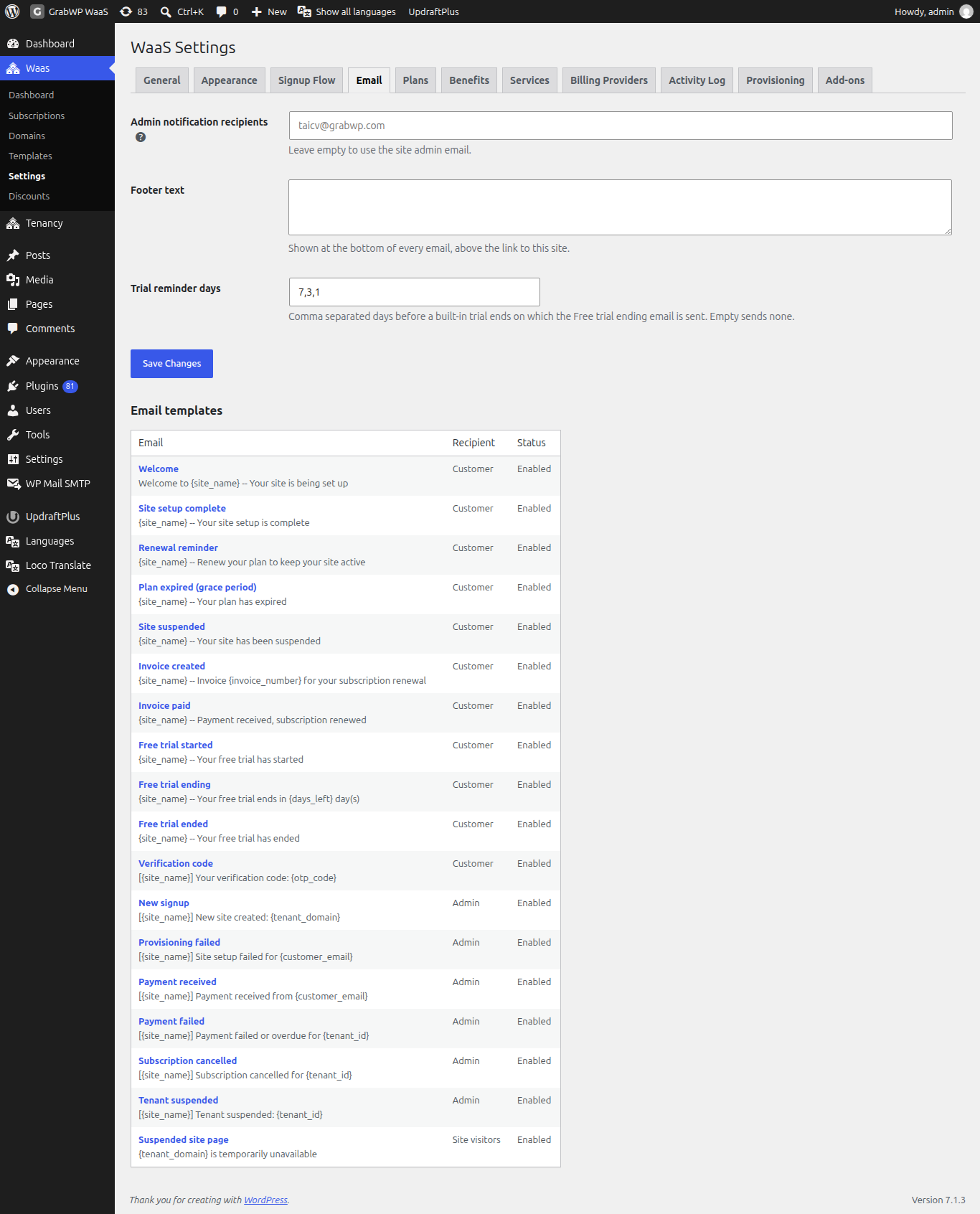
- Check the Status column in the Email templates table to confirm the template shows Enabled.
- Click the template name (for example, Welcome) and click Send test email at the bottom of the form.
- If mail is working, a green notice confirms the test email was sent.
- Check spam folders, sender domain SPF and DKIM records, and hosting port restrictions for SMTP.
Checking scheduled jobs
- Go to Tenancy > Settings > Performance & Security and check whether Disable WP-Cron is turned on.
- Check your hosting panel or server crontab to see whether a scheduled task calls
wp-cron.phpon the main site. - Open Waas > Settings > Activity Log to see whether background events like
subscription_expiredappear with actorcron.
Fix
Set up a server cron job for scheduled tasks
Because Disable WP-Cron is on by default (Run a server cron job instead.), set up a cron job in your hosting panel (such as xCloud, cPanel, or system crontab) that runs every 5 minutes against your main site URL:
curl -s https://example.com/wp-cron.php?doing_wp_cron >/dev/null 2>&1
Replace https://example.com with your main platform domain. This runs key WaaS and Pro scheduled hooks:
grabwp_waas_check_expired_subscriptions(daily expiry and trial check)grabwp_waas_generate_renewal_invoices(twice daily invoice check)grabwp_waas_subscription_reconcileandgrabwp_waas_sync_polar_subscriptions(twice daily billing sync)grabwp_waas_scan_stale_intents(hourly stuck provisioning check)grabwp_tenancy_pro_auto_backup(per-site scheduled backups)
Configure SMTP for outgoing emails
Most cloud VPS hosts block default PHP mail(). Install an SMTP plugin on the main WordPress site and connect it to a transactional email provider (such as Mailgun or SendLayer).
After configuring SMTP, return to Waas > Settings > Email, open any template, and click Send test email to verify delivery.
Still stuck
If Send test email succeeds and your server cron job runs every 5 minutes, but a specific renewal or email still does not fire, send your cron command, the Waas > Settings > Activity Log entries, and your plugin versions. See What to send when you ask for help.