A customer site says "temporarily unavailable"
Short answer: when a subscription is suspended, expired, or past its cancellation grace period, GrabWP WaaS replaces the site with a 503 unavailable page. A site owner can renew from the customer dashboard on the main platform site, or an operator can restore the site under Waas > Subscriptions. Needs: Pro + WaaS
Symptom
Visiting a customer site (either the front end or the site's own wp-admin) returns an HTTP 503 page with the default heading:
{tenant_domain} is temporarily unavailable
Depending on why the site was paused, the page may also display:
This site has been suspended by the service provider.
Cause
When a subscription enters a blocked state, GrabWP WaaS writes a suspension flag file at wp-content/grabwp-tenancy/suspended/{tenant_id}.php. Blocking a suspended site requires GrabWP Tenancy Base 1.1.12 or newer and GrabWP Tenancy WaaS 1.1.21 or newer.
| Suspension reason in the flag file | What caused it |
|---|---|
unpaid | A paid subscription expired without renewal payment. |
trial_ended | A built-in free trial ended without the customer upgrading to a paid plan. |
cancelled | A cancelled subscription passed the Grace Period (days) setting (default 7 days), or was cancelled immediately. |
admin | A platform administrator manually suspended the subscription in wp-admin. |
While the site is suspended, the site owner cannot log in to the site's own wp-admin dashboard to edit pages or export data, because all requests to the site address serve the unavailable page. However, the WaaS customer dashboard on the main platform site remains accessible so the customer can pay, renew, or purchase services.
Check
For site owners
- Log in to the customer dashboard on the main platform site (for example,
/dashboard/). - Check the status badge next to your site (Suspended, Expired, Cancelled, or Trial).
- If an invoice is open, review the payment link.
For platform operators
- In the main site admin, go to Waas > Subscriptions and click the subscription to open Subscription:
{tenant_id}.
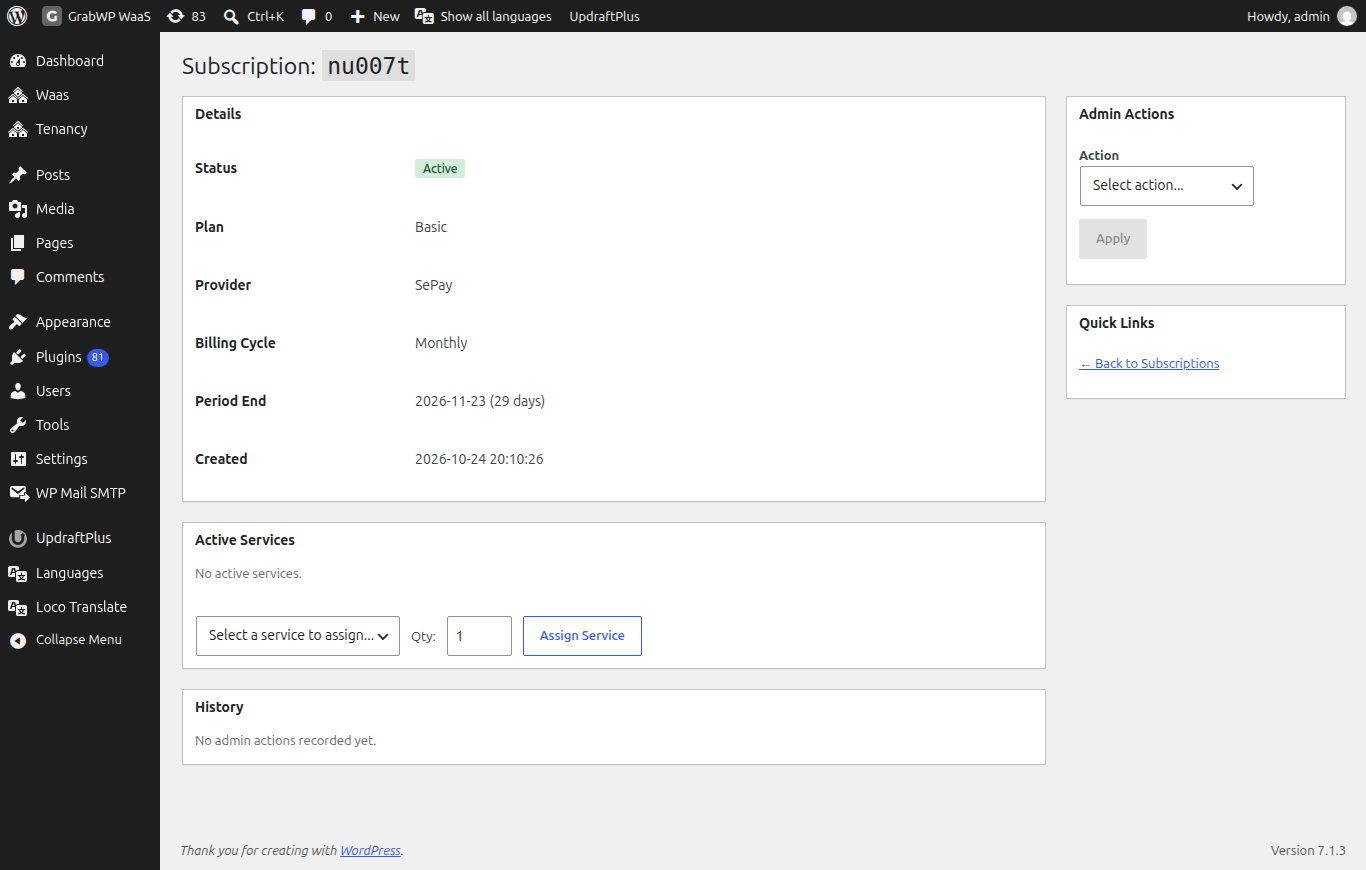
- Check the Status, Period End, and Built-in trial rows under Details.
- Scroll to the History table to see the recorded events and actors.
- Check Waas > Settings > Activity Log to review events such as
subscription_expiredorsubscription_suspended_after_grace.
Fix
For site owners
- Log in to your customer dashboard on the main platform website (not your individual site
/wp-admin). - Pay the open renewal invoice or upgrade your expired trial plan.
- Once payment confirms, GrabWP removes the suspension flag file automatically and your site comes back online.
For platform operators
- In the main site admin, go to Waas > Subscriptions and open the subscription.
- In the Admin Actions box on the right, select an action under Action:
- Reactivate to lift a suspension immediately.
- Extend Period (and enter the number of Days) to grant extra time on an expired subscription.
- Extend trial (add days) or Convert manually (paid offline, days) if the subscription is on a built-in trial.
- Change Plan to switch the site to another active plan.
- Enter a note in Reason (required) and click Apply.
- You will see
Action completed successfully., and the suspension flag file is deleted so the site opens normally.
To customize the text and HTML shown on the 503 page, go to Waas > Settings > Email and edit the Suspended site page template.
Still stuck
If the subscription status shows Active under Waas > Subscriptions but the site still returns the unavailable page:
- Check whether
wp-content/grabwp-tenancy/suspended/{tenant_id}.phpis writable so WaaS can remove it. - Confirm the hostname resolves to this server and the site exists under Tenancy > All Tenants.
- Follow What to send when you ask for help.