Emails
Short answer: WaaS sends emails to customers (welcome, sign-in code, renewals, trials, suspension) and to you (new signup, payments, failures). Edit them under Waas > Settings > Email. All are on by default. Send mail through an SMTP plugin so it does not land in spam.
Needs: Pro + WaaS
How it works
- Each email has a subject and an HTML body. WaaS adds the header, colors and footer, and makes a plain-text copy from the HTML.
- Tokens such as
{site_name}or{days_left}are replaced with real values when the email is sent. - Emails follow the customer's language, and right-to-left languages get a mirrored layout. See Appearance.
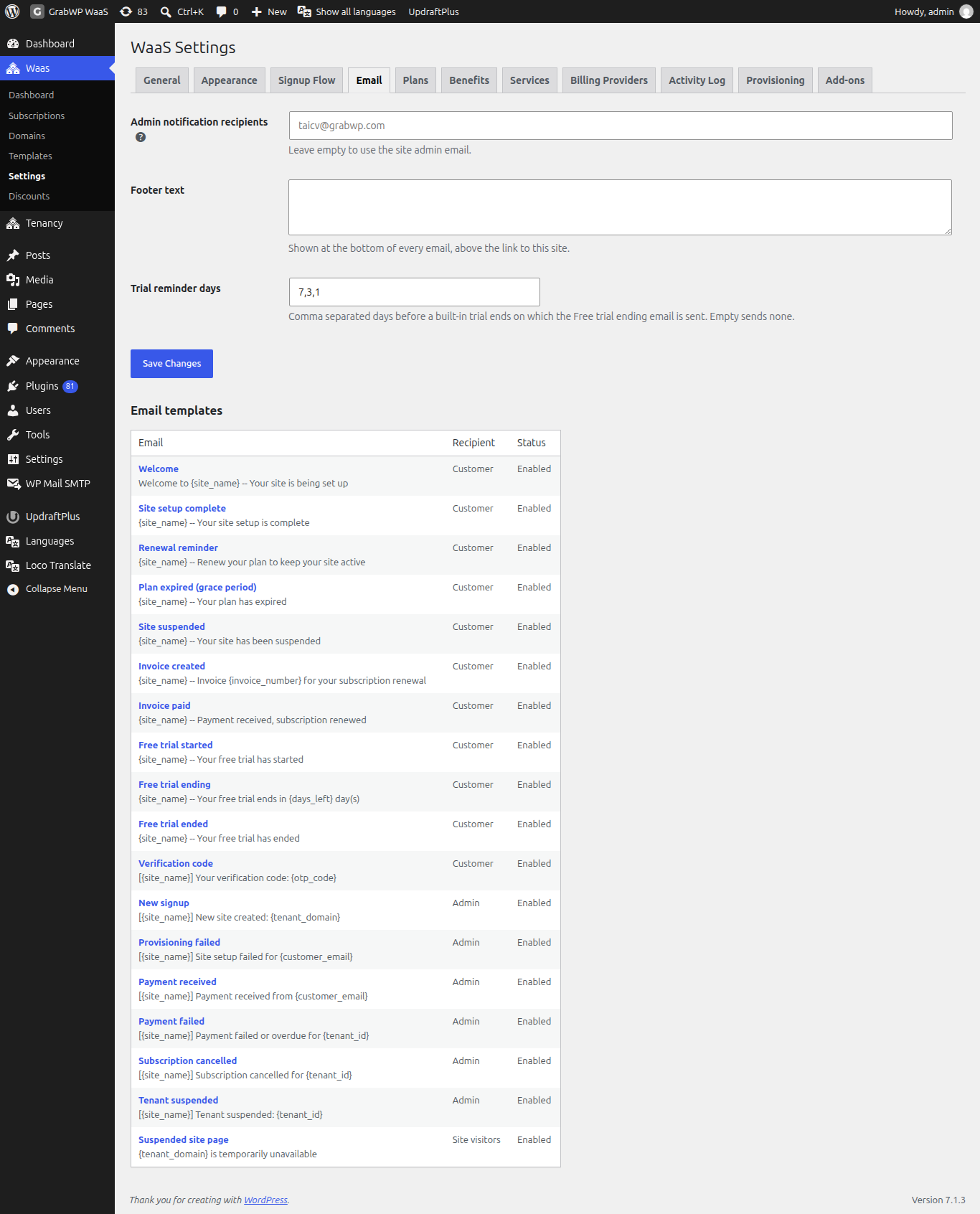
Email settings
| Field | Notes |
|---|---|
| Admin notification recipients | Email addresses separated by commas. Invalid addresses are dropped. Leave empty to use the site admin email. |
| Footer text | Shown at the bottom of every email, above the link to your site. |
| Trial reminder days | Days before a built-in trial ends on which Free trial ending is sent, separated by commas. Default 7,3,1. Leave empty to send none. |
Click Save Changes.
The email list
The Email templates table has three columns: Email (the name and current subject), Recipient and Status (Enabled or Disabled, plus Customized once you changed the default).
To customers
| Sent when | |
|---|---|
| Welcome | A new site starts being set up. |
| Site setup complete | The new site is ready. |
| Renewal reminder | A period ends within 3 days. |
| Plan expired (grace period) | The period ended and the grace period started. |
| Site suspended | The grace period ended, or you suspended the site. |
| Invoice created | A renewal invoice is created. |
| Invoice paid | A renewal invoice is paid. |
| Free trial started | A built-in trial starts. |
| Free trial ending | On each of the Trial reminder days. |
| Free trial ended | A built-in trial ends unpaid. |
| Verification code | The customer signs up or signs in. |
Verification code is required for signup and sign-in: it cannot be turned off, and its body must contain {otp_code}.
To you (the Admin notification recipients)
| Sent when | |
|---|---|
| New signup | A new site is created. |
| Provisioning failed | Building a site failed. |
| Payment received | A customer paid. |
| Payment failed | A payment failed or is overdue. |
| Subscription cancelled | A subscription is cancelled. |
| Tenant suspended | A site is suspended. |
To site visitors
Suspended site page is not an email: it is the page visitors see on a paused site. It is always on and has no Send test email button.
Default subjects and the tokens each email accepts are listed on Shortcodes, blocks and emails.
Edit an email
- Click the email name in the Email column.
- Set Enabled (Send this email), Subject and HTML body.
- To insert a token, place the cursor in the subject or body and click a button under Tokens.
- Click Save template. The notice Settings saved. appears, and the list shows Customized.
Preview opens the email in a new tab. Send test email sends it to your own user email; the notice is "Test email sent to" your address. Both use sample values and what is currently in the form. Reset to default shows once the email is customized. All email templates returns to the list.
Check that it works
- Send a test of Verification code and Welcome to an inbox you control.
- Check that they arrive, and not in spam.
- Do one real signup in a private window and confirm the code and welcome emails arrive.