Frontend pages, shortcodes and blocks
Short answer: WaaS needs four public pages: Signup, Dashboard, Templates and Pricing. WaaS creates them when you activate it, and Create/Repair Signup and Dashboard Pages recreates any that go missing. Each page holds one shortcode or one block, which you can place on your own designed pages instead.
Needs: Pro + WaaS
The four pages
| Setting | Default address | Content |
|---|---|---|
| Signup Page | /signup/ | [grabwp_waas_signup] or the WaaS Signup block |
| Dashboard Page | /dashboard/ | [grabwp_waas_dashboard] or the WaaS Dashboard block |
| Templates Page | /templates/ | [grabwp_waas_templates] or the WaaS Template Browser block |
| Pricing Page | /pricing/ | [grabwp_waas_pricing] or the WaaS Pricing block |
An optional WaaS Login block ([grabwp_waas_login]) shows a standalone sign-in card. The dashboard page already includes sign-in, so you only need it on a separate page.
Check or repair the pages
- Go to Waas > Settings > General.
- Open Repair tools and click Create/Repair Signup and Dashboard Pages. It creates or reuses all four pages and saves them. The notice is Signup and Dashboard pages checked.
- Check the four page dropdowns. Each has a View link.
- Click Save Changes.
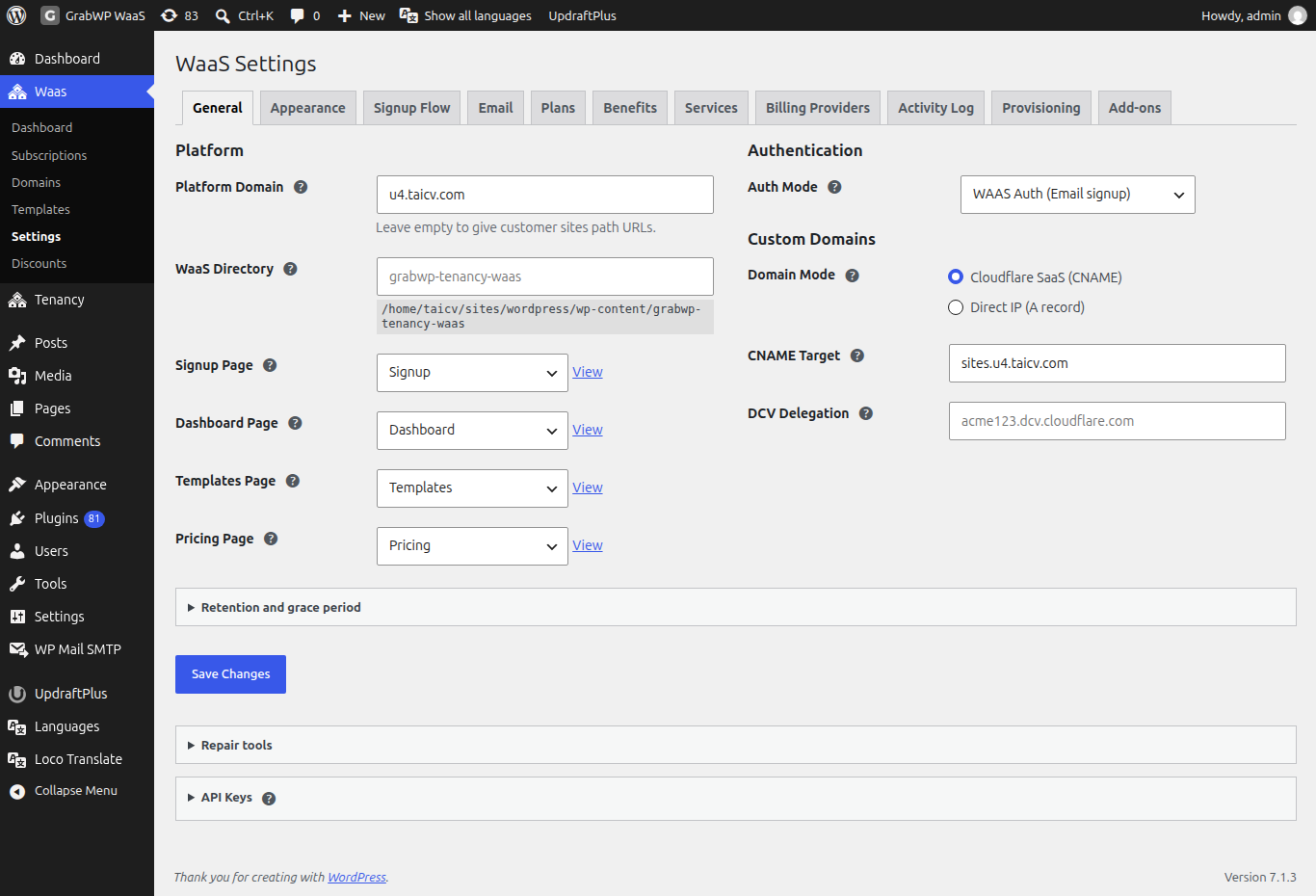
To use a page you designed yourself, add the shortcode or block to it and pick it in the matching dropdown.
What each page does
Signup. Shows the signup flow from Waas > Settings > Signup Flow. The built-in Default flow covers account, plan, billing cycle, optional services and payment. See Signup flow.
Dashboard. The customer's control panel. Signed-out visitors on WAAS Auth (Email signup) see Sign in to your dashboard, an Email address field and Send verification code.
Templates. The template gallery with thumbnails, tag filters, search and pages. A card's Get started button opens signup with that template.
Pricing. Plan cards for the active plans, with monthly and yearly prices and an optional comparison table.
Shortcode attributes, such as how many templates show per page, are on Shortcodes, blocks and emails. For example:
[grabwp_waas_templates per-page="9" filter-tags="industry"]

[grabwp_waas_templates tags="featured" tags-browser="no" per-page="0"]
Use the blocks
The five blocks are in the grabwp-waas category. The editor shows a placeholder; the real output shows on the live page. Each block supports wide and full alignment, margin and padding. HTML editing is off.
| Inserter title | Block name | Same as |
|---|---|---|
| WaaS Template Browser | grabwp-waas/template-browser | [grabwp_waas_templates] |
| WaaS Pricing | grabwp-waas/pricing | [grabwp_waas_pricing] |
| WaaS Signup | grabwp-waas/signup | [grabwp_waas_signup] |
| WaaS Login | grabwp-waas/login | [grabwp_waas_login] |
| WaaS Dashboard | grabwp-waas/dashboard | [grabwp_waas_dashboard] |
To insert a block
- Edit the page in the block editor.
- Click + and search for the title, for example WaaS Pricing.
- Insert the block.
- Open the block settings (gear icon) and set the controls below.
- Update the page and view it live. It should match a page using the shortcode with the same values.
WaaS Template Browser
| Control | Panel | Shortcode attribute |
|---|---|---|
| Limit by tags (pool filter) | Template Pool | tags |
| Show tag browser toolbar | Filter Toolbar | tags-browser (yes when on) |
| Pill filter groups (filter-tags) | Filter Toolbar (only while the toolbar is on) | filter-tags |
| Columns | Layout | columns (1 to 6, default 4) |
| Cards per page | Pagination | per-page (0 to 60, default 12; 0 shows every template) |
Leave Pill filter groups (filter-tags) blank to show dropdowns only. Groups you list become pill buttons. In the gallery, a group shows as a dropdown when it has more than one tag in the pool.
WaaS Pricing
The placeholder reads Plan cards, benefits, billing toggle, and comparison.
| Control | Panel | Shortcode attribute |
|---|---|---|
| Highlighted plan ID | Pricing table | highlighted. Leave blank to mark the middle paid plan Most popular. |
| Plan IDs | Pricing table | plans. Comma-separated. Leave blank for all active plans. |
| Default billing cycle | Pricing table | default-cycle: Monthly or Yearly |
| CTA label | Pricing table | cta-label. Blank uses Start for free or Get started. |
| Show plan cards | Layout | show-cards |
| Show comparison table | Layout | show-comparison (the Compare plans table) |
WaaS Signup
The placeholder shows Flow: with the flow name. Flows are the presets on Waas > Settings > Signup Flow. If the list cannot load, or the slug is unknown, the block uses Default.
| Control | Panel | Shortcode attribute |
|---|---|---|
| Flow preset | Signup flow | flow (Default is stored as an empty value) |
| Hide step descriptions | Display | hide-labels |
| Hide step titles | Display | hide-titles |
| Hide template thumbnail | Display | hide-thumbnail |
| Account | Step labels | label-account |
| Plan | Step labels | label-plan |
| Add-ons | Step labels | label-addons |
| Billing cycle | Step labels | label-cycle |
| Payment | Step labels | label-payment |
| Email verification | Step labels | label-otp |
Leave a step label blank to keep the flow's own label. The built-in labels are Create your account, Choose a plan, Optional Services, Billing Cycle, Payment Method and Verify your email.
WaaS Login and WaaS Dashboard
No settings. They work like [grabwp_waas_login] and [grabwp_waas_dashboard].
Check that it works
Signed out, in a private window:
- Signup shows the account step (name and email).
- Templates lists your active templates.
- Pricing lists your active plans.
- Dashboard shows Sign in to your dashboard.