Templates
Short answer: a template is one of your sites marked as a starting point. When a customer signs up with it, WaaS copies that site to make theirs. Build the site the way you want every copy to start, then add it under Waas > Templates. Keep the source site: deleting it breaks the template.
Needs: Pro + WaaS
How templates work
- The setup wizard already made your first template from the starter site (the Starter site and Storefront steps). See Set up WaaS.
- Each template points at one source site. A signup copies its pages, settings and content into the new customer site.
- Templates can be limited to some plans, can carry their own price, and are grouped with tags in the gallery.
The templates screen
Go to Waas > Templates. The sub-menu is Templates, Tags, Tag Groups and Bulk.
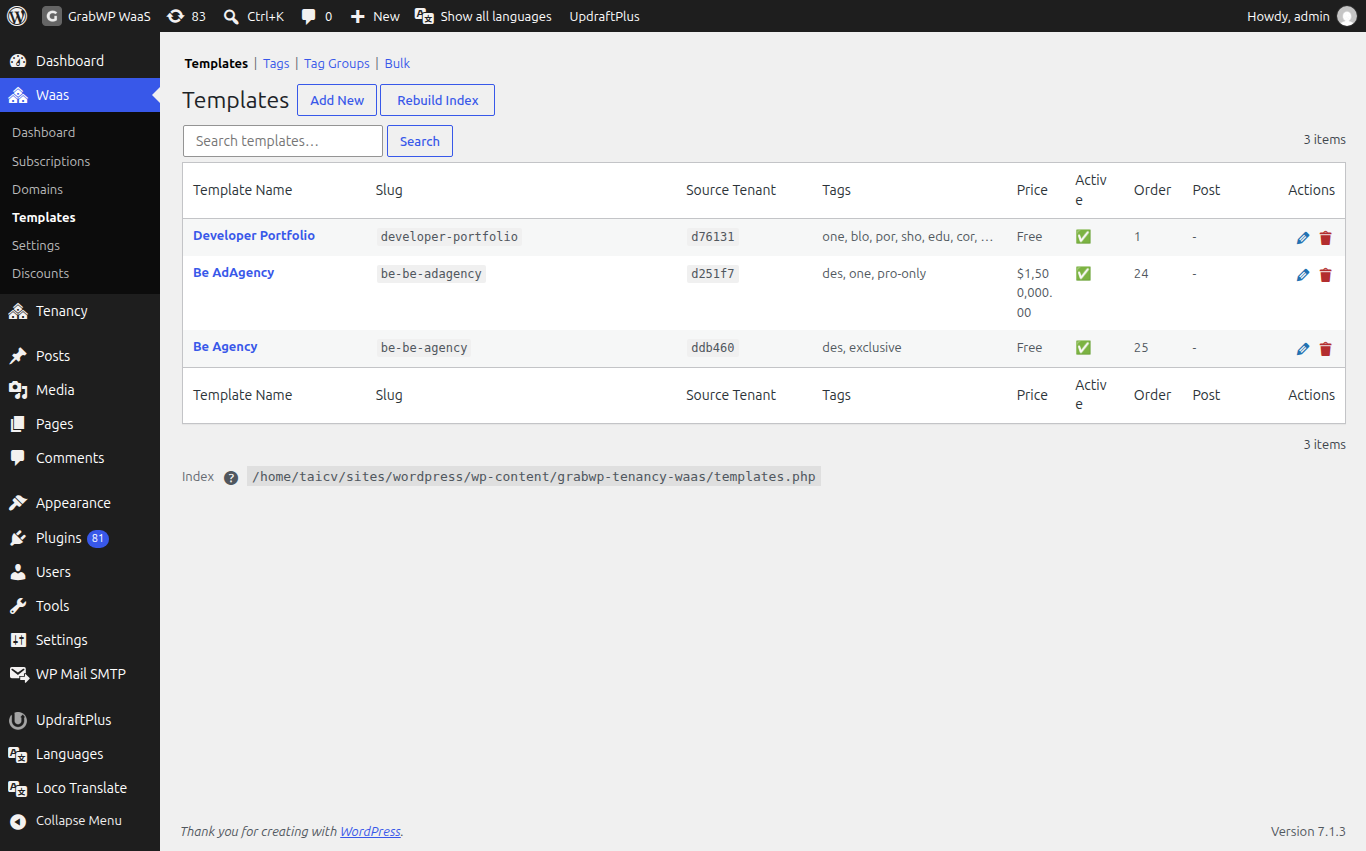
List columns: Template Name, Slug, Source Tenant, Tags, Price, Active, Order, Actions.
Step 1: Build the source site
- Go to Tenancy > Add New and create a site, for example
template-starter.yoursaas.com. - Open that site's WordPress admin and set the theme, pages, menus and demo content every copy should start with.
Step 2: Add the template
- Go to Waas > Templates and click Add New.
- Fill the fields below.
- Click Save as Template. The notice Template saved. appears.
When you edit later, the screen is Edit Template and the button is Update Template. Back to Templates returns to the list.
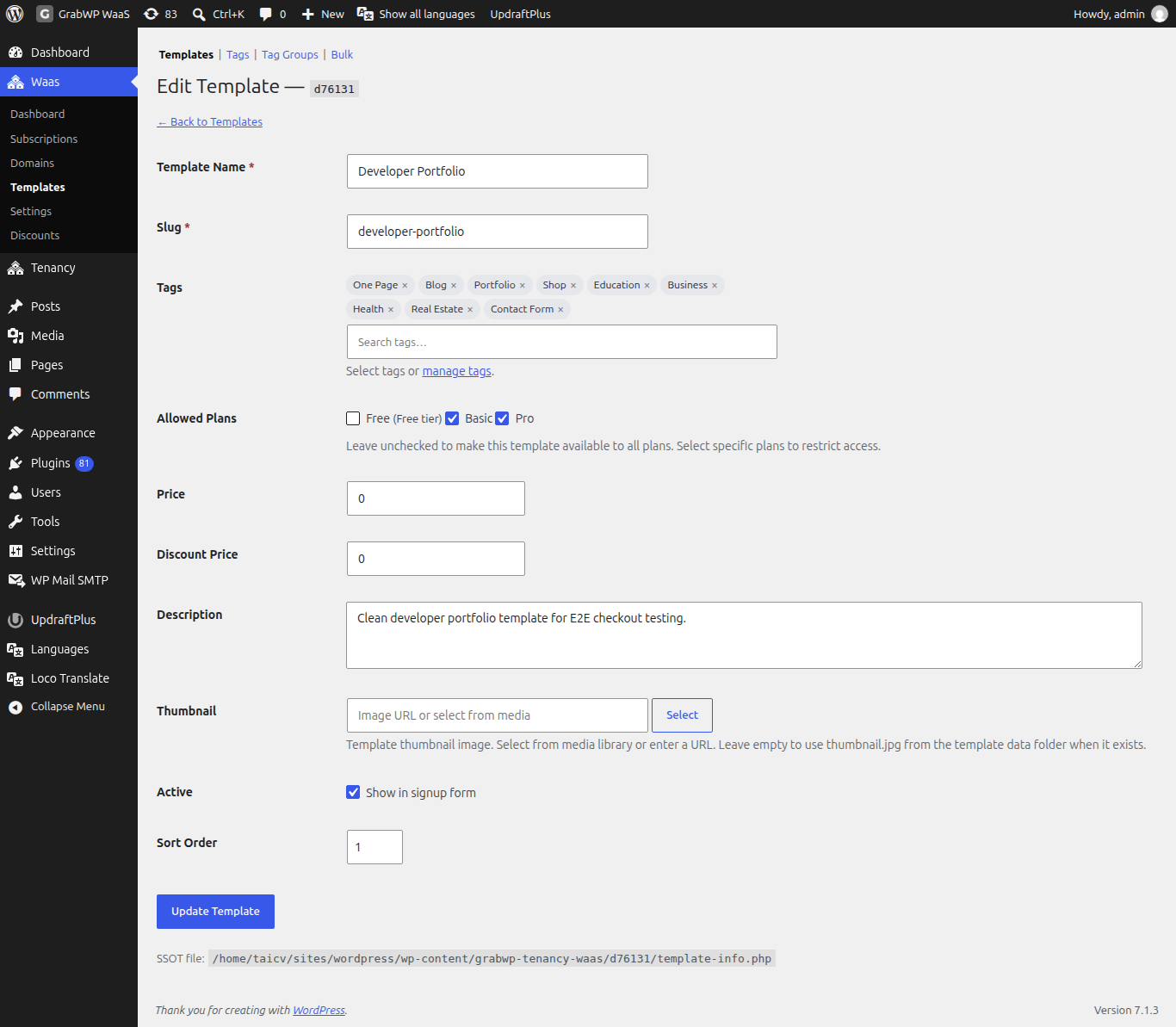
| Field | Notes |
|---|---|
| Source Tenant | Required, only when adding. Not shown when editing. |
| Template Name | Required. The title in the gallery. |
| Slug | Required. Lowercase letters, numbers and hyphens. |
| Tags | Pick tags, or follow manage tags. |
| Allowed Plans | Leave all unchecked to allow every plan. Check plans to limit the template to them. The free plan is labeled Free tier. |
| Price | An extra charge for this template. 0 means no template fee. |
| Discount Price | An optional lower price. 0 means none. |
| Description | Text for the gallery. |
| Thumbnail | Select from the media library or paste an image URL. Remove clears it. |
| Active | Show in signup form. |
| Sort Order | Lower numbers appear first. |
A template with a price cannot be combined with a built-in free trial. On a trial plan, the signup badge then reads Trial not available with this template. See Free trials and subscriptions.
Rebuild Index on the list rewrites the templates index file. Use it when the gallery and the list disagree. The notice is Templates index rebuilt.
Step 3: Tags
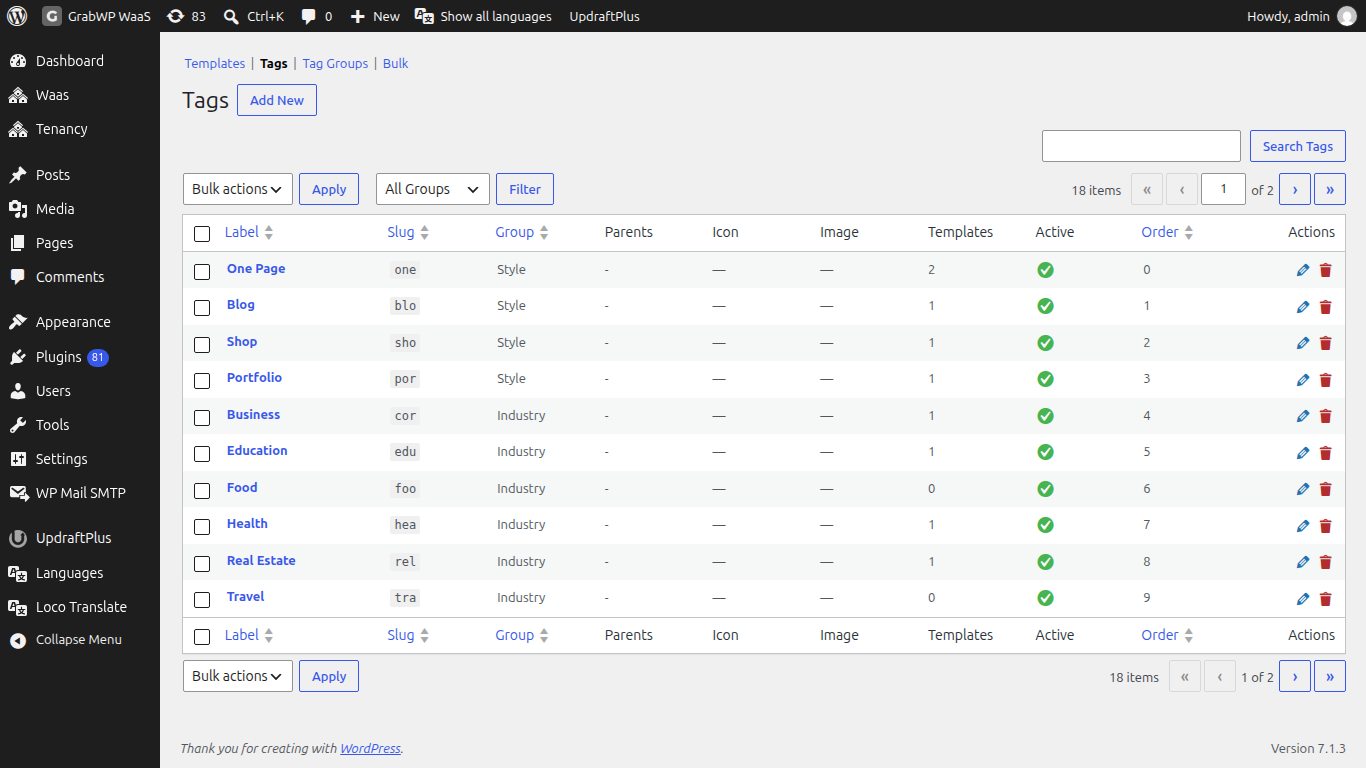
Tags filter the gallery. Open Waas > Templates > Tags and click Add New.
| Field | Notes |
|---|---|
| Slug | Lowercase letters, numbers and hyphens. |
| Label | The name shown in the gallery and the template selector. |
| Group | The tag group it belongs to. |
| Icon | A small image used as a feature indicator. Select or Remove. |
| Image | An optional larger image. |
| Sort Order | The order inside the group. |
| Active | Show in tag selectors. |
Filter the list by group, or search with Search Tags.
Step 4: Tag groups
Open Tag Groups.
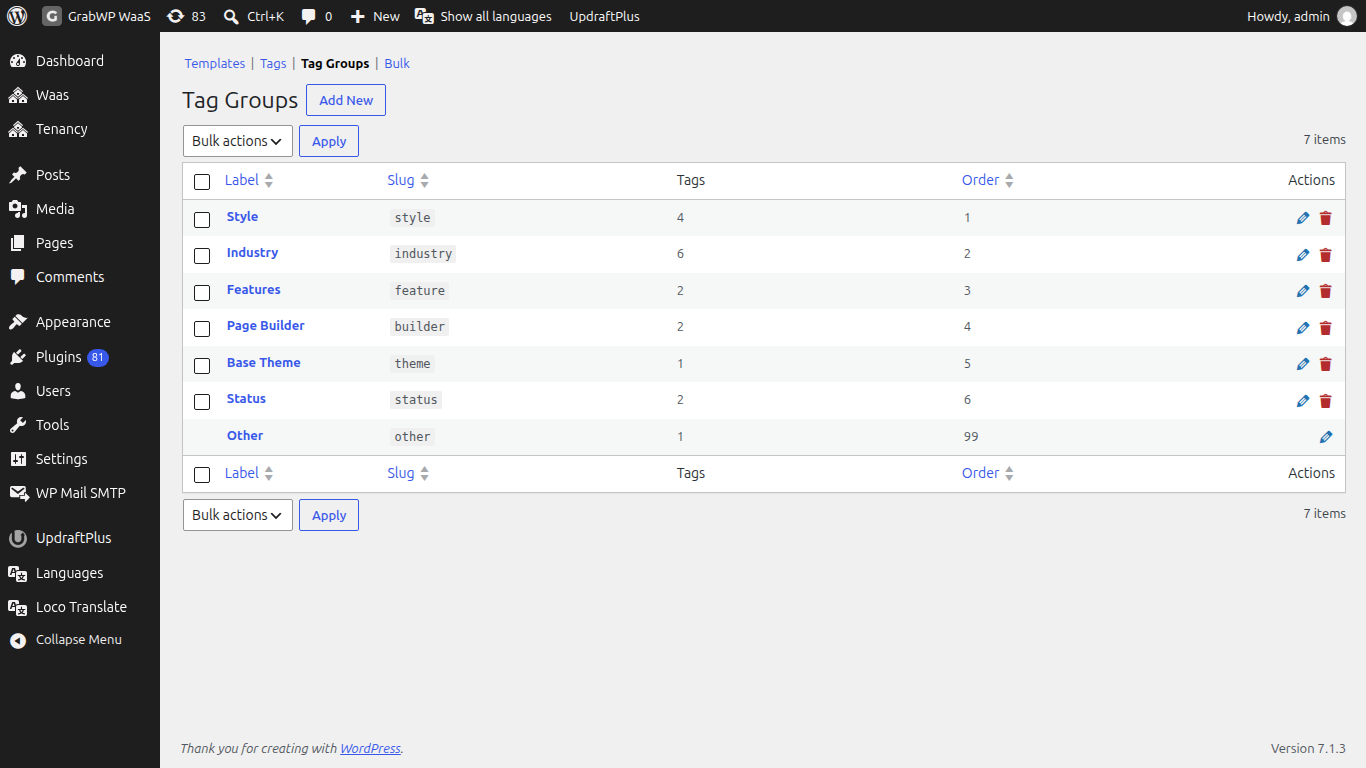
Until you add your own, WaaS uses these groups: Style, Industry, Features, Page Builder, Base Theme, Status and Other. Click Add New to add a group with a Slug, Label and Sort Order.
Which groups show as pills and which as dropdowns is set by the template browser's filter-tags attribute, or the block control Pill filter groups (filter-tags). See Shortcodes, blocks and emails.
Step 5: Import from CSV
Open Bulk.
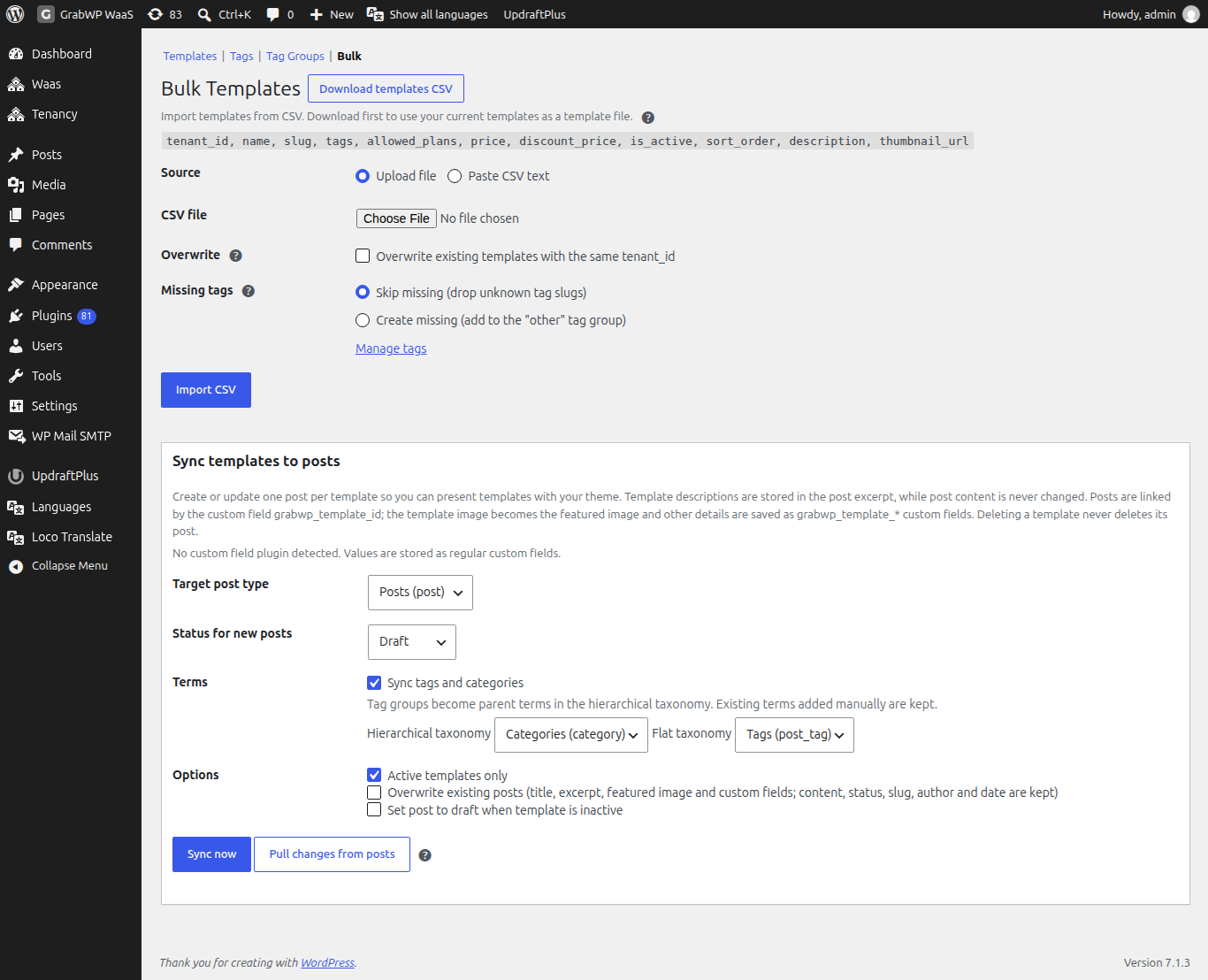
- Click Download templates CSV to export the current templates.
- Edit the file. A header row is required; column order does not matter. Each row needs
tenant_id,nameandslug. - Choose Source: Upload file or Paste CSV text.
- Tick Overwrite to Overwrite existing templates with the same tenant_id.
- Set Missing tags: Skip missing (drop unknown tag slugs) or Create missing (add to the "other" tag group).
- Click Import CSV.
Columns: tenant_id, name, slug, category, tags, allowed_plans, price, discount_price, is_active, sort_order, description, thumbnail_url. tags and allowed_plans are separated by a pipe (business|portfolio). is_active is 1 or 0.
Premium plugins on templates
A plugin license you activate on the main site does not carry over to customer sites: each site has its own database and options. Whether one license can cover many sites depends on that vendor's terms and domain checks. If the vendor allows it, activate the plugin on the template site; new sites copied from it start with it.
Check that it works
- The template row shows Active.
- The templates page on your site lists it.
- The tags you assigned show on the row.