Cấu hình Pro Settings
Pro Settings kiểm soát cách các site tenant được cô lập và nơi lưu trữ dữ liệu của chúng. Đây là những thông số mặc định, các tenant có thể ghi đè chúng sau này.
Truy cập vào Tenancy → Pro Settings (/wp-admin/admin.php?page=grabwp-tenancy-pro-settings).
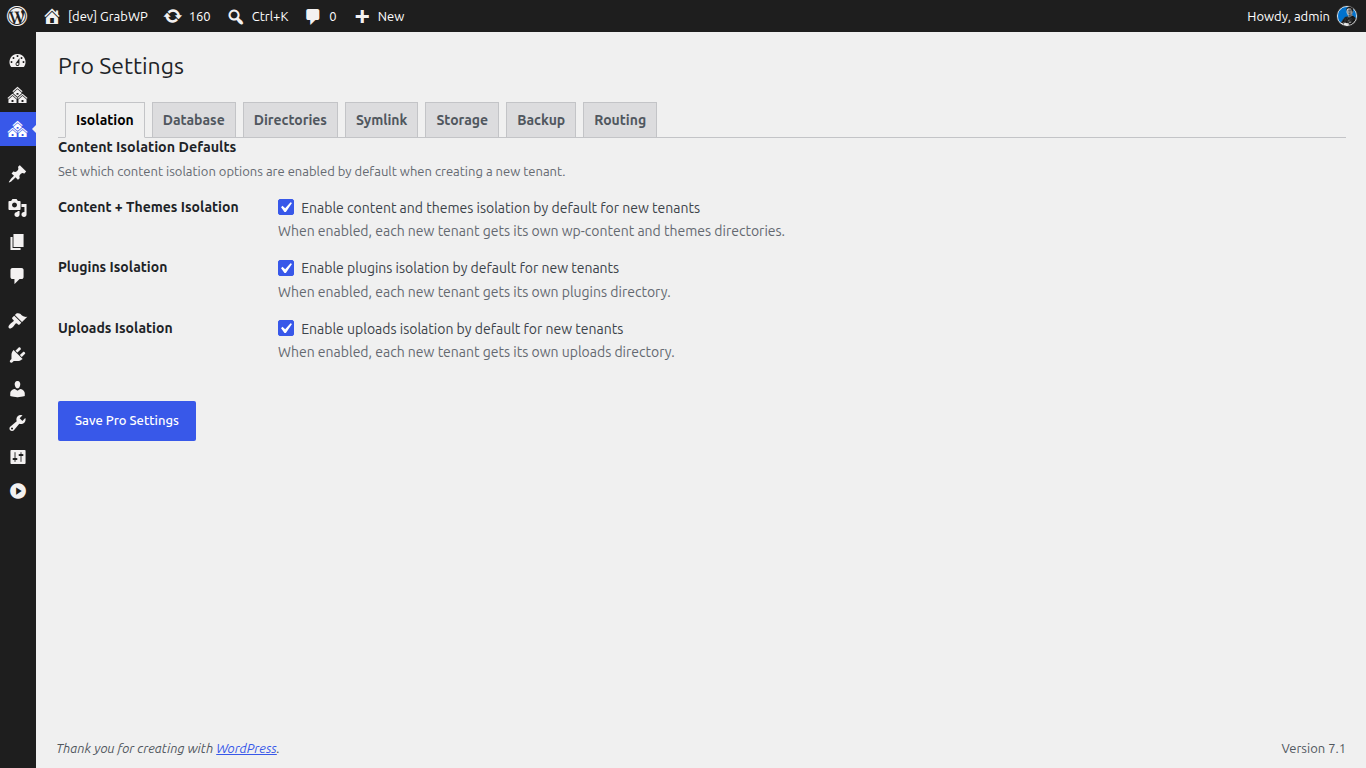
Thiết lập cô lập nội dung mặc định
Những thiết lập này quyết định xem những thành phần nào sẽ được cô lập cho mỗi tenant mới.
| Thiết lập | Khuyên dùng | Mục đích |
|---|---|---|
| Content + Themes Isolation | Bật | Mỗi tenant sẽ có một thư mục wp-content và thư mục theme riêng biệt |
| Plugins Isolation | Tắt (cho hầu hết hệ thống) | Mỗi tenant sẽ có thư mục plugin riêng. Tùy chọn này làm tăng đáng kể dung lượng đĩa sử dụng. |
| Uploads Isolation | Bật | Mỗi tenant sẽ có thư mục uploads riêng (chứa các file media) |
Mẹo: Nên tắt Plugins Isolation trừ khi các tenant cần dùng những bộ plugin hoàn toàn khác nhau. Khi tắt tùy chọn này, tất cả tenant sẽ dùng chung một bộ plugin (được quản lý thông qua Tenant Extensions) giúp tiết kiệm dung lượng lưu trữ.
Thiết lập database mặc định
Chọn cấu trúc lưu trữ database cho các tenant.
| Tùy chọn | Phù hợp cho | Mô tả |
|---|---|---|
| Shared | Mới bắt đầu, quy mô nhỏ | Tất cả tenant dùng chung một database MySQL, phân tách nhau bằng prefix của các bảng. Đây là cách thiết lập đơn giản nhất. |
| MySQL Isolated | Môi trường production, cần bảo mật cao | Mỗi tenant sẽ có một database MySQL chuyên biệt. Cách này cô lập tốt hơn nhưng đòi hỏi nhiều tài nguyên database hơn. |
| SQLite Isolated | Tenant có nhu cầu cơ bản | Mỗi tenant sử dụng một file SQLite. Không cần thiết lập thêm MySQL. Yêu cầu sử dụng plugin SQLite Database Integration. |
Trong hướng dẫn này: Hãy bắt đầu với tùy chọn Shared. Bạn có thể migrate các tenant sang database độc lập sau này.
Cấu hình MySQL Isolated (nếu chọn)
Nếu bạn chọn MySQL Isolated, hãy cấu hình thông tin kết nối mặc định:
| Trường | Mô tả |
|---|---|
| MySQL Host | Database server (ví dụ: localhost hoặc localhost:3306) |
| MySQL Database | Tên database mặc định cho các tenant mới |
| MySQL Username | User database có quyền CREATE TABLE |
Lưu ý: Đây chỉ là các thông số mặc định. Bạn có thể thiết lập thông tin kết nối riêng biệt cho từng tenant khi tạo.
Cấu hình thư mục
Nơi GrabWP sẽ lưu trữ dữ liệu của tenant trên ổ đĩa.
| Trường | Mặc định | Mô tả |
|---|---|---|
| Tenant Base Dir | wp-content/grabwp-tenancy | Thư mục gốc chứa uploads và dữ liệu của tenant |
| Pro Config Dir | wp-content/grabwp-tenancy-pro | Các file cấu hình cho từng tenant |
| SQLite Database Dir | wp-content/grabwp-tenancy-sqlite | Các file database SQLite (nếu dùng SQLite isolation) |
Thông thường các thông số mặc định là đủ dùng. Chỉ nên thay đổi khi bạn muốn đưa dữ liệu của tenant sang một phân vùng hoặc mount point khác.
Bạn cũng có thể khóa các đường dẫn này lại bằng cách sử dụng các hằng số (constants) trong file
wp-config.php. Nếu một hằng số đã được cấu hình, tùy chọn tương ứng sẽ hiển thị "set in wp-config.php" và không thể thay đổi được từ giao diện quản trị.
Domain Symlink
Kích hoạt đường dẫn dạng clean URL cho các thư mục nội dung của tenant. Thay vì phải tải asset của tenant từ một đường dẫn dài như /wp-content/grabwp-tenancy/tenant-123/uploads/, symlink giúp chúng hiển thị ngay dưới đường dẫn domain riêng của tenant đó.
| Trường | Mô tả |
|---|---|
| Enable Domain Symlink | Bật chức năng clean URL bằng symlink. Yêu cầu hàm symlink() trong PHP phải hoạt động. |
| Domains Directory | Đường dẫn tuyệt đối nơi chứa các symlink của domain |
Yêu cầu cấu hình Nginx. Trang thiết lập sẽ cung cấp sẵn một đoạn mã cấu hình Nginx để bạn copy-paste. Hãy thêm nó vào cấu hình server của bạn rồi reload Nginx.
Trong hướng dẫn này: Bạn có thể bỏ qua phần này lúc đầu và bật nó lên sau khi thiết lập custom domain.
Lưu trữ Object Storage (S3)
Đưa các file media của tenant lên các dịch vụ lưu trữ tương thích với S3. Phần này được hướng dẫn chi tiết trong bài Lưu trữ S3.
| Trường | Mô tả |
|---|---|
| Storage Driver | Local (mặc định) hoặc S3 |
Trong hướng dẫn này: Cứ để là Local. Bạn có thể cấu hình S3 sau nếu cần.
Lưu thiết lập
Bấm vào Save Settings ở cuối trang. Sẽ có một thông báo thành công xác nhận bạn đã lưu.
Tiếp theo: Cấu hình WaaS General Settings