Tạo plan
Plan xác định những gì khách hàng có thể đăng ký, như dùng thử miễn phí, plan cơ bản, hoặc các dịch vụ cao cấp. Mỗi plan sẽ có mức giá, tính năng riêng và có thể được liên kết với một sản phẩm từ nhà cung cấp thanh toán.
Truy cập vào WaaS → Settings → Plans (/wp-admin/admin.php?page=grabwp-tenancy-waas-settings&tab=plans).
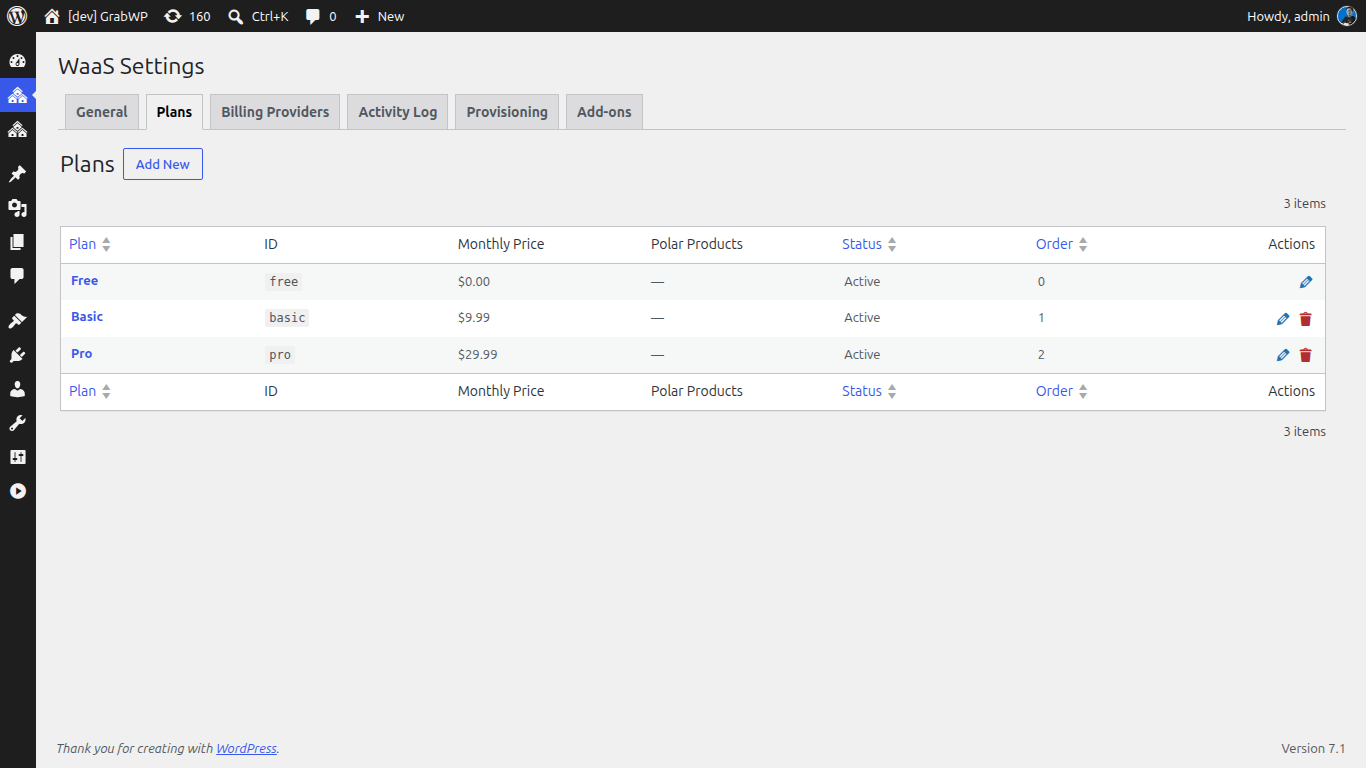
Tổng quan về plan
Một hệ thống WaaS luôn bắt đầu với một plan free mặc định. Bạn sẽ cần tạo thêm các plan để phù hợp với dịch vụ mình cung cấp. Trong bài hướng dẫn này, chúng ta sẽ thiết lập:
- Free: không cần thanh toán, bị giới hạn một số tính năng
- Pro: plan trả phí hàng tháng thông qua Polar
Tạo plan Free
Nếu đã có sẵn một plan miễn phí, hãy bấm Edit để cập nhật. Nếu chưa, hãy bấm Add New Plan.
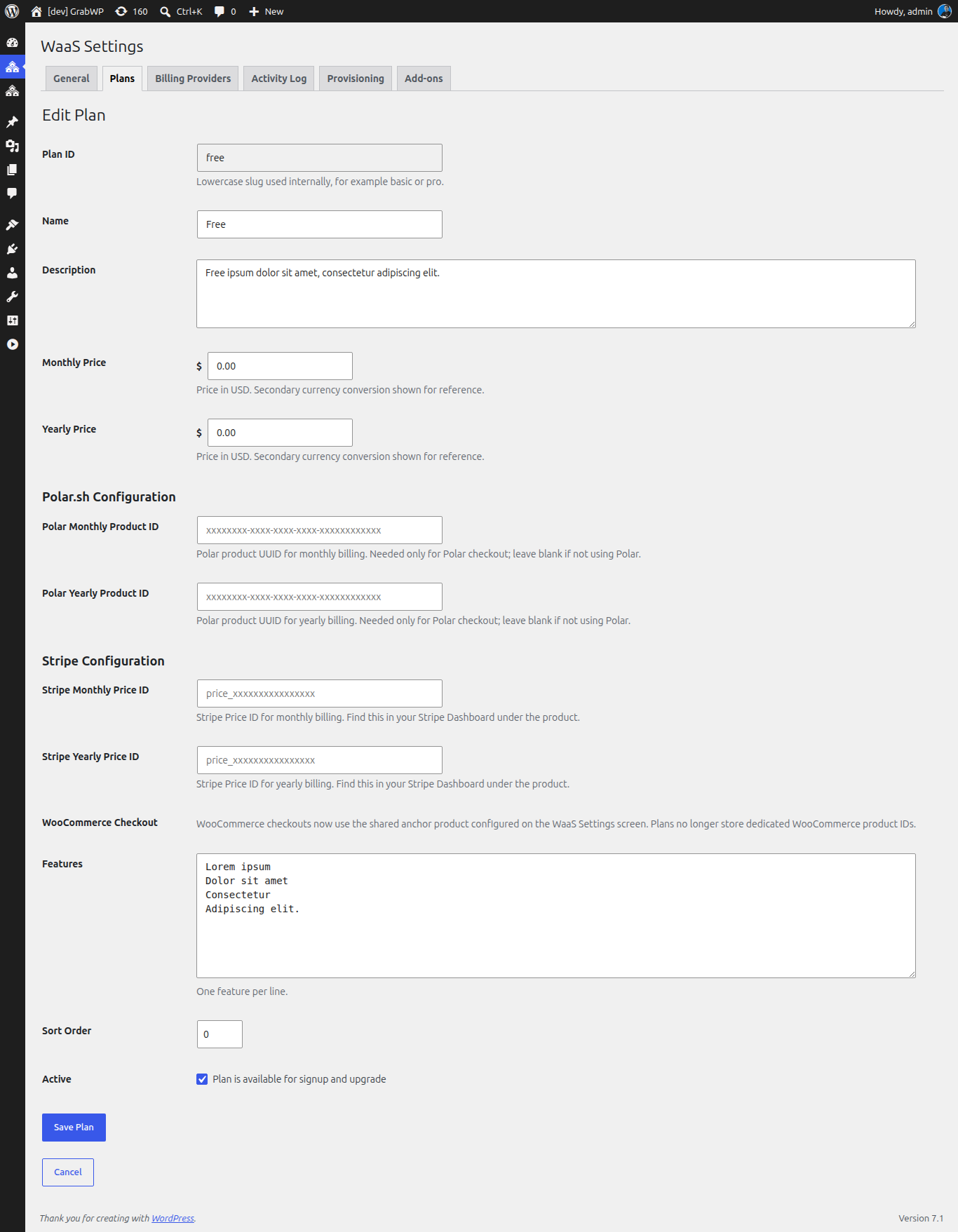
Điền các thông tin sau:
| Trường | Giá trị | Ghi chú |
|---|---|---|
| Plan ID | free | Slug viết thường. Không thể thay đổi sau khi tạo. |
| Name | Free | Tên hiển thị cho khách hàng |
| Description | Get started with a free WordPress site | Hiển thị trên trang đăng ký |
| Monthly Price | 0 | Bằng 0 nghĩa là plan miễn phí, không yêu cầu thanh toán |
| Yearly Price | 0 | Để là số 0 |
| Features | Xem bên dưới | Mỗi tính năng một dòng |
| Sort Order | 0 | Số nhỏ hơn sẽ hiển thị trước |
| Active | Tích chọn | Cho phép khách hàng đăng ký plan này |
Định dạng tính năng
Nhập mỗi tính năng trên một dòng trong ô Features. Danh sách này sẽ được hiển thị trên trang bảng giá/đăng ký.
1 WordPress site
500 MB storage
Community support
Basic themes
Bấm Save Plan.
Tạo plan trả phí (Pro)
Bấm Add New Plan và điền vào:
| Trường | Giá trị | Ghi chú |
|---|---|---|
| Plan ID | pro | |
| Name | Pro | |
| Description | Everything you need to grow your business | |
| Monthly Price | 9.99 | Mức giá theo loại tiền tệ chính của bạn |
| Yearly Price | 99.99 | Tuỳ chọn, bạn có thể để trống nếu chỉ hỗ trợ thanh toán hàng tháng |
| Polar Monthly Product ID | (điền sau khi thiết lập Polar) | UUID từ Polar. Xem thêm phần Cài đặt thanh toán. |
| Polar Yearly Product ID | (điền sau khi thiết lập Polar) | UUID từ Polar, sử dụng nếu bạn có hỗ trợ thanh toán hàng năm |
| Features | Xem bên dưới | |
| Sort Order | 1 | |
| Active | Tích chọn |
Các tính năng Pro
1 WordPress site
10 GB storage
Custom domain support
Priority support
Premium themes & plugins
Daily backups
Bấm Save Plan.
Giới hạn plan cho các template
Khi chỉnh sửa một template, bạn có thể giới hạn để nó chỉ dùng được cho một số plan cụ thể. Ví dụ, một template premium có thể chỉ khả dụng cho những khách hàng dùng plan Pro.
Xem thêm phần Cài đặt template để biết chi tiết.
Sắp xếp thứ tự plan
Các plan xuất hiện trên trang đăng ký theo thứ tự tăng dần của trường Sort Order (số nhỏ hiển thị trước). Bạn có thể cập nhật trường Sort Order trên mỗi plan để kiểm soát thứ tự hiển thị này.
Tiếp theo: Cài đặt thanh toán