Cài đặt plugin
GrabWP WaaS yêu cầu cài đặt ba plugin theo một thứ tự cụ thể. Mỗi plugin sẽ phụ thuộc vào plugin được cài đặt trước nó.
Thứ tự cài đặt
1. GrabWP Tenancy (base)  ← must be active first
2. GrabWP Tenancy Pro     ← requires base
3. GrabWP Tenancy WaaS    ← requires base + pro
Bước 1: Cài đặt GrabWP Tenancy (Base)
- Đi tới Plugins → Add New → Upload Plugin
- Tải lên
grabwp-tenancy.zip - Nhấp vào Install Now, sau đó chọn Activate
- Bạn sẽ thấy một menu Tenancy mới ở sidebar admin
Bước 2: Cài đặt GrabWP Tenancy Pro
- Đi tới Plugins → Add New → Upload Plugin
- Tải lên
grabwp-tenancy-pro.zip - Nhấp vào Install Now, sau đó chọn Activate
- Menu Tenancy bây giờ sẽ hiển thị thêm các mục: Pro Settings, Tenant Extensions
Lưu ý: Nếu kích hoạt thất bại với lỗi dependency, hãy đảm bảo GrabWP Tenancy (base) đã được kích hoạt trước.
Bước 3: Cài đặt GrabWP Tenancy WaaS
- Đi tới Plugins → Add New → Upload Plugin
- Tải lên
grabwp-tenancy-waas.zip - Nhấp vào Install Now, sau đó chọn Activate
- Một menu WaaS mới sẽ xuất hiện ở sidebar admin với các mục:
- Dashboard
- Subscriptions
- Domains
- Templates
- Settings
Kiểm tra cài đặt
Sau khi kích hoạt cả ba plugin, hãy đi tới Tenancy → Status. Trang này sẽ chạy các kiểm tra hệ thống và báo cáo bất kỳ vấn đề nào:
- Quyền file system
- Các PHP extensions bắt buộc
- Tính tương thích của database
- Tính tương thích phiên bản plugin
Hãy khắc phục các vấn đề được báo cáo trước khi tiếp tục.
Danh sách plugin
Các plugin đang hoạt động của bạn phải bao gồm:
| Plugin | Trạng thái |
|---|---|
| GrabWP Tenancy | Hoạt động |
| GrabWP Tenancy Pro | Hoạt động |
| GrabWP Tenancy WaaS | Hoạt động |
Khám phá các add-on chính thức
Cách khuyên dùng để tải các add-on chính thức của GrabWP (các billing provider như Stripe, SePay, Xendit, và nhiều hơn nữa) là qua tab Add-ons trong WaaS Settings, thay vì phải mất công tìm các file ZIP. Hãy đi tới WaaS → Settings → Add-ons (/wp-admin/admin.php?page=grabwp-tenancy-waas-settings&tab=addons). Danh mục này được nhóm theo category, hỗ trợ song ngữ, và được cache trong sáu giờ (với cơ chế fallback lấy dữ liệu tốt nhất gần nhất nếu server danh mục không phản hồi). Các add-on tương thích sẽ được tải xuống dưới dạng file ZIP chỉ với một click từ trang admin; license key và site URL sẽ được đính kèm tự động từ phía server và không bao giờ bị lộ trong mã HTML của trang. Màn hình Billing Providers cũng có liên kết Browse Add-ons để chuyển hướng thẳng tới đây.
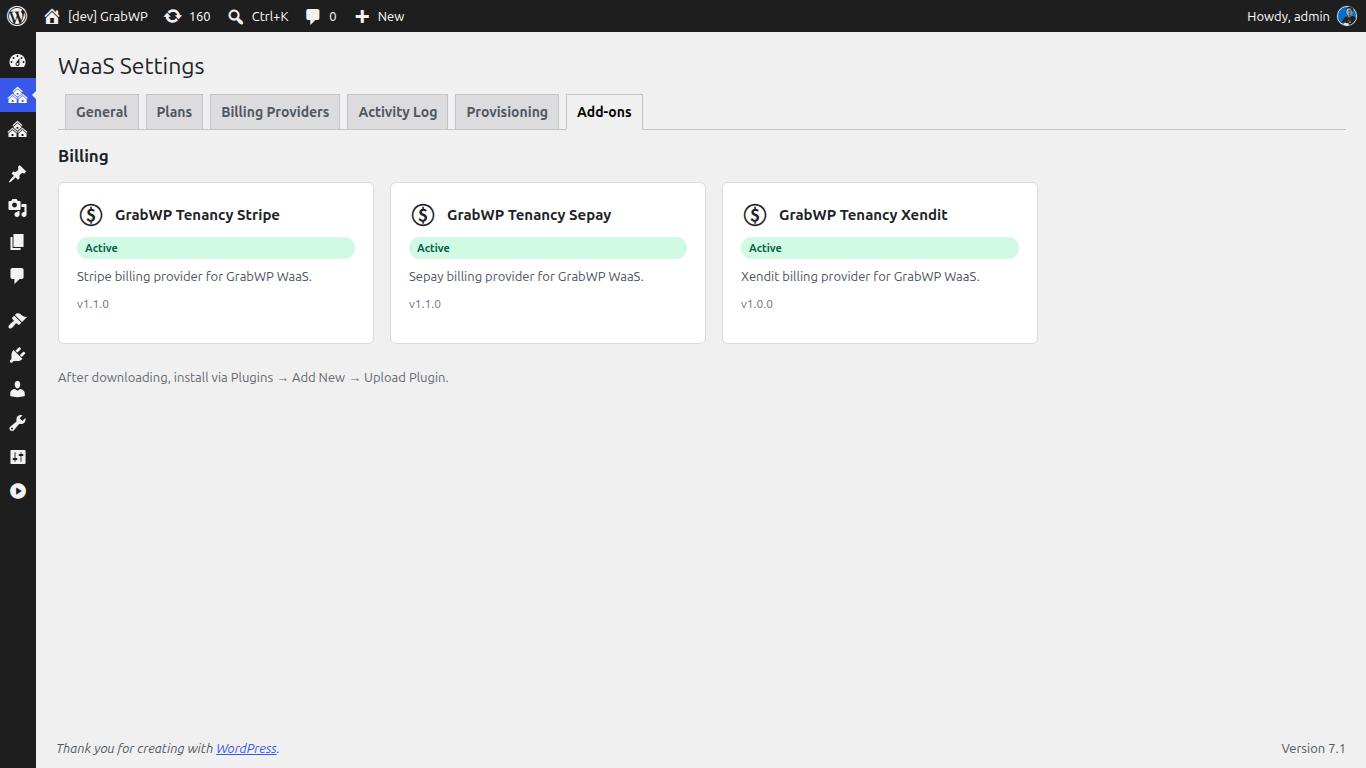
| Badge | Ý nghĩa |
|---|---|
| Available | Tương thích và sẵn sàng tải xuống |
| Installed | Đã tải xuống nhưng chưa kích hoạt |
| Active | Đã cài đặt và đang chạy |
| Update Available | Đã có một phiên bản tương thích mới hơn |
| Requires WaaS Update | Phiên bản WaaS của bạn quá cũ cho add-on này |
Tùy chọn: Cài đặt plugin SePay
Nếu bạn dự định chấp nhận thanh toán qua chuyển khoản ngân hàng Việt Nam (VietQR), hãy cài đặt thêm:
- Tải lên
grabwp-tenancy-sepay.zip - Kích hoạt plugin này
Thao tác này sẽ thêm SePay vào danh sách tùy chọn billing provider trong WaaS settings.
Tiếp theo: Cấu hình Pro Settings