Quản lý tên miền tùy chỉnh
Tên miền tùy chỉnh cho phép khách hàng sử dụng tên miền riêng của họ (ví dụ: mybusiness.com) thay vì dùng subdomain (mybusiness.yoursaas.com). GrabWP WaaS hỗ trợ hai phương pháp.
Truy cập WaaS → Domains (/wp-admin/admin.php?page=grabwp-tenancy-waas-domains).
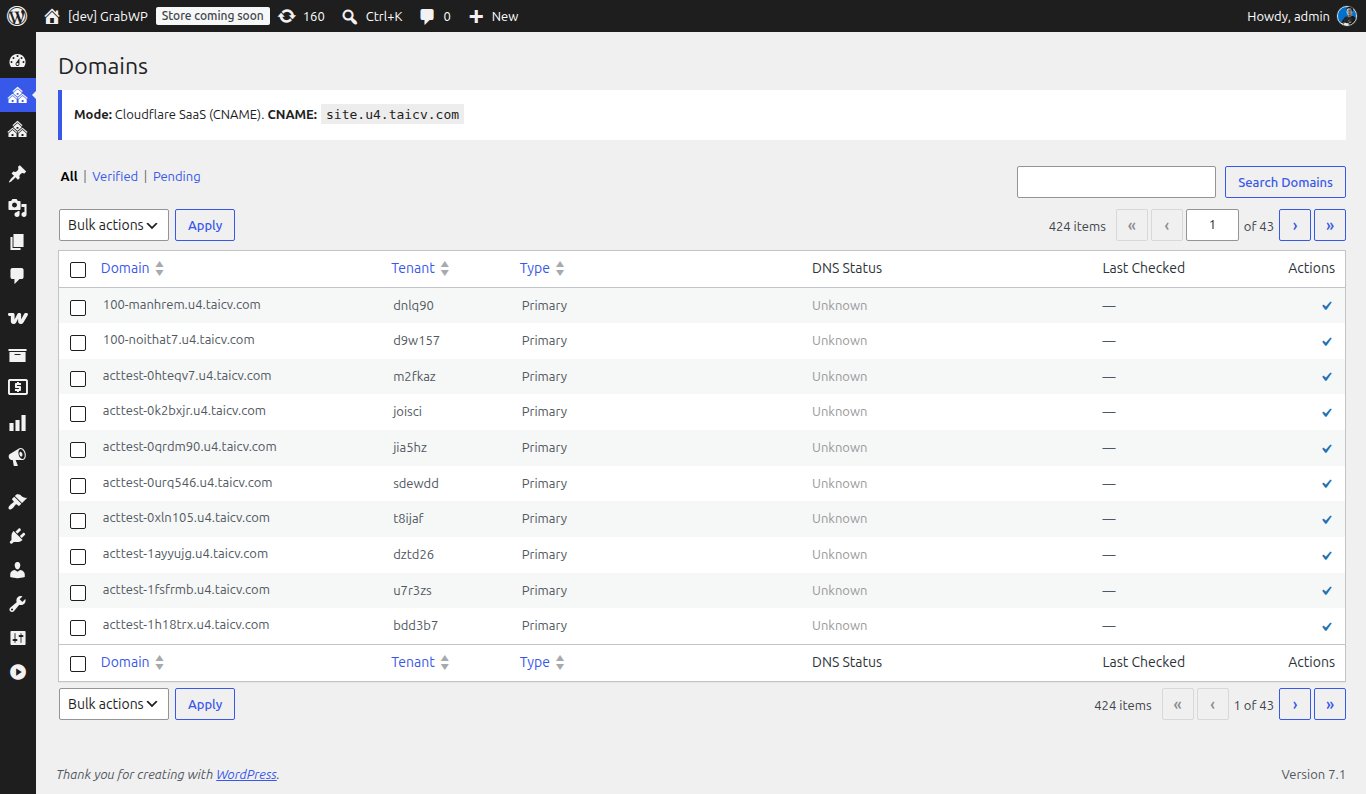
Các chế độ tên miền
Cấu hình chế độ này trong WaaS → Settings → General → Custom Domains.
| Chế độ | Cách hoạt động | Phù hợp nhất cho |
|---|---|---|
| Cloudflare SaaS | Khách hàng thêm bản ghi CNAME trỏ về fallback origin của bạn. Cloudflare sẽ xử lý SSL và định tuyến. | Môi trường production, chứng chỉ SSL tự động, dễ mở rộng |
| Direct IP | Khách hàng thêm bản ghi A trỏ về IP server của bạn. Bạn tự cấu hình tên miền đó trên server của mình. | Các thiết lập đơn giản, không dùng hosting qua Cloudflare |
Tên miền tùy chỉnh qua Cloudflare SaaS
Đây là phương pháp được khuyến nghị cho môi trường production. Cloudflare sẽ tự động cấp chứng chỉ SSL cho mọi tên miền tùy chỉnh.
Cài đặt một lần (phía bạn)
- Thêm tên miền của bạn vào Cloudflare (nếu chưa thêm)
- Bật Cloudflare for SaaS trên zone của bạn:
- Liên hệ với bộ phận hỗ trợ của Cloudflare hoặc truy cập dashboard → SSL/TLS → Custom Hostnames
- Tính năng này có thể yêu cầu gói Cloudflare trả phí
- Thiết lập fallback origin:
- Trong dashboard Cloudflare → SSL/TLS → Custom Hostnames → Add Fallback Origin
- Đặt nó thành subdomain của nền tảng bạn (ví dụ:
cdn.saas.yoursaas.com) - Tạo một bản ghi A DNS cho subdomain này trỏ về server của bạn
- Cấu hình trong WaaS:
- Đi tới WaaS → Settings → General → Custom Domains
- Đặt Domain Mode thành Cloudflare SaaS
- Nhập CNAME Target của bạn (ví dụ:
cdn.saas.yoursaas.com)
Tài liệu Cloudflare: Cloudflare for SaaS - hướng dẫn thiết lập, SSL và tự động hóa qua API.
Quy trình cho từng khách hàng
Khi khách hàng muốn dùng tên miền riêng của họ:
-
Phía khách hàng: Thêm bản ghi CNAME vào DNS của họ:
mybusiness.com → CNAME → cdn.saas.yoursaas.com -
Phía bạn (admin): Thêm tên miền trong WaaS → Domains hoặc khách hàng có thể tự thêm qua tenant dashboard:
- Bấm Add Domain
- Nhập tên miền tùy chỉnh
- Bấm Verify - để kiểm tra quá trình cập nhật DNS
-
Cloudflare sẽ tự động cấp chứng chỉ SSL cho tên miền tùy chỉnh này
-
Lúc này, site của tenant đã có thể truy cập qua
mybusiness.com
Mẫu hướng dẫn cho khách hàng
Chia sẻ đoạn này với khách hàng khi họ yêu cầu dùng tên miền tùy chỉnh:
Để kết nối tên miền của bạn:
- Đăng nhập vào nhà cung cấp tên miền của bạn (GoDaddy, Namecheap, v.v.)
- Đi tới phần cài đặt DNS
- Thêm một bản ghi CNAME:
- Name/Host:
@hoặcwww(hoặc subdomain của bạn)- Value/Target:
cdn.saas.yoursaas.com- TTL: Automatic hoặc 300
- Chờ 5 đến 10 phút để DNS cập nhật
- Truy cập vào Dashboard của bạn → Domains → Add Domain
- Nhập tên miền của bạn và bấm Verify
Chế độ Direct IP
Cách này đơn giản hơn nhưng đòi hỏi bạn phải cấu hình server thủ công cho từng tên miền.
Cài đặt
-
Trong WaaS → Settings → General → Custom Domains:
- Đặt Domain Mode thành Direct IP
- Nhập Server Public IP của bạn
-
Với mỗi tên miền tùy chỉnh, bạn cần:
- Thêm một server block (Nginx) hoặc virtual host (Apache) cho tên miền đó
- Trỏ nó về bản cài đặt WordPress của bạn
- Cài đặt SSL (ví dụ: qua Let's Encrypt / Certbot)
Quy trình cho từng khách hàng
-
Khách hàng: Thêm một bản ghi A vào DNS của họ:
mybusiness.com → A → 203.0.113.50 -
Bạn: Thêm tên miền vào cấu hình web server:
Ví dụ với Nginx:
server {listen 80;server_name mybusiness.com;# ... giữ nguyên cấu hình như site chính của bạn}Sau đó chạy Certbot để lấy SSL:
sudo certbot --nginx -d mybusiness.com -
Admin panel: Thêm và xác minh tên miền trong WaaS → Domains
Lưu ý: Chế độ Direct IP yêu cầu thao tác cấu hình server thủ công cho từng tên miền. Nên dùng Cloudflare SaaS nếu bạn dự định có nhiều tên miền tùy chỉnh.
Quản lý tên miền từ tenant dashboard
Khách hàng cũng có thể quản lý tên miền từ tenant dashboard của họ (trang /dashboard/ của bạn):
- Add Domain - nhập tên miền tùy chỉnh
- Verify - kiểm tra trạng thái cập nhật DNS
- Set Primary - thiết lập tên miền làm URL chính cho site
- Remove - ngắt kết nối tên miền tùy chỉnh
Xác minh tên miền
Sau khi thêm một tên miền, quá trình xác minh sẽ kiểm tra các yếu tố sau:
- Bản ghi DNS có tồn tại và trỏ đúng đích không (bản ghi CNAME hoặc A)
- Tên miền có phân giải đúng về server của bạn không
- SSL có hoạt động không (với Cloudflare SaaS, quá trình này diễn ra tự động)
Việc xác minh có thể mất vài phút tùy thuộc vào tốc độ cập nhật DNS.
Tiếp theo: Quản lý subscriptions