Thiết lập templates
Templates là các thiết kế trang web dựng sẵn mà khách hàng có thể chọn khi đăng ký. Mỗi template là một bản sao lưu (snapshot) của một tenant site hiện có, bao gồm theme, nội dung, cài đặt và tất cả mọi thứ.
Điều hướng đến WaaS → Templates (/wp-admin/admin.php?page=grabwp-tenancy-waas-templates).
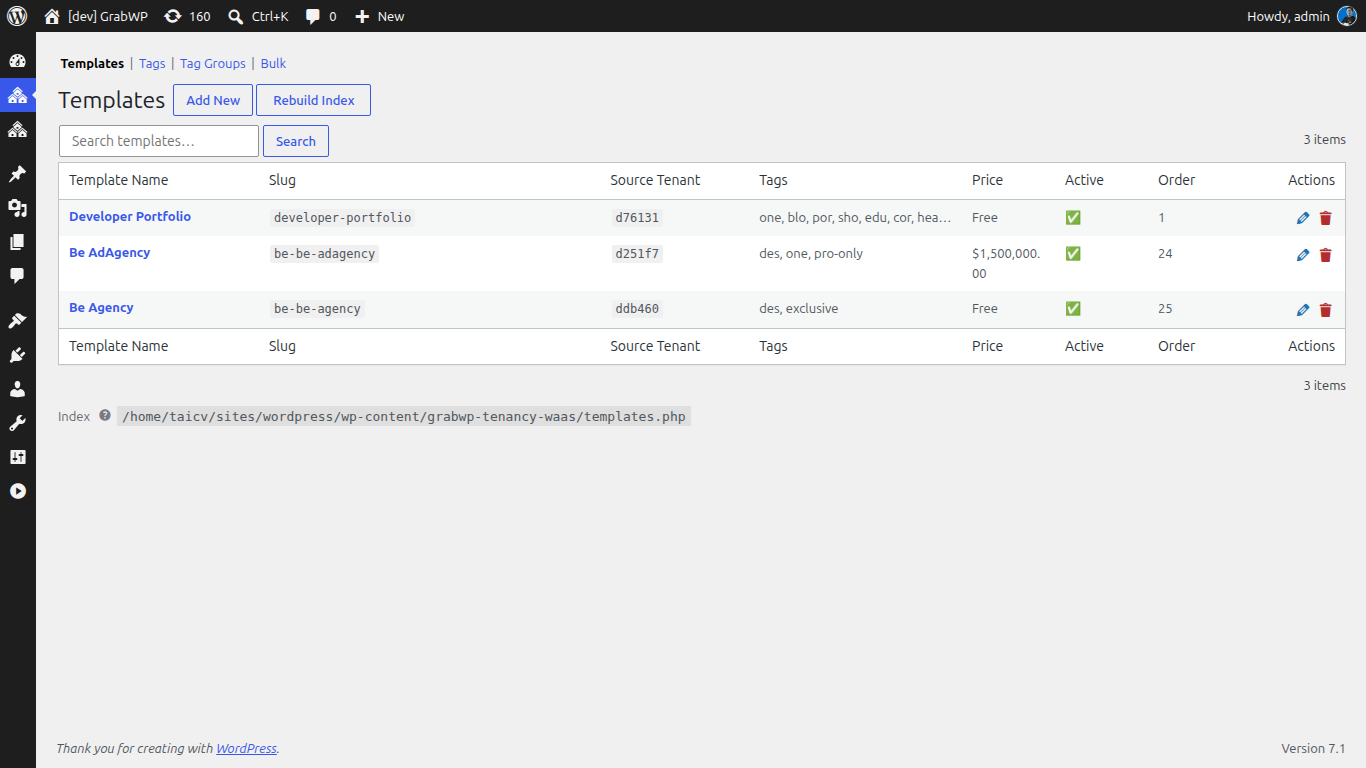
Cách templates hoạt động
1. Bạn tạo một tenant site và thiết kế nó
2. Bạn đăng ký tenant đó làm một template
3. Khách hàng duyệt các templates trong quá trình đăng ký
4. Khi khách hàng đăng ký, trang web mới của họ được nhân bản từ template
Templates được lưu trữ dưới dạng các tham chiếu đến các tenant sites hiện có, chứ không phải là các bản sao riêng biệt. Tenant của template phải luôn ở trạng thái hoạt động.
Bước 1: Tạo một tenant cho template của bạn
Trước khi tạo template, bạn cần một tenant site để dùng làm nguồn.
- Đi đến Tenancy → Add New
- Tạo một tenant mới (ví dụ slug:
template-starter, domain:template-starter.yoursaas.com) - Truy cập vào giao diện wp-admin của tenant và thiết kế trang web:
- Cài đặt và cấu hình một theme
- Thêm nội dung demo (pages, posts, media)
- Thiết lập menus, widgets và nhận dạng trang web
- Cấu hình bất kỳ plugins nào bạn muốn bao gồm
Tip: Hãy dành thời gian để chăm chút cho trang web này thật đẹp mắt. Mỗi khách hàng chọn template này sẽ bắt đầu với một bản sao chính xác như vậy.
Bước 2: Tạo một template
- Đi đến WaaS → Templates
- Nhấp vào Add New Template
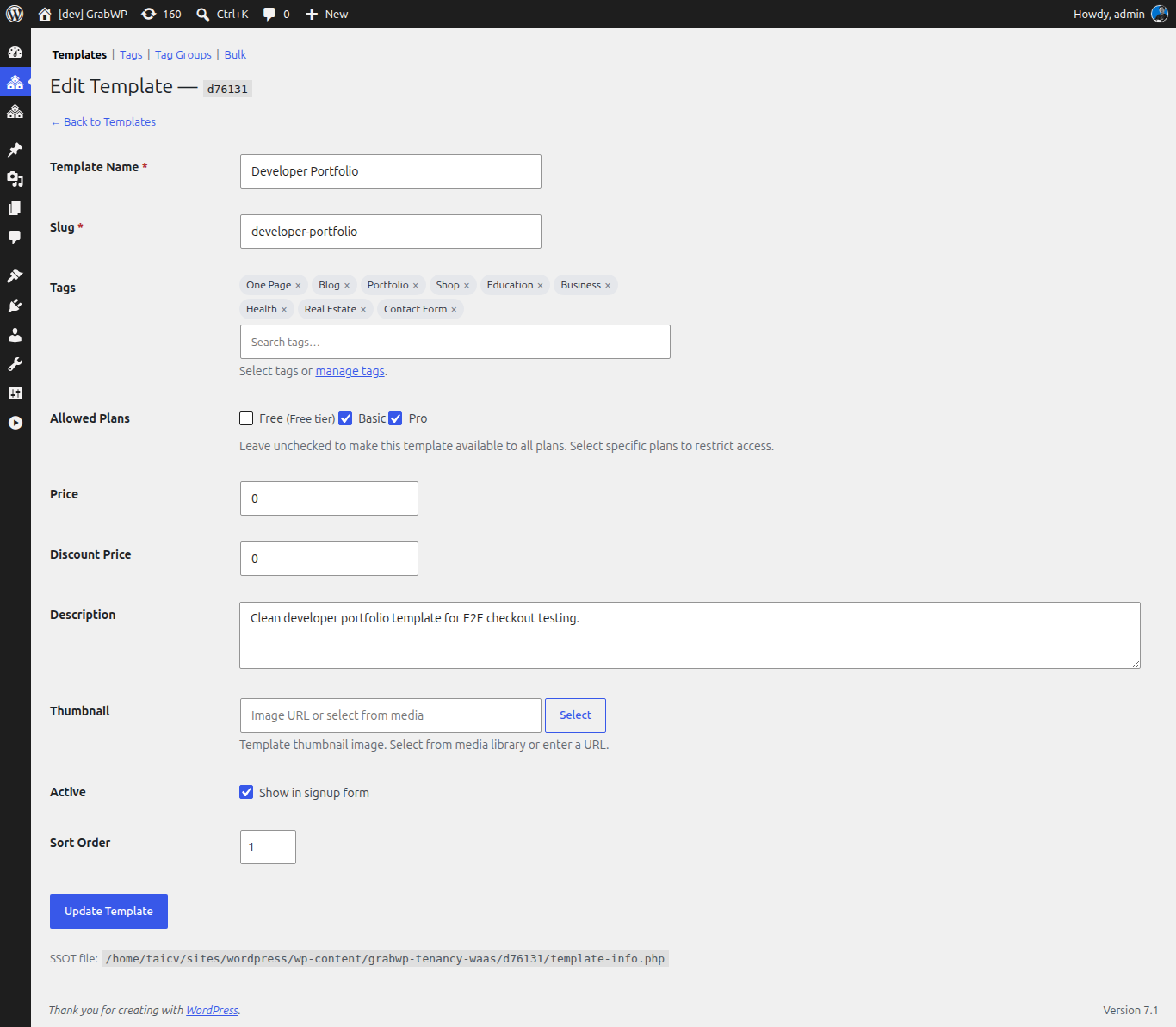
Điền vào:
| Trường | Giá trị | Ghi chú |
|---|---|---|
| Source Tenant | Chọn tenant mà bạn đã thiết kế | Chỉ hiển thị khi tạo, không thể chỉnh sửa sau đó |
| Template Name | Starter Blog | Tên hiển thị trong thư viện template |
| Slug | starter-blog | Mã định danh an toàn cho URL. Chỉ dùng chữ cái viết thường, số, dấu gạch ngang. |
| Tags | Chọn hoặc nhập tags | Dùng để lọc trong thư viện. Xem phần thiết lập tags bên dưới. |
| Allowed Plans | Bỏ chọn để áp dụng cho tất cả plans | Đánh dấu các plans cụ thể để giới hạn template này chỉ dành cho người dùng trả phí |
| Price | 0 | Tùy chọn. Bạn có thể tính thêm phí cho các templates cao cấp. |
| Active | Đánh dấu chọn | Template sẽ xuất hiện trong thư viện |
- Tải lên một Thumbnail. Đây là ảnh chụp màn hình hoặc mockup của template. Kích thước đề xuất: 1280×960px.
- Tùy chọn thêm một Preview URL. Đây là một liên kết trực tiếp để khách hàng có thể nhấp vào và xem template hoạt động thực tế.
- Nhấp vào Save Template
Thiết lập tags
Tags cho phép khách hàng lọc thư viện template theo danh mục, ngành nghề hoặc tính năng.
Tạo nhóm tags
- Đi đến WaaS → Settings → Tags
- Nhấp vào Add Tag Group
- Tạo các nhóm như:
industry: Nhà hàng, Portfolio, Blog, Thương mại điện tửbuilder: Elementor, Gutenberg, Beaver Builderfeature: WooCommerce, Đa ngôn ngữ, Membership
Tạo tags
Bên trong mỗi nhóm, hãy tạo các tags riêng lẻ:
- Nhấp vào Add Tag bên trong một nhóm
- Thiết lập Name (tên hiển thị) và Slug (mã định danh an toàn cho URL)
- Lưu lại
Gán tags cho templates
Khi chỉnh sửa một template, hãy chọn các tags từ menu thả xuống. Templates có thể có tags từ nhiều nhóm khác nhau.
Kiểm soát bộ lọc thư viện
Shortcode của trình duyệt template sẽ kiểm soát những nhóm tags nào xuất hiện dưới dạng nút lọc (filter pills) hay dạng menu thả xuống (dropdowns). Xem Tài liệu tham khảo shortcode để biết tất cả các tùy chọn.
Quá trình nhân bản template
Khi khách hàng chọn một template và hoàn tất đăng ký, WaaS sẽ nhân bản tenant của template:
- Xác thực: Kiểm tra xem tenant nguồn có hoạt động bình thường không
- Xuất dữ liệu: Xuất database của tenant nguồn
- Nhập dữ liệu: Nhập vào database của tenant mới
- Sao chép uploads: Sao chép các tệp media
- Tạo symlink: Liên kết các plugins và themes
- Sửa URLs: Cập nhật tất cả URL sang domain của tenant mới
- Dọn dẹp: Hoàn tất và kích hoạt
Quá trình này thường mất khoảng 10 đến 30 giây tùy thuộc vào kích thước của template.
Tiếp theo: Thiết lập frontend pages