What to send when you ask for help
Short answer: send the exact text you see, the versions of the GrabWP plugins, what the Status page shows, and your web server. With these, support can usually name the cause in one reply. Needs: Free
Check Status first
Start by checking your environment health under Tenancy > Status (page=grabwp-tenancy-status).
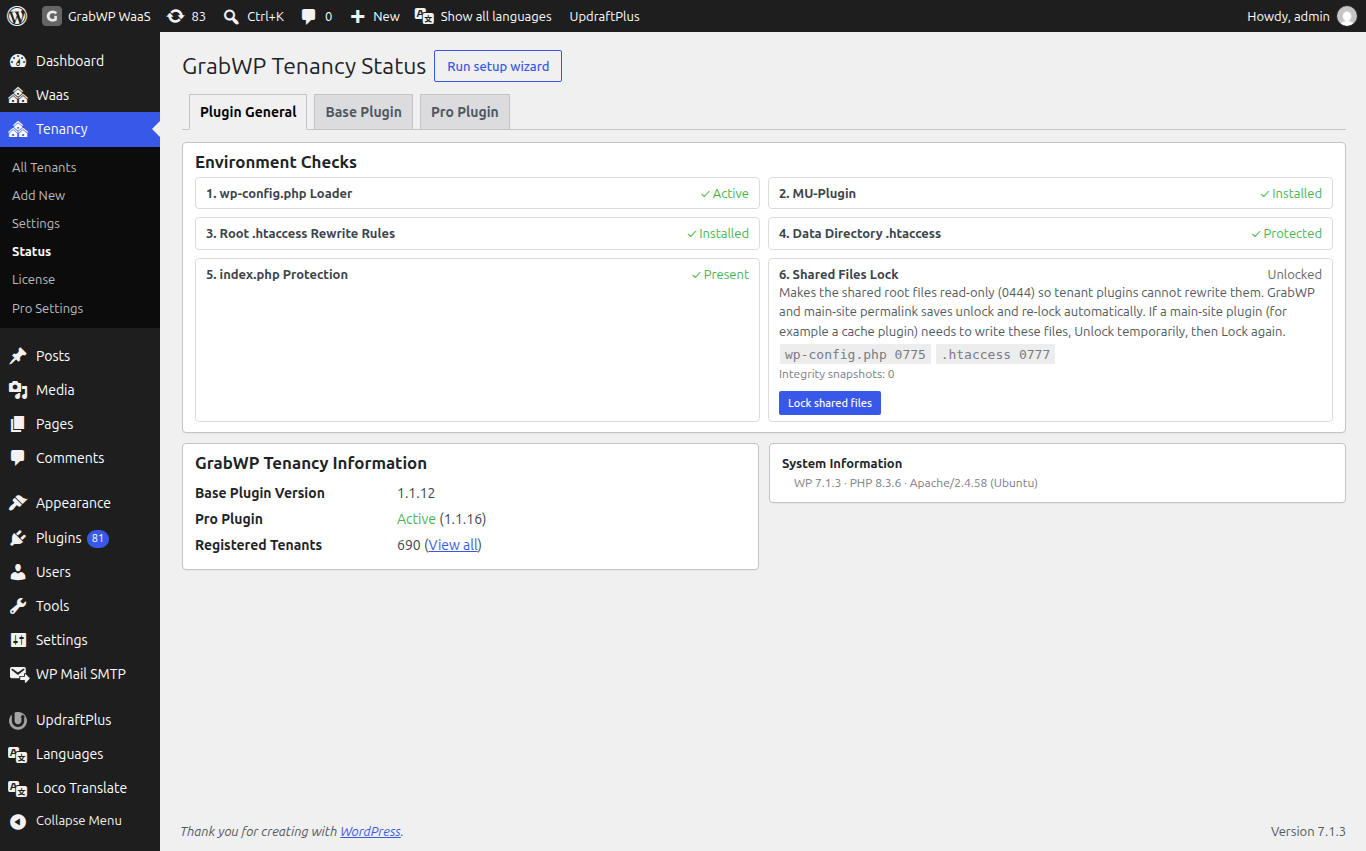
Open the Plugin General tab (tab=general). Use Auto Fix on any row that is not healthy, when the button is available. If a file is not writable, expand Fix steps and install code and click Copy Code.
| Tab | Use it for |
|---|---|
| Plugin General | Loader, MU-plugin, rewrite rules, data directory protection, Hosting setup, loopback, Tenant file safety, System Information and Support diagnostics |
| Base Plugin | Directories, mappings file, settings file, and capability flags |
| Pro Plugin | Whether Pro is Active, plus default isolation and database type |
Copy diagnostics (Base 1.1.15 or later)
The quickest way to share your setup is Support diagnostics at the bottom of Plugin General:
- Open Tenancy > Status > Plugin General.
- Under Support diagnostics, click Copy diagnostics.
- Paste the result into your support request.
It copies a summary of the checks, the System Information values and the last lines (up to 50 each) of the GrabWP and WordPress debug logs. Passwords, keys, salts, emails and file paths are left out, and nothing is sent anywhere until you paste it. Read it over before you share it. See Install GrabWP.
What to collect before you ask for help
Collect these five facts before contacting support (the diagnostics copy already covers 2 to 4):
- The exact text. Copy the notice or error message into your message. Do not retype it from memory. A screenshot of the full screen also helps.
- Plugin versions. In wp-admin, open Plugins and note the version of each GrabWP plugin (Base, Pro, WaaS, and any add-ons).
- Status page. Open Tenancy > Status. Check what each tab shows (Plugin General, Base Plugin, Pro Plugin), especially any warning or error rows.
- Web server. Apache, LiteSpeed, or Nginx, along with the hosting panel if you use one. The Web Server row in System Information displays the detected server.
- What you did just before. For example: "changed isolation level", "switched storage driver", or "added a custom domain".
For a problem with a specific site, also include the site URL and whether it uses a path URL or a custom domain.
What to send
Send all five facts together in your first message.
Never send passwords, API keys, license keys, or payment secrets. If a tool asks for a license key, enter it directly on the License page yourself.
Other setup problems
The Tenancy menu is missing
You need the manage_options capability (administrator role) to see the Tenancy menu. If you are an administrator and the menu is missing, check Plugin General on Tenancy > Status to verify the loader and MU-plugin.
Errors after activation or reactivation
Deactivating the plugin removes the loader, the must-use plugin, and the root rewrite rules. Site database tables and uploads are never deleted when you deactivate. Activating the plugin again brings your sites back.
A site shows the main site's content
If opening a site loads the main platform site instead:
- Deactivate and reactivate GrabWP Tenancy under Plugins.
- Recheck Tenancy > Status on the Plugin General tab.
- Clear your browser cache, any WordPress caching plugins, and your host or CDN cache.
Forgot the site admin password
If an administrator password is lost on an individual site, go to that site's login screen (https://your-site-domain/wp-login.php) and click Lost your password?.
Limits and support channels
Where to send your request depends on your plan and hosting setup:
- For the free plugin, use the WordPress.org support forum.
- If you use GrabWP Pro or WaaS, contact GrabWP support with your collected facts.
- If you rent a site on a platform run by someone else, contact that platform operator directly.