Payment provider errors
Short answer: most checkout errors happen when a payment provider add-on is missing its API keys, required currency, or webhook configuration under Waas > Settings > Billing Providers. Check the exact error message below to update your keys, currency settings, or WooCommerce anchor product. Needs: Pro + WaaS
Symptom
You or your customers see one of these messages in wp-admin or during checkout:
Stripe secret key is not configured.SePay is active. Add VND as primary or secondary currency in WaaS > Settings > Billing Providers before customers can pay with SePay.Sepay requires VND currency. Please set VND as primary or secondary currency in WaaS settings first.- The reference_id entered has been used before (Xendit checkout)
- Invalid parameter(s): billing_cycle (Xendit checkout)
The WaaS anchor product is not available for purchase.(WooCommerce checkout)Discounts are off. Codes are kept, but checkouts, quotes and pages ignore them until you turn discounts on below.
Or, a customer completed payment, but their subscription remains in Pending status.
Cause
| If you see | It means |
|---|---|
Stripe secret key is not configured. | The GrabWP Tenancy Stripe add-on is active, but the secret key field is empty under Waas > Settings > Billing Providers. |
SePay is active. Add VND as primary or secondary currency in WaaS > Settings > Billing Providers before customers can pay with SePay. | SePay only processes Vietnamese Dong (VND), and neither your primary nor secondary currency is set to VND. |
Sepay requires VND currency. Please set VND as primary or secondary currency in WaaS settings first. | A customer attempted a SePay checkout while VND was not configured in currency settings. |
| Customer paid but subscription stays Pending | Webhooks from the payment gateway are not reaching your site, or the webhook secret signature does not match. |
| The reference_id entered has been used before or Invalid parameter(s): billing_cycle | In Xendit, these occur when an existing subscriber attempts an additional purchase or one-time add-on while holding an active plan. |
| WooCommerce checkout opens an empty cart | The internal WooCommerce anchor product was deleted, trashed, or marked not purchasable. |
| Discounts do not apply at checkout | Discounts are globally turned off on the Waas > Discounts screen. |
Check
Inspecting billing providers and webhooks
Navigate to Waas > Settings, tab Billing Providers (page=grabwp-tenancy-waas-settings&tab=billing).
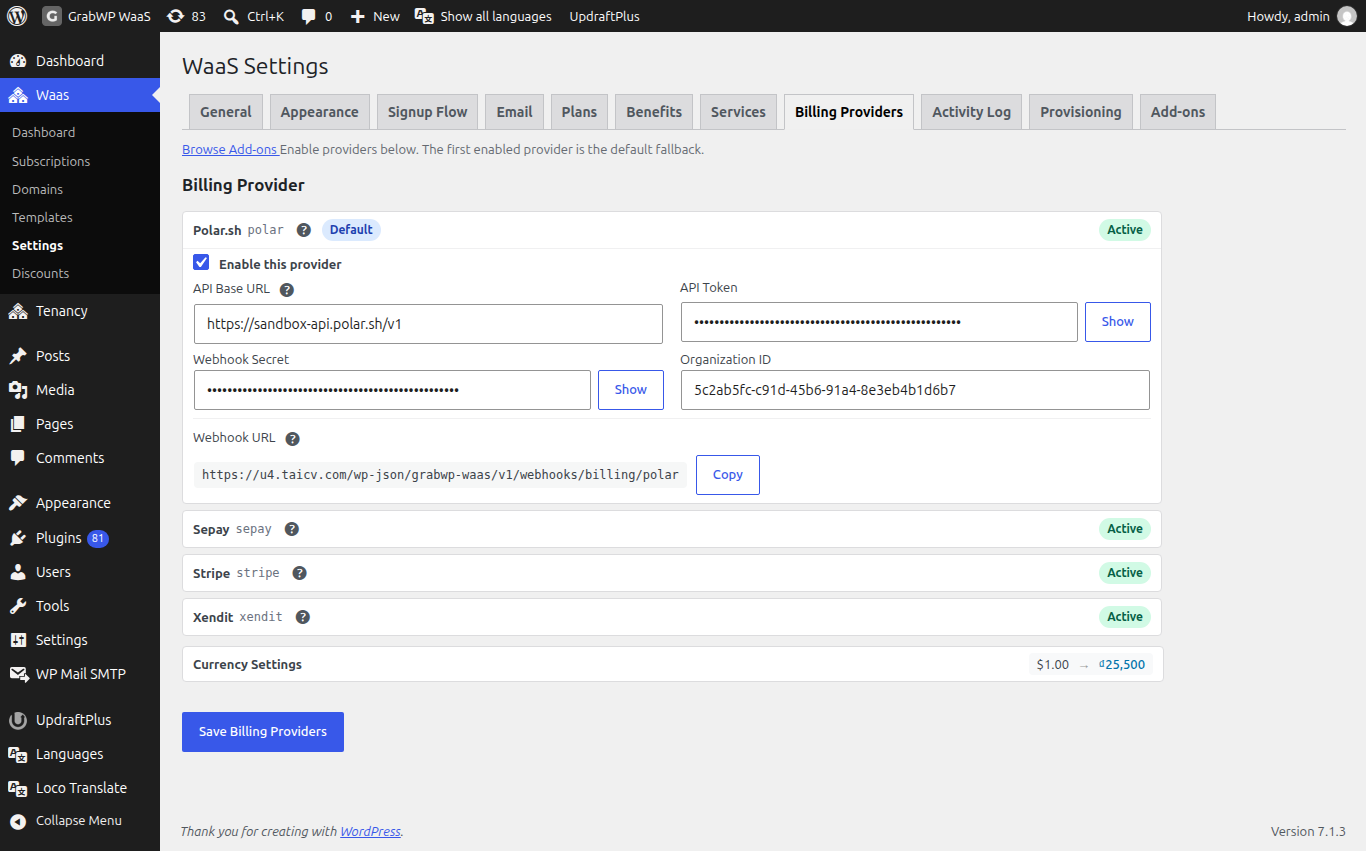
- Check which providers are enabled (Polar and WooCommerce are built-in; Stripe, SePay, and Xendit run via add-ons).
- For providers that declare webhooks, locate the Webhook URL field:
https://your-site.example/wp-json/grabwp-waas/v1/webhooks/billing/<provider>
- Hover over the tooltip next to Webhook URL to see Last webhook received: timestamp, or whether it says No webhook events received yet..
- Confirm your WordPress site is publicly reachable over HTTPS (not blocked by HTTP basic authentication or maintenance mode).
Fix
Stripe: missing secret key or webhook signature
- In the main site admin, go to Waas > Settings > Billing Providers.
- Enter your Stripe secret key (
sk_live_...orsk_test_...) and webhook signing secret (whsec_...), then save changes. - In your Stripe dashboard, ensure the webhook URL points to
https://your-site.example/wp-json/grabwp-waas/v1/webhooks/billing/stripe. - If using Stripe trials on plans, ensure GrabWP Tenancy Stripe is version 1.1.7 and the plan trial is at least 48 hours.
SePay: currency or webhook configuration
- Go to Waas > Settings > Billing Providers.
- Set either the primary currency or secondary currency to
VND(with an exchange rate ifVNDis secondary), then save changes. - Configure your SePay webhook endpoint in the SePay portal to
https://your-site.example/wp-json/grabwp-waas/v1/webhooks/billing/sepay. - Ensure the webhook API key entered in SePay settings is at least 10 alphanumeric characters.
WooCommerce: missing or damaged anchor product
- Go to Waas > Settings > General and scroll down to the Repair tools section.
- Click Create/Repair WooCommerce Anchor Product.
- Confirm the success notice appears:
WooCommerce anchor product is ready.. - Ensure no caching plugins or cart fragments restore an old empty WooCommerce cart.
Xendit: existing customer repeat purchases
When an existing subscriber encounters reference_id has been used before or invalid billing_cycle parameter errors on Xendit:
- As platform operator, go to Waas > Subscriptions and open the customer's subscription.
- Use Extend Period to grant extra time, or manually assign the purchased add-on service.
Discounts turned off
If promo codes fail to apply, go to Waas > Discounts and check whether the banner says Discounts are off. Codes are kept, but checkouts, quotes and pages ignore them until you turn discounts on below.. Check the option to enable discounts and save changes.
Still stuck
If payments succeed in your gateway portal but subscriptions do not update in WaaS, check Waas > Settings > Activity Log around the transaction timestamp and follow What to send when you ask for help.