Pro license messages
Short answer: GrabWP Tenancy Pro license keys always start with GRABWPPRO- and are managed under Tenancy > License. If activation fails, check the key format, make sure your server can reach the license API over HTTPS, or manage existing activations in the Customer Portal.
Needs: Pro
Symptom
On Tenancy > License (or the License step of the setup wizard), clicking Activate License or Revoke license shows one of these messages:
Please enter a license key.This does not look like a GrabWP Pro license key. It should start with GRABWPPRO-.Organization ID not configured.Invalid response from license server.Activation failed (HTTP %d).Activation mismatch; refusing to clear license.
Cause
| If you see | It means |
|---|---|
Please enter a license key. | The License key input field was empty when Activate License was clicked. |
This does not look like a GrabWP Pro license key. It should start with GRABWPPRO-. | The entered text does not match the GRABWPPRO- key pattern (GRABWPPRO- followed by letters, digits, and hyphens). |
Organization ID not configured. | The constant GRABWP_TENANCY_PRO_POLAR_ORG_ID is missing or empty in the plugin files. |
Invalid response from license server. | The activation request returned HTTP 200, but the response body did not contain an activation ID (for example, if a firewall or proxy altered the JSON reply). |
Activation failed (HTTP %d). | The license server rejected the activation request (for example, the key is already activated on another domain, expired, disabled, or revoked). |
Activation mismatch; refusing to clear license. | While revoking a license, the activation ID reported by the browser did not match the activation_id stored on record for this site. |
Check
- In the main site admin, go to Tenancy > License.
- If the site is not yet licensed, check that your key begins with
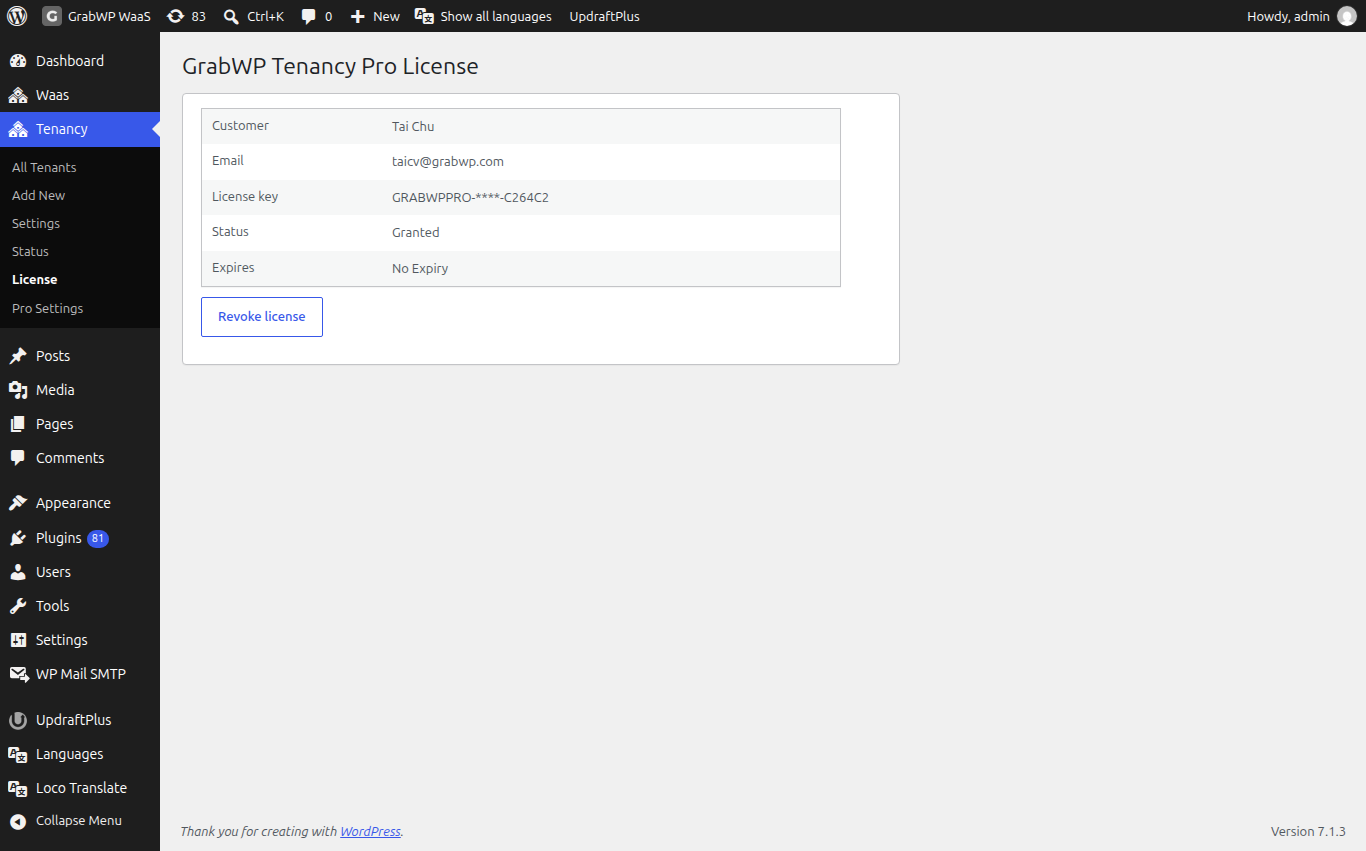
GRABWPPRO-and has no extra spaces before or after it. - If the site is already licensed, check the Status row on the GrabWP Tenancy Pro License table. Local status is stored as
activeorinactive, while the license server can reportgranted,revoked,disabled, orexpired. - Go to Tenancy > Settings > Performance & Security and check whether Block External Requests is turned on without
*.grabwp.comor the license server in Allowed Hosts When Blocked.
Fix
- Copy your full license key (starting with
GRABWPPRO-) from the Customer Portal link shown on Tenancy > License (sign in with your purchase email). - Paste the key into the License key field and click Activate License.
- If the key was previously used on a staging or old domain and activation fails, open the Customer Portal link on Tenancy > License, deactivate the old domain activation there, and then click Activate License again in wp-admin.
- If you see
Organization ID not configured., reinstall a clean copy of GrabWP Tenancy Pro so the default plugin constants are restored. - Never paste your license key into a public community chat or forum post.
Still stuck
If Activate License continues to fail after checking the Customer Portal, send the exact error message (without sharing your full license key publicly) and your Tenancy > Status information. See What to send when you ask for help.