Signup stops or shows an error
Short answer: signup errors happen either before checkout (when a site name is reserved or already taken) or after checkout while the site is being built. Check Waas > Settings > Provisioning in wp-admin to inspect the job state, read the Last Error column, and click Retry. Needs: Pro + WaaS
Symptom
During signup, a visitor sees one of these form validation errors:
Name is required.Valid email is required.Please choose a template to get started.Please choose an available template.This template is not available for the selected plan. Please choose a different template or upgrade your plan.Please choose an available plan.This site name is reserved. Please choose another.This site name is already taken. Please try another.This site name is temporarily reserved by another checkout. Please try another.
Or after checkout, the provisioning screen stays on the progress bar and does not finish building the site.
Cause
| If you see | It means |
|---|---|
This site name is reserved. Please choose another. | The chosen name is on the reserved list: www, mail, admin, api, cdn, ftp, smtp, imap, pop, ns1, ns2, dns, cpanel, webmail, app. |
This site name is already taken. Please try another. | An existing site already uses this name or subdomain. |
This site name is temporarily reserved by another checkout. Please try another. | Another signup intent started with this site name within the last 2 hours (RESERVATION_TTL). |
This template is not available for the selected plan. Please choose a different template or upgrade your plan. | The selected starter template is restricted from the chosen plan. |
Provisioning stays on clone_running or failed_retriable | The background clone step encountered a server timeout, database error, or inactive cron runner. |
Provisioning state is failed_terminal | The job failed after reaching the maximum automatic retry limit of 12 (MAX_RETRIES), or an administrator dismissed it. |
| Template missing from gallery | The template is marked inactive, restricted from the selected plan, or its source site was deleted. |
| Nonce or cookie errors on signup page | A full-page caching plugin is caching the signup page, which embeds a REST nonce. |
Every new code says Your verification code has expired. Please request a new one. right after it arrives | Before WaaS 1.1.25, on sites with a persistent object cache (Redis or Memcached), the one-time code was saved under a key the cache could not find again. Update WaaS to 1.1.25 or later. |
A required custom field blocks the signup with Check these fields: %s. | The GrabWP Tenancy Custom Fields add-on asks for extra details, and a required field is empty or in the wrong format. See Custom fields at signup. |
Check
Inspecting provisioning intents
Navigate to Waas > Settings, tab Provisioning (page=grabwp-tenancy-waas-settings&tab=provisioning).
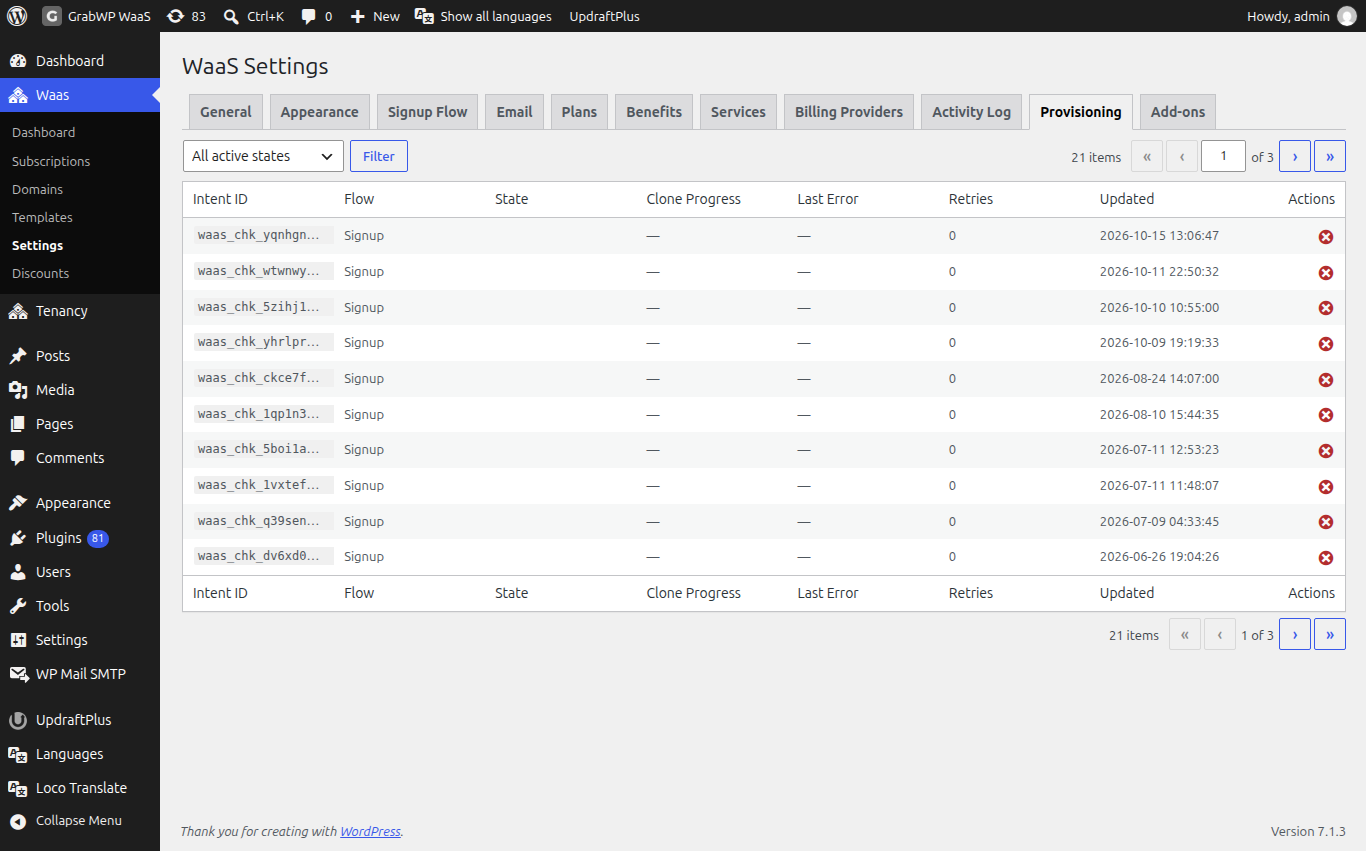
The filter default is All active states. Other options include checkout_pending, payment_confirmed, finalizing, tenant_created, clone_running, and failed_retriable.
| Column | What it shows |
|---|---|
| Intent ID | The internal provisioning record ID |
| Flow | The signup or upgrade flow type |
| State | Current state, such as clone_running or failed_retriable |
| Clone Progress | Step and total count while the clone is running |
| Last Error | Truncated error text (hover to read full text) |
| Retries | Number of retries attempted |
| Updated | Last status update timestamp |
| Actions | Retry (available for failed_retriable and clone_running) and Dismiss |
When you click Dismiss, the confirmation asks: Mark this intent as dismissed (failed_terminal)?.
:::tip Dashboard banner
A client site dashboard can display Your site is being set up. while media and extensions are copying in the background. That banner clears automatically when the clone finishes.
:::
Fix
If a site name is reserved or held
- If the name is in the reserved list (
www,mail,admin,api,cdn,ftp,smtp,imap,pop,ns1,ns2,dns,cpanel,webmail,app), ask the customer to choose a different name. - If an abandoned checkout holds the name (
This site name is temporarily reserved by another checkout. Please try another.), wait for the 2 hour reservation to expire, or go to Waas > Settings > Provisioning and click the Dismiss icon on the abandonedcheckout_pendingrow.
If provisioning is stuck after checkout
- Open Waas > Settings > Provisioning.
- On any row in
failed_retriableorclone_runningstate, click the Retry icon under Actions. You will see the confirmation noticeIntent re-queued for retry.. - Open Waas > Settings > Activity Log around the same timestamp to see server errors. Since WaaS 1.1.25, a failed clone also writes the failed step, the error and the target database to the GrabWP debug log (
grabwp_debug.log). Copy diagnostics on Tenancy > Status includes the last lines of that log. - Confirm the web server user has write permissions on the directory shown as WaaS Directory under Waas > Settings > General.
- Ensure a server cron job is calling
wp-cron.phpregularly so the background runner (grabwp_waas_resume_provisioning_intent) and hourly stuck-job scanner (grabwp_waas_scan_stale_intents) run.
If templates are missing from the gallery
- Go to Waas > Templates.
- Edit the template and confirm Active / Show in signup form is checked.
- Confirm Source Tenant still exists under Tenancy > All Tenants.
- Check Allowed Plans; leave them unchecked to make the template available on all plans.
- If preview links fail, ensure URLs with
?grabwp_waas_preview=<slug>are not stripped by server caching.
Exclude the signup page from cache
The signup page sends no-cache headers because it embeds a REST nonce. Exclude your signup page URL (/signup/ by default) from any server, host, or plugin full-page caching.
If verification codes always read as expired
Update GrabWP Tenancy WaaS to 1.1.25 or later. Codes sent before the update can still be verified. If a customer's code has really timed out, they request a new one on the signup form.
Still stuck
If clicking Retry fails again with the same error, record the Intent ID, State, Clone Progress, and full Last Error text, then follow What to send when you ask for help.