Backup and restore
Short answer: click Backup Tenant on a site's row and then Start Backup to get a ZIP of that site. Set a schedule on Auto Backup Settings, and restore with Restore Tenant from a saved backup or an uploaded ZIP. A restore replaces everything on that site.
Needs: Pro
How it works
A backup covers one site: its database, its own plugins and themes (if it has them), its Pro settings and its uploads, packed into one ZIP archive. Backups are kept on your server, and Pro can also send them to S3-compatible storage.
The free plugin has no backup screen. It does have Clone a site, which you can use to make a quick copy.
Back up a site now
Open Tenancy > All Tenants and click Backup Tenant on the row (or the Backup tab on a site). The title is Backup Tenant: plus the site ID, with tabs Backup, Auto Backup Settings and Previous Backups.
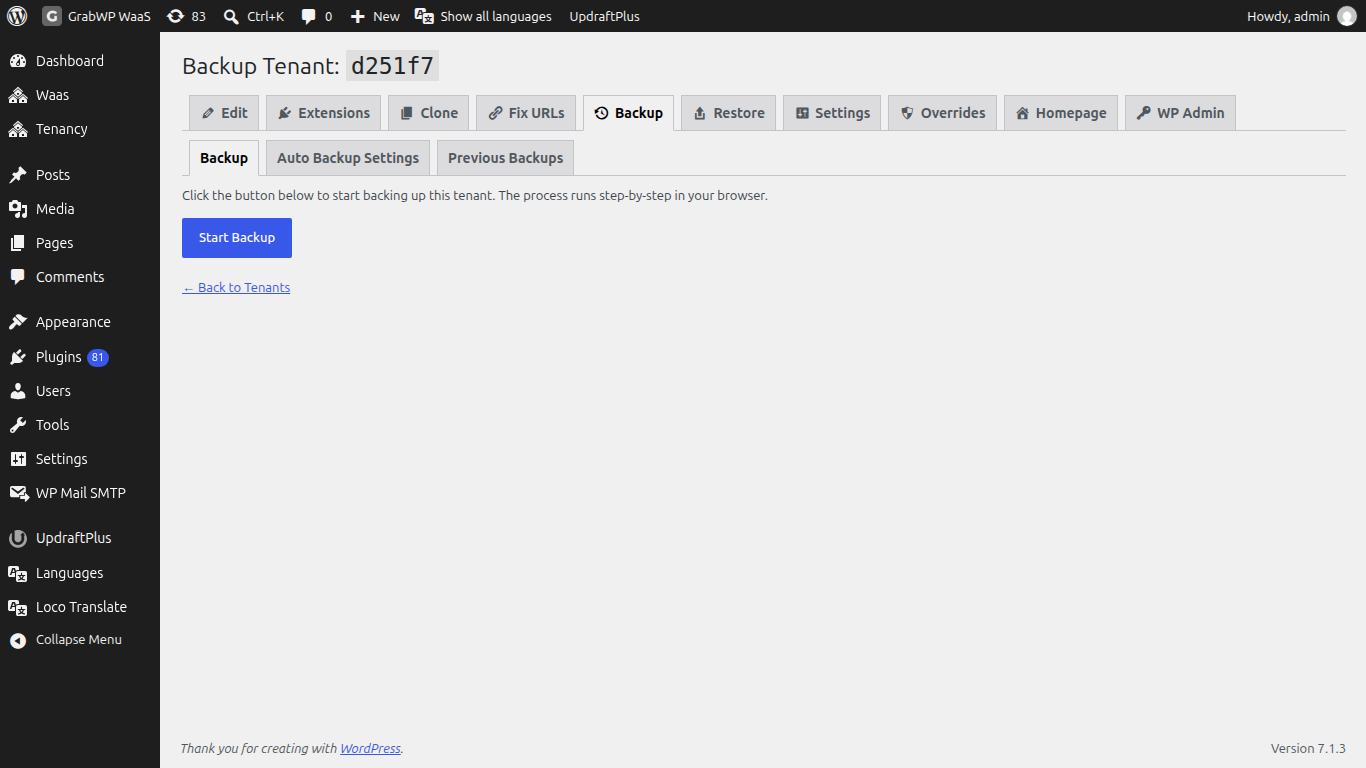
- On Backup, click Start Backup.
- Keep the browser tab open while these steps run: Validating tenant, Exporting database, Exporting isolated content, Exporting Pro config, Exporting uploads, Packaging archive, Cleaning up.
- When you see Backup complete! and Your backup archive is ready., click Download Backup if you want a copy on your computer.
Schedule backups for one site
Open the Auto Backup Settings tab.
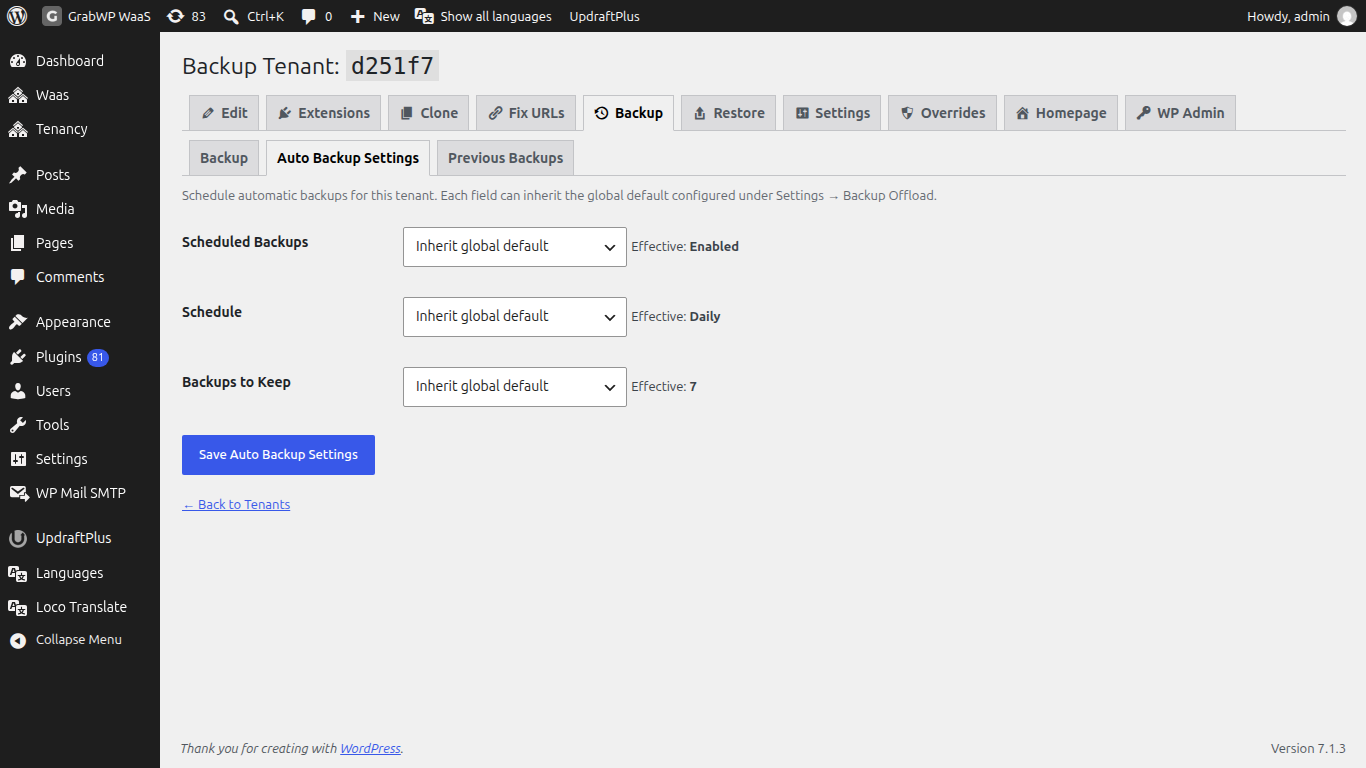
Each field can follow the global default from Tenancy > Pro Settings > Backup. Effective: under each field shows the value in use.
| Field | Choices |
|---|---|
| Scheduled Backups | Inherit global default, Enabled or Disabled. |
| Schedule | Inherit global default, Manual only (no schedule), Daily, Weekly, Every two weeks, Monthly. |
| Backups to Keep | 1 to 30. Older archives are deleted after each successful run. |
Click Save Auto Backup Settings. If backups end up enabled but the schedule is Manual only (no schedule), Pro saves Weekly instead so backups actually run, and tells you so.
Scheduled backups run through WP-Cron on the main site. If WP-Cron is turned off there, add a server cron job. Tenancy > Pro Settings > Backup shows Schedule Assurance with the cron status and the next run. See Scheduled jobs and server cron.
Previous backups
Open Previous Backups.
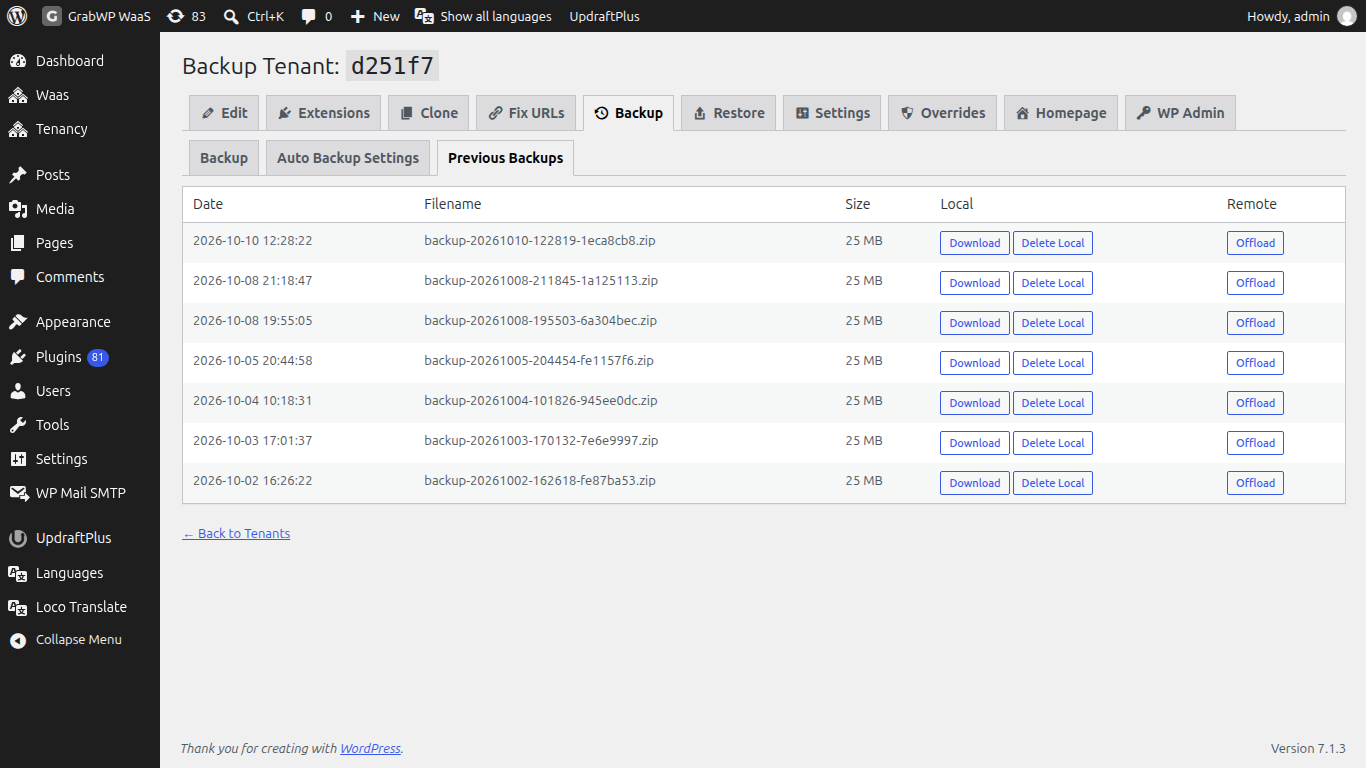
Columns: Date, Filename, Size, Local, Remote.
| When | Buttons |
|---|---|
| The file is on your server | Download, Delete Local |
| Offload is set up and the file is only local | Offload |
| The file is only in remote storage | Download to Local |
| The file is in remote storage | Delete Remote |
Both delete buttons ask you to confirm and cannot be undone.
Send backups to S3 (offload)
On Tenancy > Pro Settings > Backup, under Backup Offload:
| Field | Notes |
|---|---|
| Offload Driver | Disabled, Use Platform S3 Storage (uses the bucket from the Storage tab, so set that up first) or Custom S3 Endpoint (a separate bucket just for backups). |
| Auto Offload | Automatically offload backups to remote storage after creation. |
| Delete Local Copy | Delete local backup file after successful offload. |
Then open Offload storage credentials. For platform storage, set Backup Prefix (the folder inside the bucket, default grabwp-backups). For a custom endpoint, also fill S3 Endpoint URL, Bucket Name, Region, Access Key ID, Secret Access Key and Path-Style Endpoint. Click Test Connection, then Save Pro Settings.
Other drivers shown in the list but greyed out cannot be selected.
Restore a site
Open Tenancy > All Tenants and click Restore Tenant on the row (or the Restore tab).
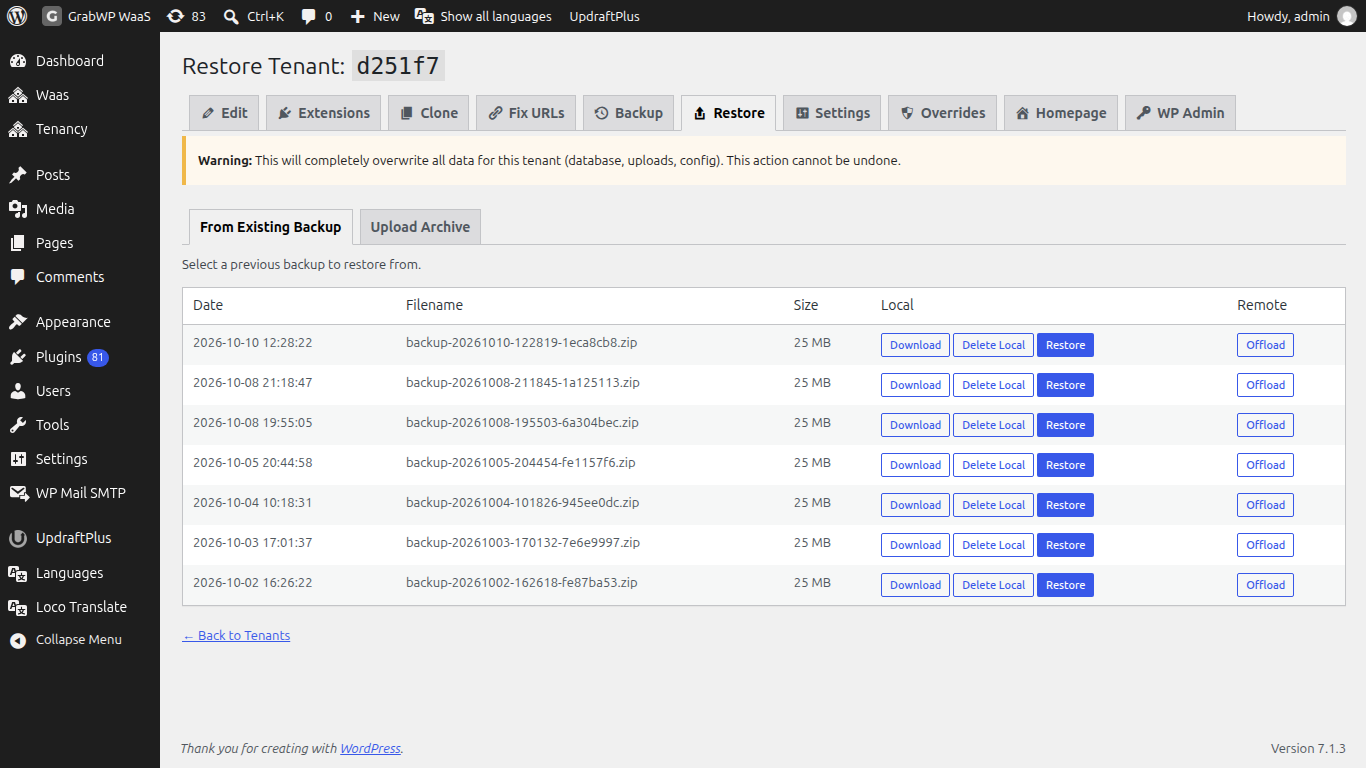
This will completely overwrite all data for this tenant (database, uploads, config). This action cannot be undone. Take a fresh backup first if you may want the current state back.
| Tab | What to do |
|---|---|
| From Existing Backup | Pick a backup and click Restore. Confirm the overwrite. |
| Upload Archive | Choose a file under Backup Archive (.zip) and click Upload & Start Restore. The screen shows the largest file you can upload. Only .zip files are accepted. |
Keep the browser tab open while these steps run: Validating archive, Extracting archive, Verifying contents, Restoring database, Restoring isolated content, Restoring Pro config, Restoring uploads, Cleaning up.
When it finishes you see Restore complete!
If the restore fails, the job ends and the screen says whether the site was changed. Since Pro 1.1.18, a backup without WordPress site data is refused before any table is dropped (This backup has no WordPress site data, so nothing was restored. The site is unchanged.). See Backup, restore or save errors.
Check: open Homepage or the site's domain and confirm the restored content.
Limits
- One site per backup. There is no "back up all sites" button in wp-admin. Use the WP-CLI commands with a server cron if you need that.
- A backup can be restored onto a site that uses a different database type (shared MySQL, isolated MySQL or SQLite).
- If the restored site's stored addresses do not match its domain, run Fix URLs.
- The upload size limit comes from your PHP settings. For big archives, ask your host to raise the PHP upload limit, or restore from a backup that is already listed under From Existing Backup.