Site addresses, domains and DNS
Short answer: a site opens either on a path address such as example.com/site/abc123/, which works right away, or on its own domain such as client.com, which needs DNS pointing at your server. You choose which with Routing mode on Tenancy > Settings > Routing.
Needs: Free (Pro adds a custom path prefix and readable path aliases)
How it works
GrabWP looks at each visit and decides which site was asked for:
- Path address:
example.com/plus a prefix (defaultsite) plus the site ID. No DNS change is needed, but the web server must have GrabWP's rewrite rules. - Domain: GrabWP matches the domain name to a site. The domain must point at your server, and your hosting must send that domain to this WordPress folder.
Choose a routing mode
Open Tenancy > Settings and the Routing tab.
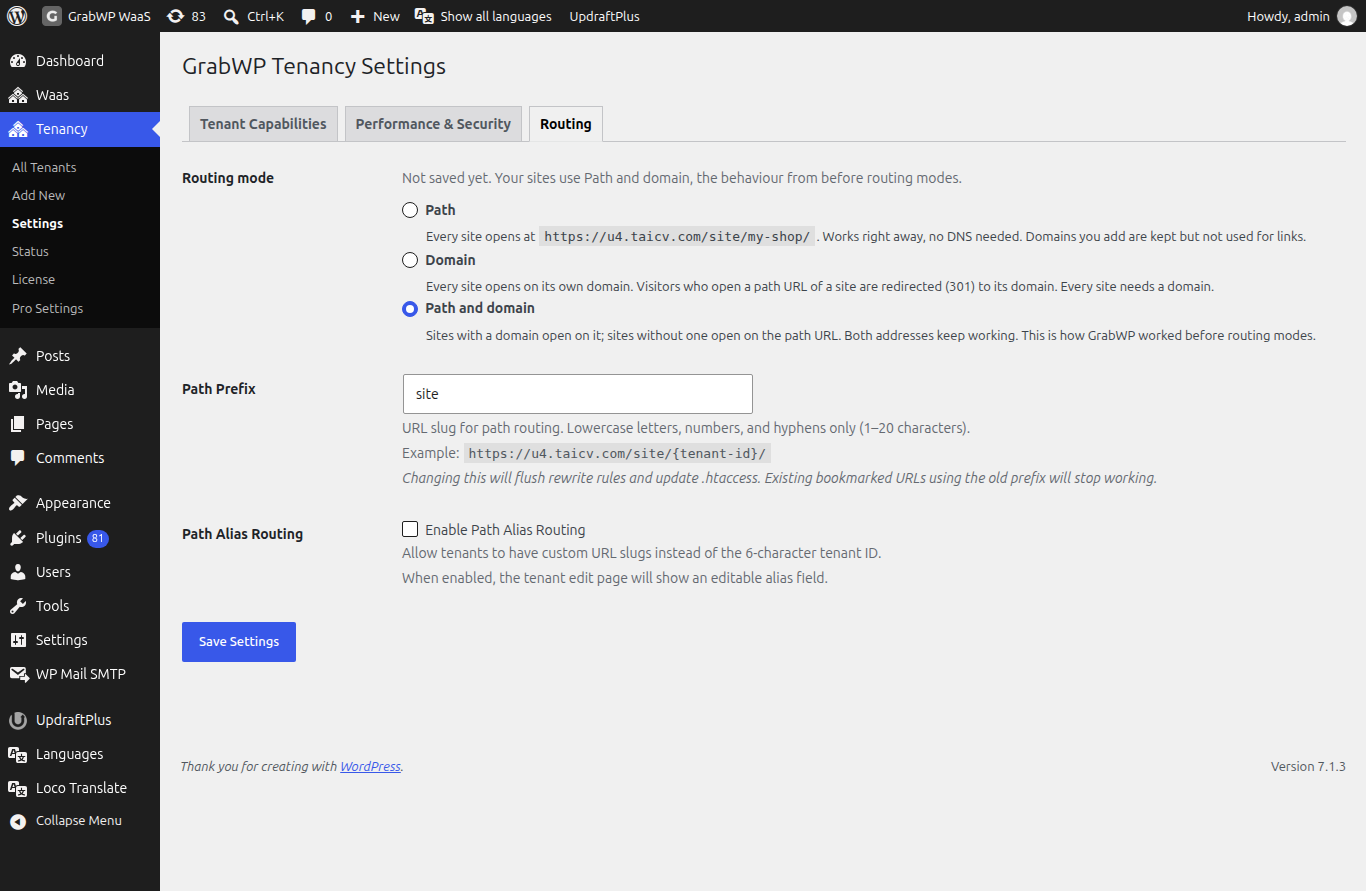
| Mode | What happens |
|---|---|
| Path | Every site opens at its path address. Works right away, no DNS needed. Domains you add are kept but not used for links. |
| Domain | Every site opens on its own domain. Visitors who open a path address are redirected (301) to the domain. Every site needs a domain. |
| Path and domain | Sites with a domain open on it; sites without one open on the path address. Both addresses keep working. |
Until you save a mode, the screen says Not saved yet. Your sites use Path and domain, the behaviour from before routing modes.
Start with Path and domain or Path if you are not sure. Use Domain when every client has their own address.
Change the mode
- Pick a new mode and click Save Settings.
- A Change routing mode screen lists Sites whose address changes (with the current and new address) and What else happens, for example: links stored inside site content are not changed, people logged in to a site whose address changes are signed out once, and you should purge page and CDN caches after the switch.
- Click Switch to plus the mode name, or Cancel.
Switching to Domain is blocked while any site has no domain. The screen lists those sites with an Add a domain link for each.
If GRABWP_TENANCY_ROUTING_MODE is set in wp-config.php, the choices are greyed out and the screen says the mode is set there. Remove the constant to change it on this screen.
Path prefix and path aliases (Pro)
With Pro, the Routing tab has two more rows (hidden in Domain mode):
| Field | Notes |
|---|---|
| Path Prefix | The word in the path address. Lowercase letters, numbers and hyphens, 1 to 20 characters. Default site. Saving a new prefix updates the rewrite rules and .htaccess. Bookmarks with the old prefix stop working. |
| Path Alias Routing | Tick Enable Path Alias Routing to let a site use a readable name instead of its 6 character ID, for example example.com/site/my-shop/. The site's Edit screen then shows Path Alias (3 to 30 characters) and Copy URL. |
Without Pro, the tab shows the current prefix (/site/) and cannot change it.
Connect a domain
Step 1: add the domain to the site
Open Tenancy > All Tenants, click Settings on the row, add the domain under Domains and click Update Tenant. See Create and manage sites.
Domain rules:
- Use
example.comorsubdomain.example.com. Nohttp://and nowwwprefix. Addwww.example.comas a second domain if you need it. - No IP addresses and no
localhost. - Each domain can belong to only one site.
Step 2: add the domain in your hosting panel
Point the domain at the same folder as your main WordPress install. Do not create a separate folder or a second WordPress install.
| Domain type | What to add |
|---|---|
Subdomain, such as client.yoursite.com | A parked domain, alias or subdomain whose document root is the main WordPress folder. |
Separate domain, such as clientsite.com | An addon domain or new domain with the document root set to the main WordPress folder. |
| Control panel | Where |
|---|---|
| cPanel | Parked Domains (subdomains) or Addon Domains (separate domains) |
| Plesk | Websites & Domains > Add Domain |
| DirectAdmin | Domain Management > Add New Domain |
Step 3: point DNS at your server
For a subdomain, add an A record at your DNS provider:
| Field | Value |
|---|---|
| Name | The subdomain label, for example client |
| Type | A |
| Value | Your server's IP address |
For a separate domain, set the domain's nameservers or A record at the registrar to the same server IP.
DNS changes usually apply within 5 to 30 minutes and can take up to 24 hours. You can check progress on dnschecker.org.
Check: open the domain in a browser. You should see that client's site. A hosting default page means the document root is not the WordPress folder. A site that loads with broken links or images usually needs Fix URLs (Pro).
Limits
- Path addresses need web server rules. On Apache and LiteSpeed, GrabWP writes them to the root
.htaccessin a block namedGrabWP Tenancy. Withoutmod_rewrite, the Status page saysPath routing requires mod_rewrite. Query string routing (?site=id) will be used as fallback. - On Nginx,
.htaccessis not read. Add the routing rules to your server block. See Apache, LiteSpeed and Nginx. - Some themes do not work well on path addresses. A domain avoids that.
- Pro's Domain Symlink (Clean URLs) on Tenancy > Pro Settings > Symlink only changes how file URLs look. Visitors still use the site's domain. See Pro settings.
:::info If you sell sites With WaaS, Platform Domain on Waas > Settings > General decides what customer sites look like. When it is empty, customer sites use path addresses and custom domains are not offered to customers. See Client custom domains. :::