Fix URLs
Short answer: if a site shows broken images or links that point at an old address, click Fix URLs on its row in Tenancy > All Tenants. GrabWP fills in the old and the new address for you; check them and click Fix URLs.
Needs: Pro
When to use it
WordPress stores a site's address inside its content: in links, image paths and settings. When the address changes, those stored copies still point at the old one. Use Fix URLs after you:
- change or add a site's domain,
- clone a site,
- restore a backup onto a site with a different address.
The site's domain itself is edited on its Edit screen, not here (see Create and manage sites).
Steps
-
Open Tenancy > All Tenants and click Fix URLs on the row (or the Fix URLs tab on a site). The title is Fix URLs: plus the site ID.
-
Check the two fields:
Field Filled with Old URL (search) The address stored in the site's database ( siteurl).New URL (replace) The address from the site's current domain. You can edit either one, for example to fix a different old address.
-
Click Fix URLs and confirm
This will replace all occurrences of the old URL in the tenant database. Continue?
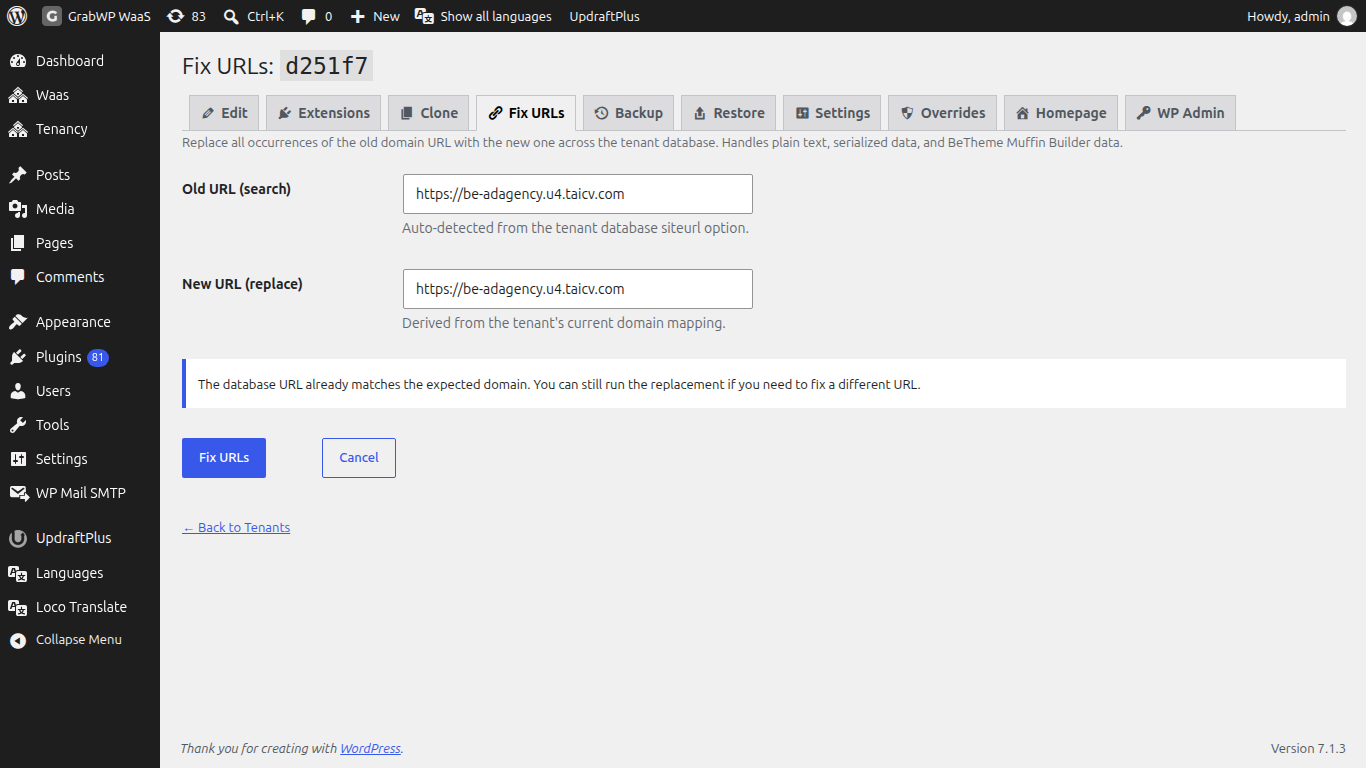
The screen tells you whether there is a problem:
URL mismatch detected.The database has one address but the domain expects another. Run the fix.The database URL already matches the expected domain. You can still run the replacement if you need to fix a different URL.
Cancel goes back to All Tenants without changing anything. If both fields are the same you see Old and new URLs are identical.
What it changes
It replaces the old address everywhere in that one site's database, including plain text, serialized data (settings saved by plugins) and BeTheme Muffin Builder data. Other sites are not touched.
Check: open the site's Settings tab. Siteurl and Home show the new address. Load Homepage and confirm images and links use it.
Limits
- One site at a time in wp-admin. To fix many sites at once, use
wp grabwp tenant search-replace(see WP-CLI commands). - It does not change files on disk, only the database.
- Take a backup first if you are replacing something other than the site address. See Backup and restore.