Per-site plugins and themes
Short answer: by default every site uses the plugins and themes installed on your main site, and clients cannot install their own. With Pro you can give a site its own plugins and themes, then install and activate them for that site from the Plugins & Themes icon on Tenancy > All Tenants.
Needs: Pro (on Free, all sites share the main site's plugins and themes; the client install rules work on Free)
How it works
There are two ways a site can get its plugins and themes:
- Shared from the main site. You install and update them once on the main site. Each site still chooses which ones are active.
- Its own (isolated). The site has its own plugins folder, themes folder, or both. Pro then lets you add each plugin or theme to that site, either as a link to the main site's copy (a symlink, which follows main-site updates) or as a separate copy.
Uploads can also be shared or per site. A fresh install gives each site its own uploads folder.
Choose the default for new sites
Open Tenancy > Pro Settings and the Isolation tab. The setting is Level of isolation for new sites.
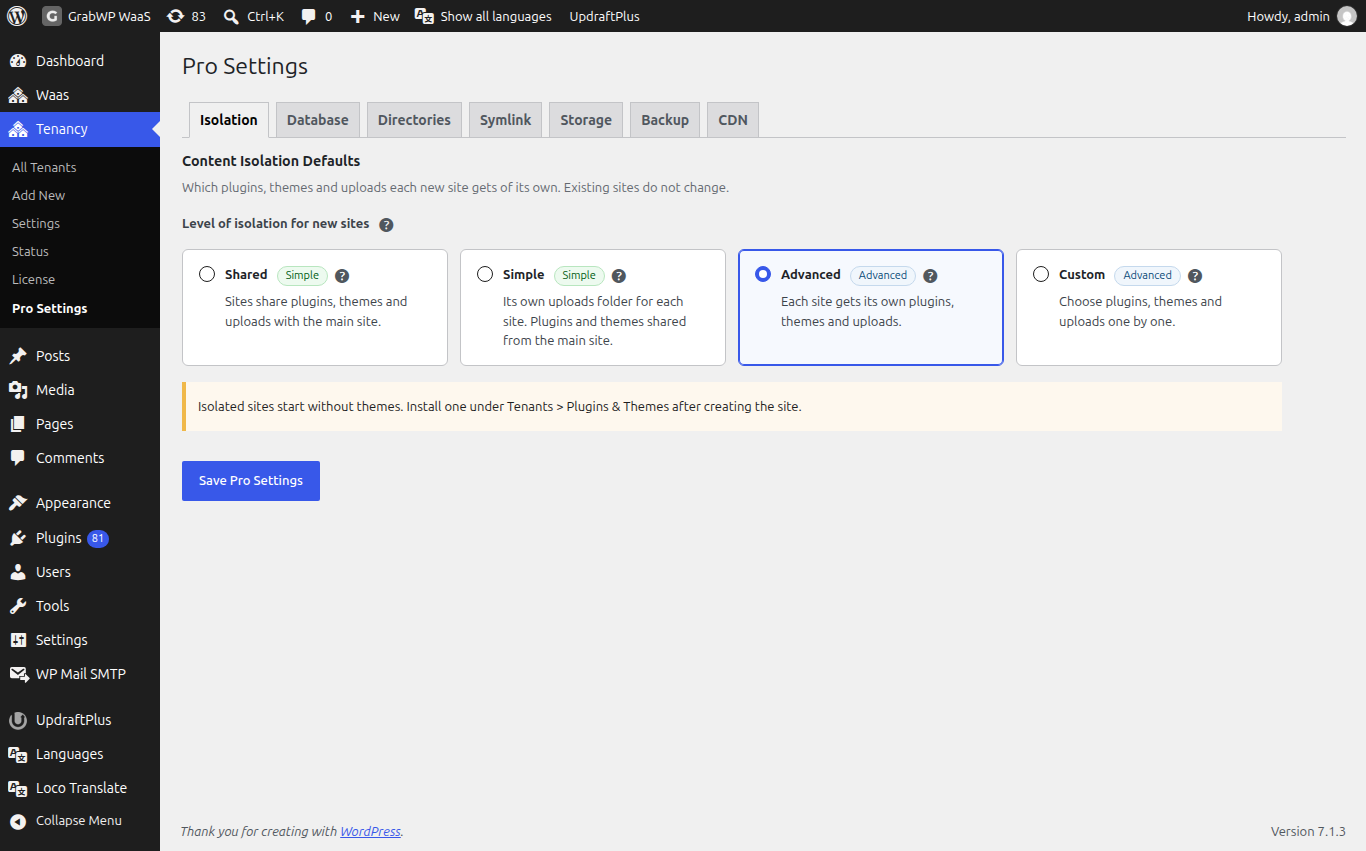
| Level | Own uploads | Own plugins | Own themes |
|---|---|---|---|
| Shared | No | No | No |
| Simple (fresh install default) | Yes | No | No |
| Advanced | Yes | Yes | Yes |
| Custom | Your choice | Your choice | Your choice |
Custom shows three switches: Give each new site its own themes, Give each new site its own plugins and Give each new site its own uploads folder. Own themes always come with the site's own wp-content folder.
Click Save Pro Settings. This applies to sites you create from now on. Existing sites do not change. The Add New form starts from this choice and you can still change it for one site.
Isolated sites start without themes. Install one under Tenants > Plugins & Themes after creating the site. A site with its own themes folder has no theme until you add and activate one on its Extensions screen. Sites cloned from a template that already has a theme get that theme.
Change isolation for one site
- Open Tenancy > All Tenants and click Settings on the row.
- Under Content Isolation Options, tick Content + Themes Isolation, Plugins Isolation or Uploads Isolation as needed. Unticked options use the main site's folders.
- Click Update Tenant.
The description under each box shows the folder that will be used.
Manage a site's plugins and themes
Open Tenancy > All Tenants and click Plugins & Themes on the row (or the Extensions tab on a site). The title is Extensions: plus the site ID.
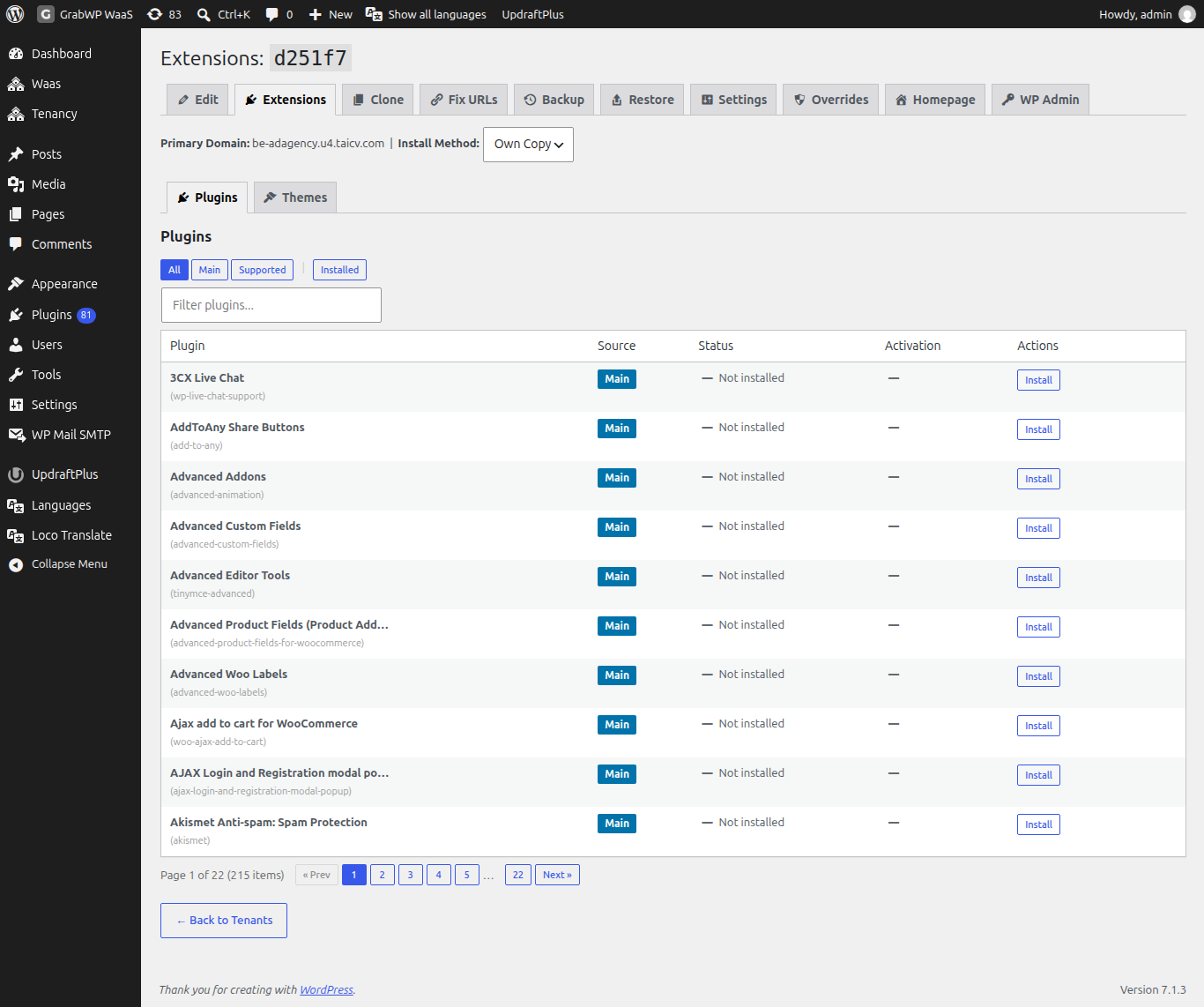
The line under the title shows Primary Domain: and Install Method:.
| Install Method | What it means |
|---|---|
| Symlink | The site points at the main site's plugin or theme files. Updates on the main site apply to the site. Uses less disk. |
| Own Copy | Files are copied into the site's folder. The site does not get main-site updates until you click Sync. |
Changing Install Method saves at once (Saved!). It only affects plugins and themes you add after that. To switch one that is already there, use Convert to Copy or Convert to Symlink on its row.
The Plugins and Themes tabs list everything available, with columns Source, Status, Activation and Actions.
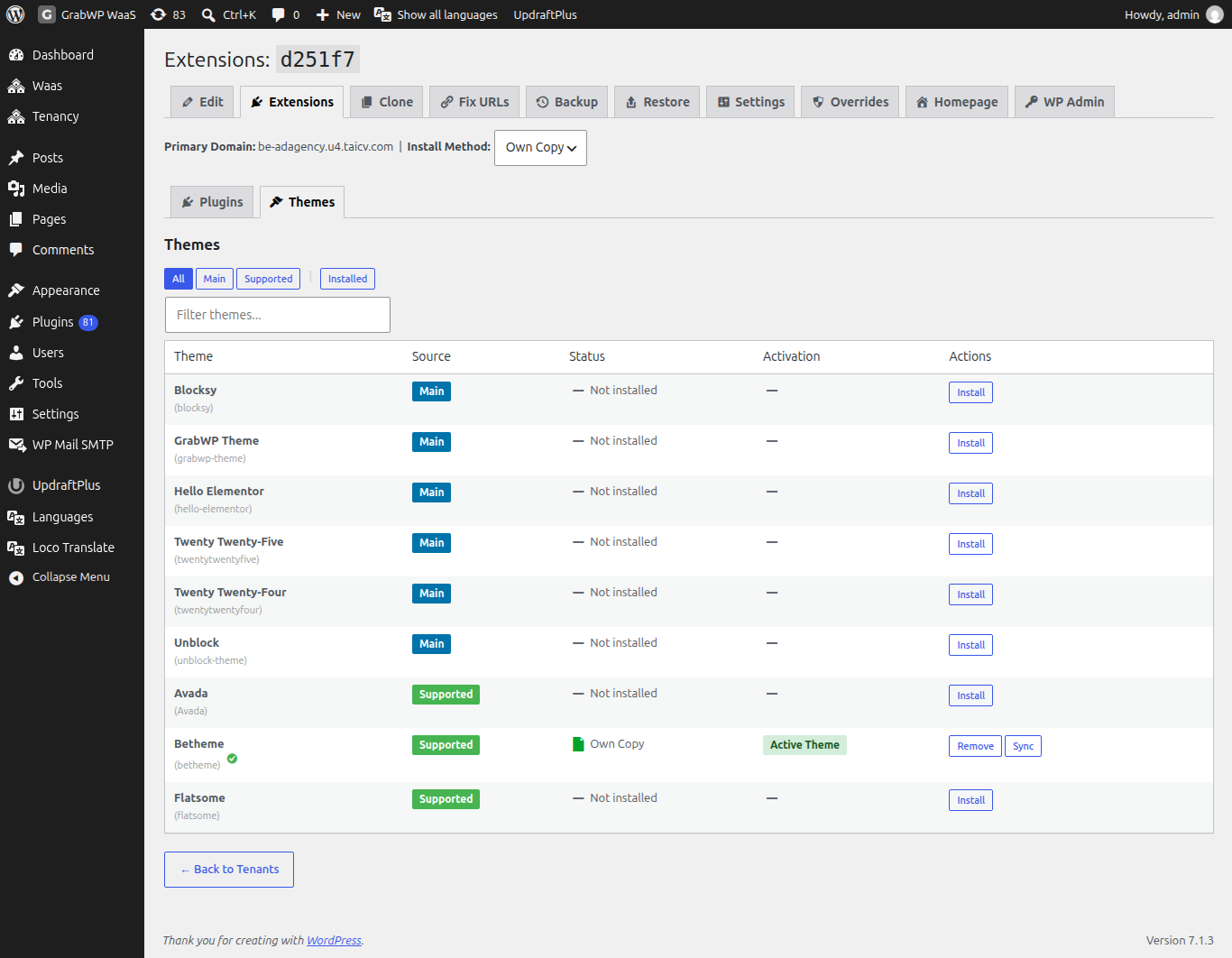
- Source badges: Main, Supported, Custom, Unknown. Use the All, Main, Supported, Custom and Installed filters, or type in Filter plugins... or Filter themes....
- Activation shows Active (or Active Theme) and Inactive, with Activate and Deactivate buttons.
| Status | Buttons |
|---|---|
| Not installed | Install |
| Symlink | Remove, and Convert to Copy |
| Own Copy | Remove, Sync, and Convert to Symlink |
| Broken Symlink | Fix Symlink, Remove broken link |
Each action updates its row in place, so you keep your place on the page.
Other buttons you may see:
- Install All from Config when the site's config lists plugins or themes that are not installed yet.
- Fix All Broken Symlinks when a linked plugin or theme is missing on the main site.
- Orphaned Extensions lists plugins or themes that exist only in the site's folder. You can Copy to Main Site or Remove them.
If isolation is off, the table says so, for example Plugins Isolation is disabled for this tenant. Enable it in the tenant edit form to manage plugins here. If the site's database cannot be read, activation shows ? instead of a status.
Check: after Install and Activate, the row shows Active, and the plugin is listed in that site's own wp-admin (use the WP Admin tab).
Let clients install plugins safely
By default GrabWP stops site admins from installing, updating or deleting plugins and themes. Anyone who can upload a plugin can run any PHP code on your server, so this protects every site on the install.
The settings are on Tenancy > Settings > Tenant Capabilities (all sites) and on each site's Overrides tab (one site, Pro):
| Setting | Default | Effect on client sites |
|---|---|---|
| Disable Install Plugins & Themes | On | No Add New for plugins or themes. Sets DISALLOW_FILE_MODS. |
| Disable Plugin & Theme File Editor | On | No built-in code editor. Sets DISALLOW_FILE_EDIT. |
| Hide Plugins Menu | Off | Removes the Plugins menu. |
| Hide Appearance Menu | Off | Removes the Appearance menu. |
| Hide Themes Screen | Off | Keeps Customize, Menus and Widgets but removes theme browsing, installing and switching. No effect when Hide Appearance Menu is on. Base 1.1.15 or later. |
| Hide GrabWP Plugins | On | Hides GrabWP and the SQLite plugin from the site's plugin list, so clients cannot turn them off. |
The safest way to give a client a plugin is to install it for them on the Extensions screen above. If you trust a client completely:
- One site (Pro): open the site's Overrides tab, set Disable Install Plugins & Themes to No and click Save Overrides. See Site settings and overrides.
- All sites: turn off Disable Install Plugins & Themes on Tenancy > Settings > Tenant Capabilities and click Save Settings.
If a warning says Your wp-config.php already sets the constant, that line in wp-config.php wins over these settings. Remove it so GrabWP can control the setting.
Premium plugin licenses
Each site has its own database, so a license key saved on the main site is not shared with other sites. Whether one license covers many sites is up to the plugin vendor. If the vendor allows it, activate the plugin on a template site and clone that template for new sites.
Limits
- Isolation levels and the Extensions screen need Pro.
- The Symlink install method needs PHP's
symlink()function. If your host turns it off, use Own Copy. - Own plugins and themes use more disk space, and you update each site separately.
:::info If you sell sites Set the isolation level before you build templates. Each new customer site starts from a template clone, so a template with its own theme installed avoids the blank-theme problem. :::