Site settings and overrides
Short answer: Pro adds two tabs to every site. Settings edits that site's Site Title, Tagline and Admin Email from the main site. Overrides lets one site use its own value for a rule from Tenancy > Settings, for example allowing one trusted client to install plugins.
Needs: Pro (the global rules on Tenancy > Settings work on Free)
How it works
Rules on Tenancy > Settings apply to every site (see Free settings). With Pro, each site can keep following those global rules or use its own value, one row at a time. Rows left on Use global setting keep following the global value, even when you change it later.
To open either tab: Tenancy > All Tenants, click the Settings icon on the row, then the Settings or Overrides tab. Homepage and WP Admin on the same bar open the site.
Settings tab
The title is Settings: plus the site ID.
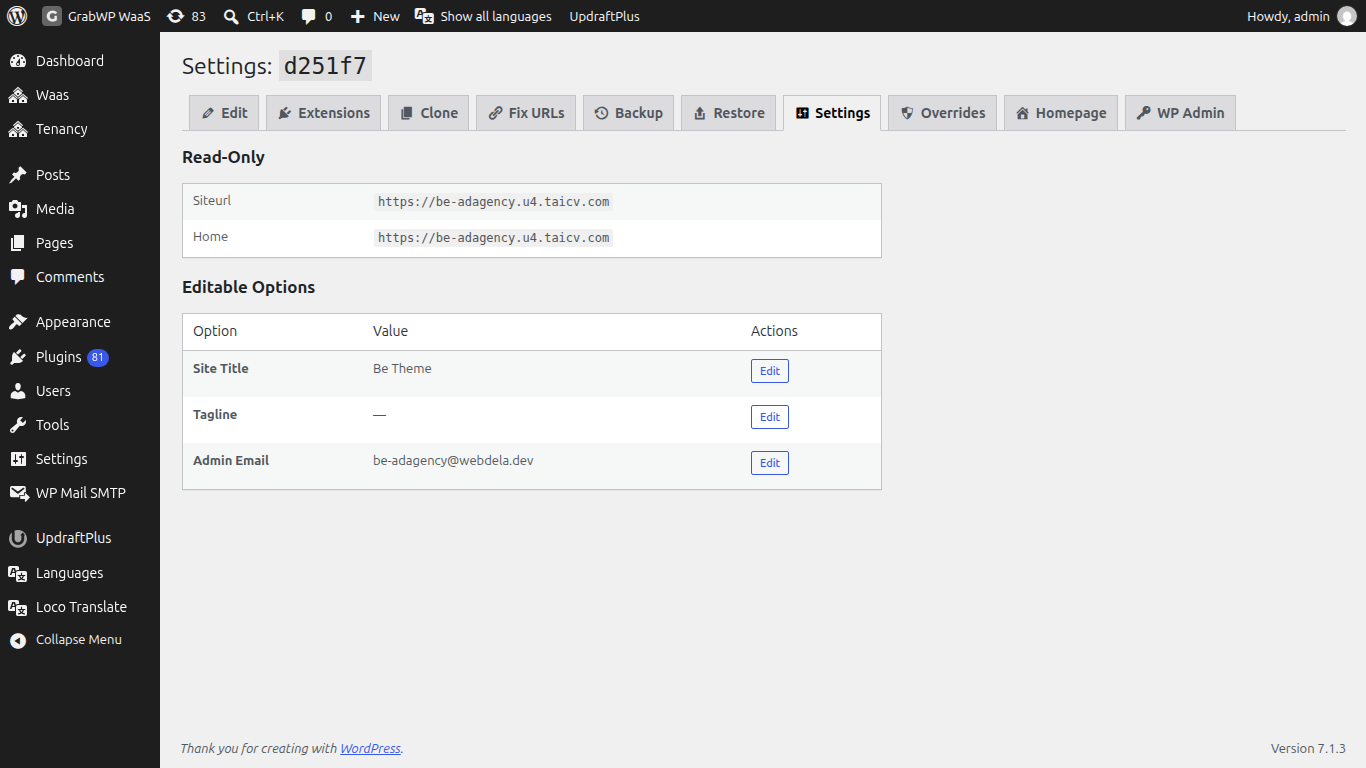
Read-Only shows the site's stored Siteurl and Home addresses. You cannot edit them here. To change the address stored in the database, use Fix URLs.
Editable Options:
| Option | What it is |
|---|---|
| Site Title | The site's name (blogname). |
| Tagline | The short line under the name (blogdescription). |
| Admin Email | The site's admin email address (admin_email). |
- Click Edit on the row.
- Change the Value.
- Click Save. Cancel keeps the old value.
If the site's database cannot be read, the tab says Cannot read tenant database. Settings are unavailable.
Overrides tab
The title is Overrides: plus the site ID. The intro says Pick a value for this tenant only. Rows set to "Use global setting" follow the GrabWP Tenancy Settings page.
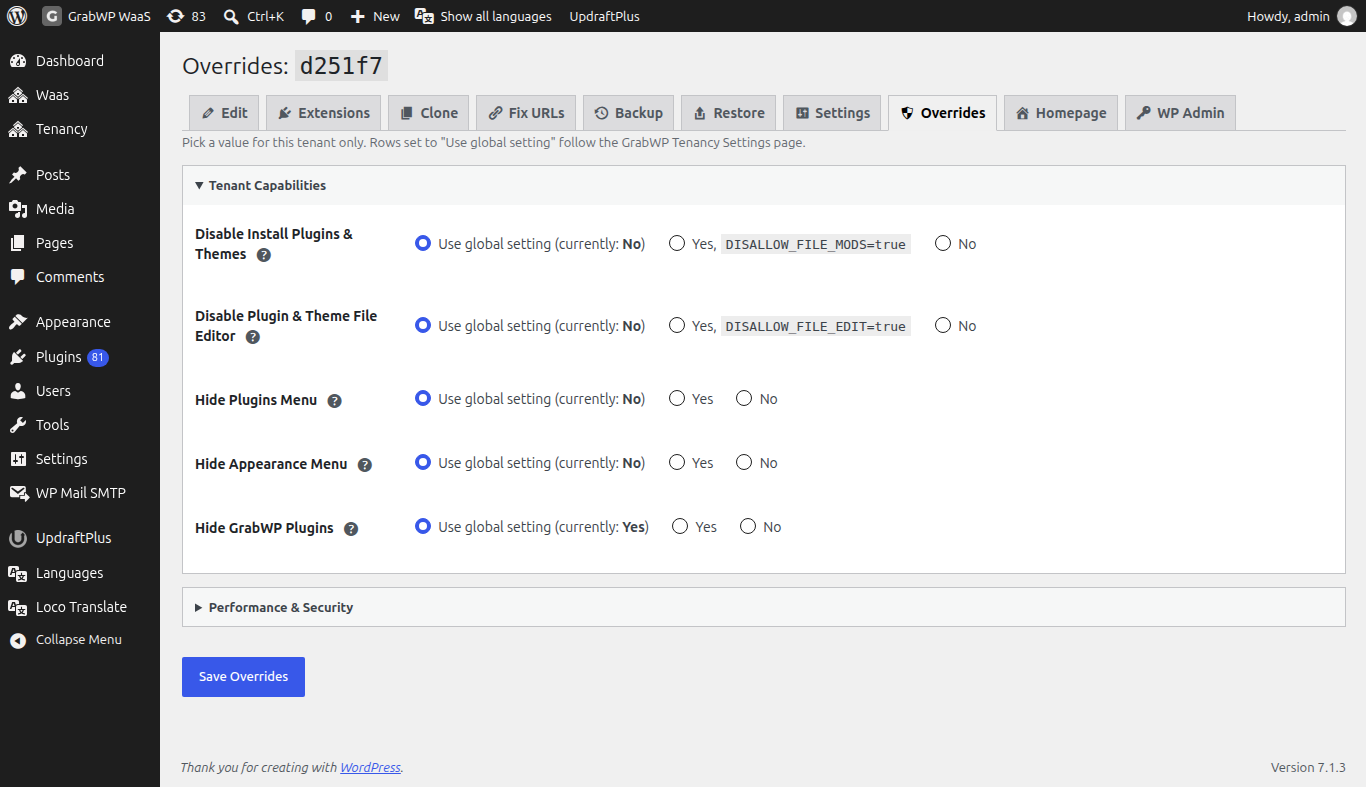
The rows are grouped like Tenancy > Settings: Tenant Capabilities and Performance & Security. Each row has these choices:
| Row type | Choices |
|---|---|
| On/off rules (for example Disable Install Plugins & Themes) | Use global setting (currently: Yes) or (currently: No), then Yes and No. Rows backed by a WordPress constant show it, for example Yes, DISALLOW_FILE_MODS=true. |
| Numbers and text (for example Post Revisions to Keep, Allowed Hosts When Blocked) | Use global setting with the current value, or Custom value: with a box to type in. |
Yes always means what the row label says. For example, Disable Install Plugins & Themes set to No lets this site's admins install plugins.
Click Save Overrides. You see Overrides saved. If the site's config file cannot be written: Failed to save overrides. Check that the tenant config file is writable.
To make the site follow all global rules again, set every row back to Use global setting and save.
Check: change one rule for this site only. Tenancy > Settings still shows the global value, and the row on Overrides shows your choice with the global value next to Use global setting.
Limits
- If
wp-config.php(or another plugin) already defines the constant behind a rule, that wins over both the global setting and the override. The row then shows a warning such asYour wp-config.php already setsthe constant. Remove that line to let GrabWP control it. - The Overrides tab only appears when the free plugin is new enough. Otherwise you see
Per-tenant settings overrides require a newer GrabWP Tenancy base plugin.Update GrabWP Tenancy. - Settings edits only the three options above. Other options are changed inside the site's own wp-admin.
:::info If you sell sites Overrides are handy for a customer who needs something other customers should not have, such as installing their own plugins. Only do this for customers you trust, since plugin uploads can run any code on your server. :::