Client custom domains
Short answer: a customer can connect their own domain (for example mybusiness.com) to their site from the customer dashboard, if their plan includes the Custom Domains benefit. You pick how domains connect (Cloudflare SaaS (CNAME) or Direct IP (A record)) under Waas > Settings > General, and you check them under Waas > Domains.
Needs: Pro + WaaS
How it works
- You choose a domain mode and fill in the target your customers point their DNS at.
- The customer adds their domain on the dashboard and sets the DNS records shown there.
- WaaS checks that the domain reaches this site. Once it is Verified, the customer can make it the main address of their site.
The site keeps its platform address (for example customer.yoursaas.com) until a verified custom domain is set as primary.
Limits:
- Up to 2 custom domains per site.
- The plan (or a bought service) must include the Custom Domains benefit. See Benefits, services and add-ons.
- Not available when customer sites use path URLs. In path mode the Custom Domains section is hidden from the General settings.
Step 1: Choose a domain mode
Go to Waas > Settings > General and find Custom Domains.
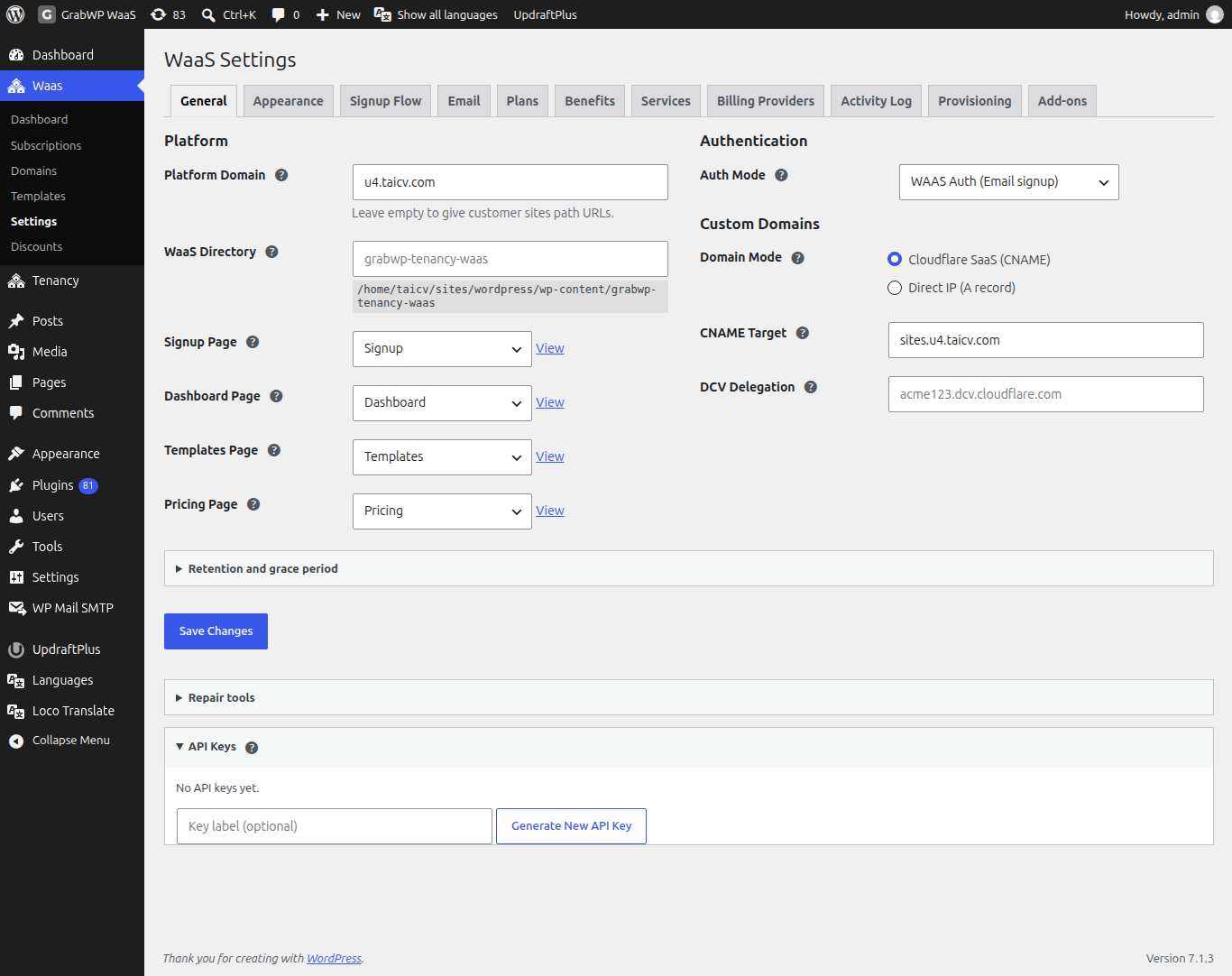
| Field | Notes |
|---|---|
| Domain Mode | Cloudflare SaaS (CNAME) or Direct IP (A record). |
| CNAME Target | For Cloudflare SaaS. Customers point a CNAME here, for example cdn.saas.example.com. |
| DCV Delegation | For Cloudflare SaaS. The CNAME value from Cloudflare that lets custom hostnames validate SSL, for example acme123.dcv.cloudflare.com. |
| Server Public IP | For Direct IP. Customers point an A record here. |
Click Save Changes. Waas > Domains then shows Mode: with the record value, for example CNAME: cdn.saas.example.com.
Cloudflare SaaS (CNAME)
Cloudflare issues the SSL certificate for each customer domain.
- Add your platform zone to Cloudflare and turn on Cloudflare for SaaS (SSL/TLS > Custom Hostnames in Cloudflare). This may need a paid Cloudflare plan.
- Set a fallback origin to the hostname you will use as CNAME Target, and point that hostname at your server.
- In Custom Domains, choose Cloudflare SaaS (CNAME), fill CNAME Target, and paste DCV Delegation if Cloudflare gives you one.
- Click Save Changes.
DNS records the customer adds (the dashboard shows them too):
| Name | Type | Value |
|---|---|---|
@ | CNAME | Your CNAME Target |
www | CNAME | Your CNAME Target |
_acme-challenge on their domain | CNAME | Their domain followed by your DCV Delegation value |
The _acme-challenge row shows only when DCV Delegation is filled in. See the Cloudflare for SaaS docs.
Direct IP (A record)
You handle the web server name and the certificate for each customer domain.
- In Custom Domains, choose Direct IP (A record) and enter Server Public IP.
- Click Save Changes.
- For each customer domain, add the name to your web server (Nginx
server_nameor an Apache virtual host), issue a certificate (for example with Certbot) and reload the web server. - Verify the domain on Waas > Domains.
DNS records the customer adds:
| Name | Type | Value |
|---|---|---|
@ | A | Your Server Public IP |
www | A | Your Server Public IP |
Step 2: The customer adds the domain
On the customer dashboard, in the domains table, the customer:
- Enters the domain and clicks Add Alias (confirm Add alias).
- Sets the DNS records shown, then clicks Verify and Check now. DNS can take up to 48 hours; they should wait at least 15 minutes between checks.
- When the domain is Verified and not yet primary, clicks Set Primary (confirm Set primary). The site address changes to that domain.
- Can click Remove on any domain that is not the primary one.
The platform address shows as Active on the dashboard.
Step 3: Check domains in the admin
Go to Waas > Domains.
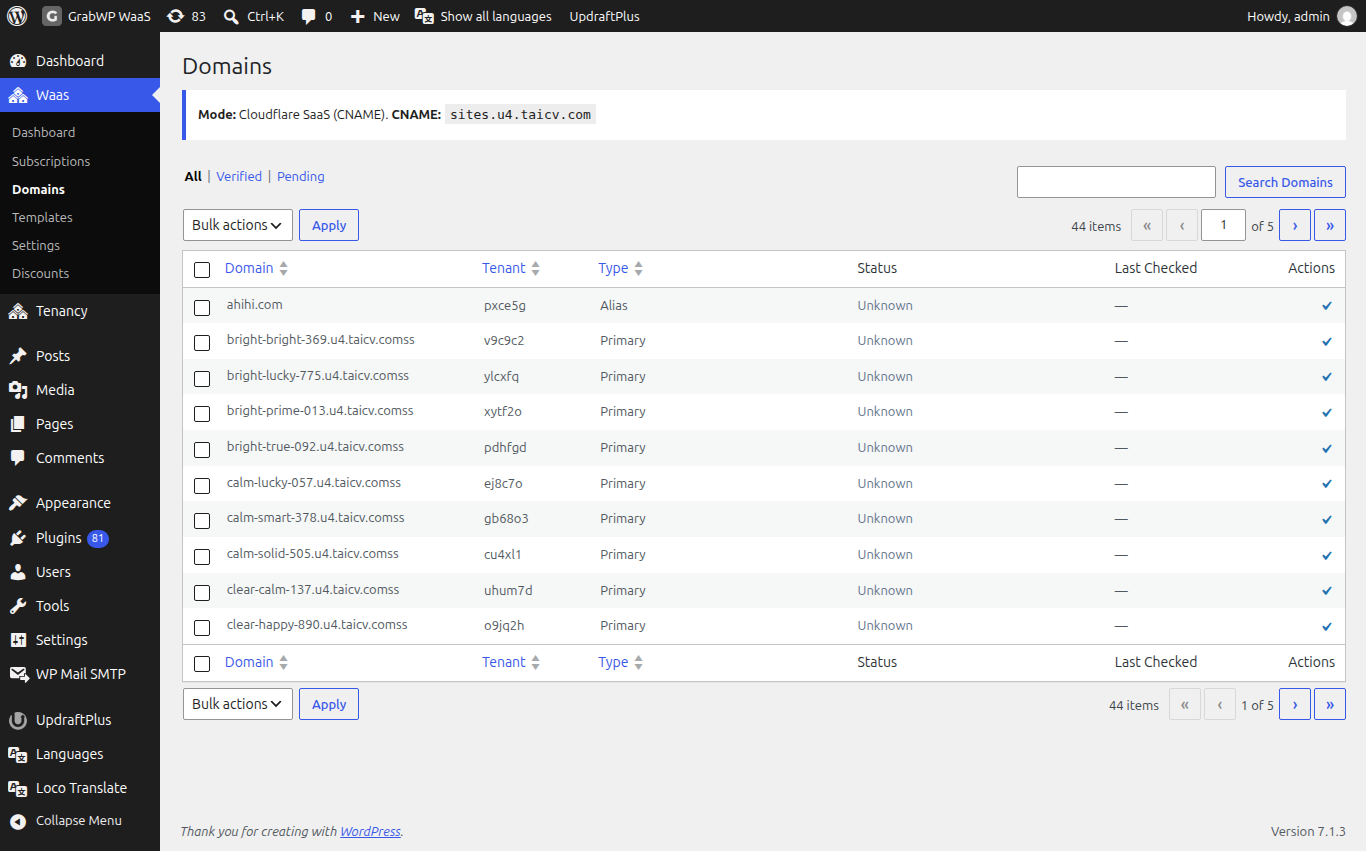
If no domain mode is set, the page says Domain settings not configured. Go to WaaS Settings → General to set domain mode. Addresses under your Platform Domain are left off this list; custom domains are listed.
| Column | Notes |
|---|---|
| Domain | The hostname. |
| Tenant | The site ID. |
| Type | Primary, Alias or Subdomain. |
| Status | Unknown (never checked), Verified or Pending (checked and failed). |
| Last Checked | How long ago. Older than 24 hours is marked stale. Empty until the first check. |
| Actions | A checkmark, Verify domain. |
The views at the top are All, Verified and Pending. Never-checked domains stay on All only.
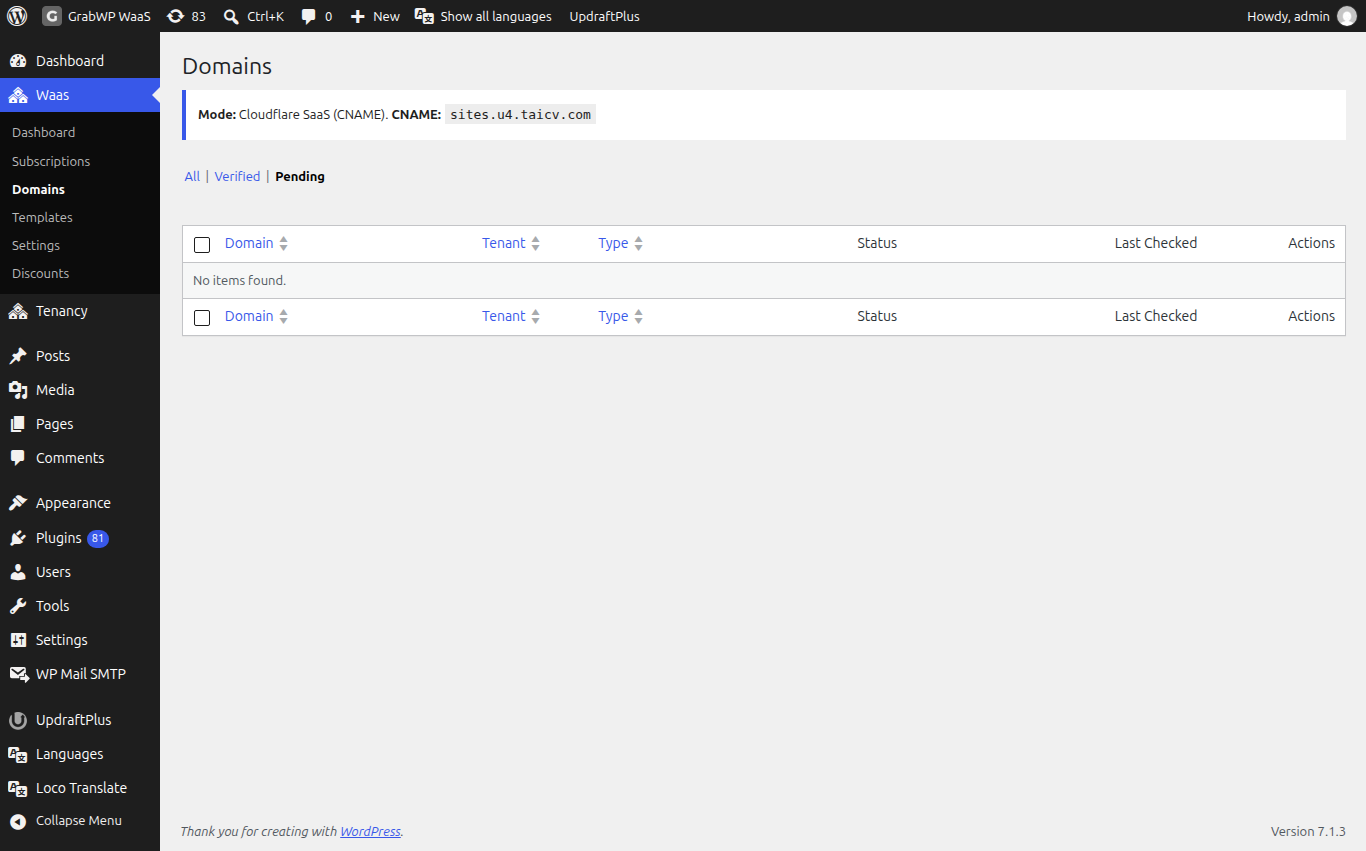
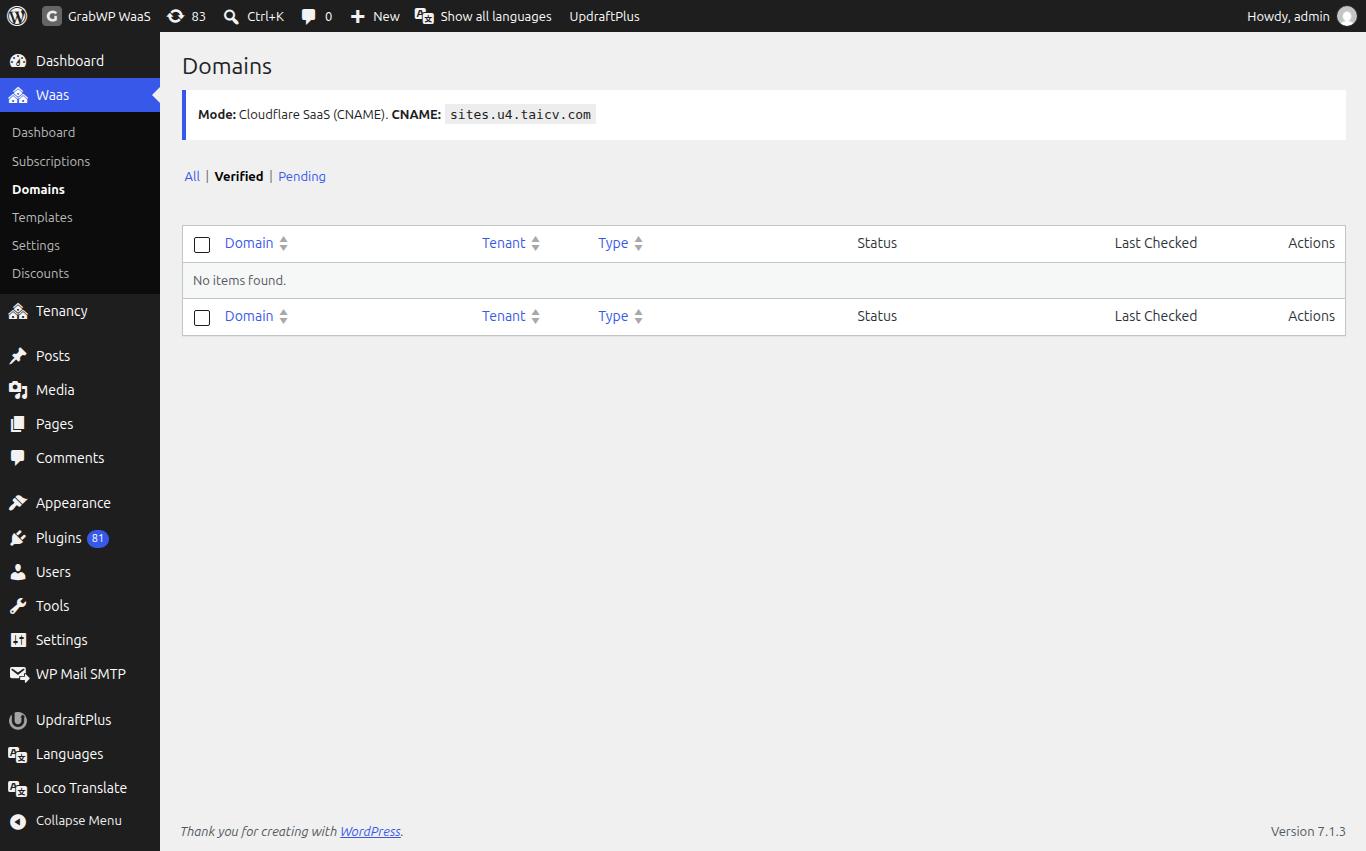
Search with Search Domains. The list shows 10 rows per page; Domain, Tenant and Type can be sorted.
Verify a domain
- Click the checkmark in Actions on a row, or select rows, choose Verify under Bulk actions and click Apply.
- Reload the list.
The check opens the domain at https://the-domain/?grabwp-verify-domain=1 (then plain HTTP if HTTPS fails) and confirms the answer comes from the right site. It is not a DNS lookup: the domain must already reach your WordPress site.
| Result | Meaning |
|---|---|
| Pending, did not respond | DNS does not point here yet, or the web server does not accept that hostname. |
| Pending, reachable but not this site | The hostname answers, but not with this customer's site. |
| Not mapped to a site | The hostname is not on any site. |
Run Verify again after DNS changes.
Check that it works
The Waas > Domains row is Verified with a recent Last Checked, and the customer site opens on the custom domain.