Payments
Short answer: WaaS takes payments through a provider you connect under Waas > Settings > Billing Providers. Polar.sh and WooCommerce are built in; Stripe, Sepay and Xendit need their add-on plugin. You can also start without any provider by offering a Free plan or a built-in free trial.
Needs: Pro + WaaS
Stripe, Sepay and Xendit each also need their add-on plugin, listed in their section below.
Which provider fits
| Provider | How it ships | How customers pay | Renews by itself | Notes |
|---|---|---|---|---|
| Polar.sh | Built into WaaS | Polar checkout | Yes | Can run its own trials. |
| WooCommerce | Built into WaaS, needs the WooCommerce plugin | Your WooCommerce checkout and its gateways | Only with WooCommerce Subscriptions | Locks your primary currency to the store currency. |
| Stripe | Add-on: GrabWP Tenancy Stripe | Stripe Checkout | Yes | Can run its own trials (at least 48 hours). |
| Sepay | Add-on: GrabWP Tenancy Sepay | Vietnamese bank transfer by QR code | No: customers get renewal reminders | Needs VND as primary or secondary currency. |
| Xendit | Add-on: GrabWP Tenancy Xendit | Xendit checkout | Yes | No product IDs on plans. |
With a provider that does not renew by itself, customers pay each renewal from the reminder email or the dashboard. Install add-ons from Waas > Settings > Add-ons (see Benefits, services and add-ons).
The Billing Providers screen
Go to Waas > Settings > Billing Providers.
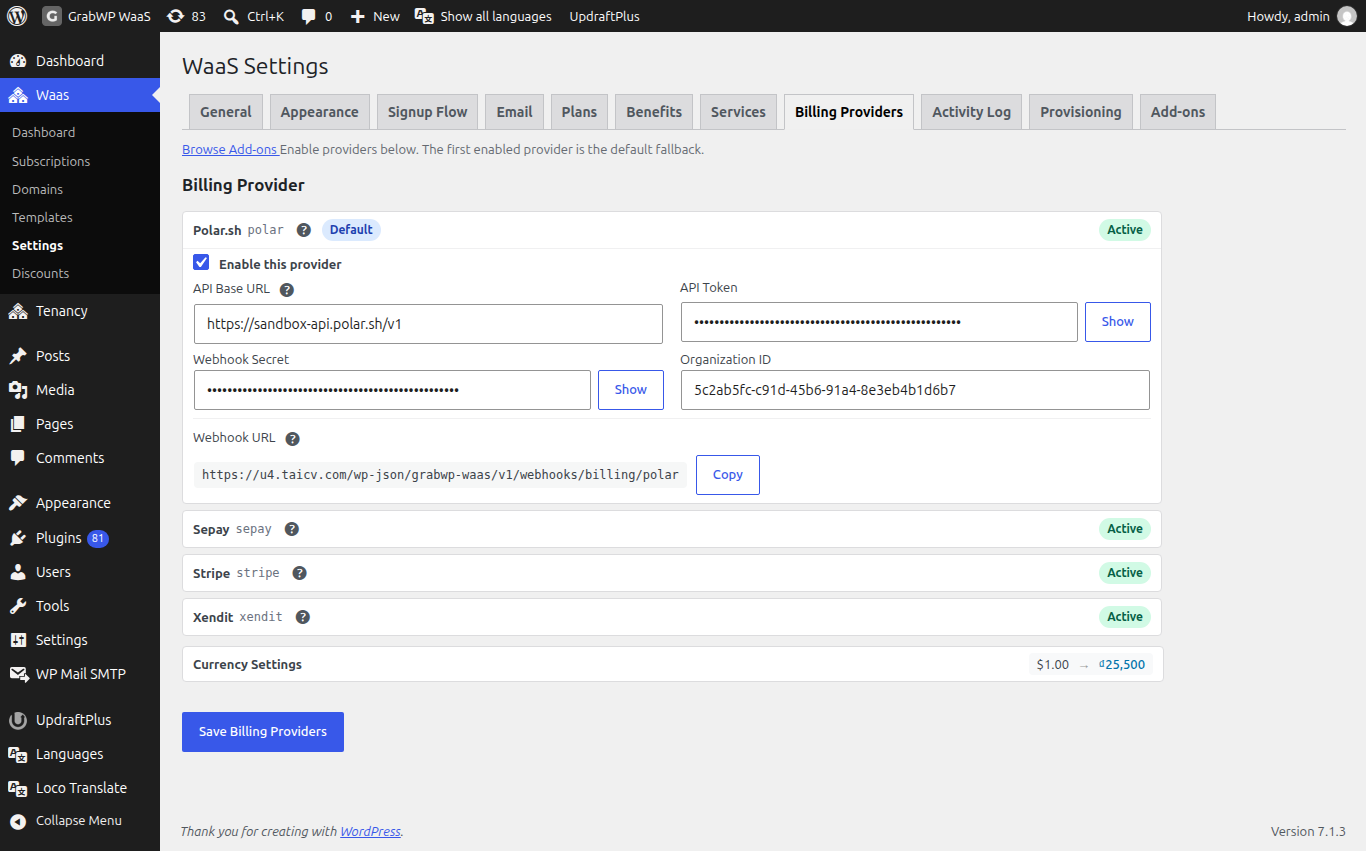
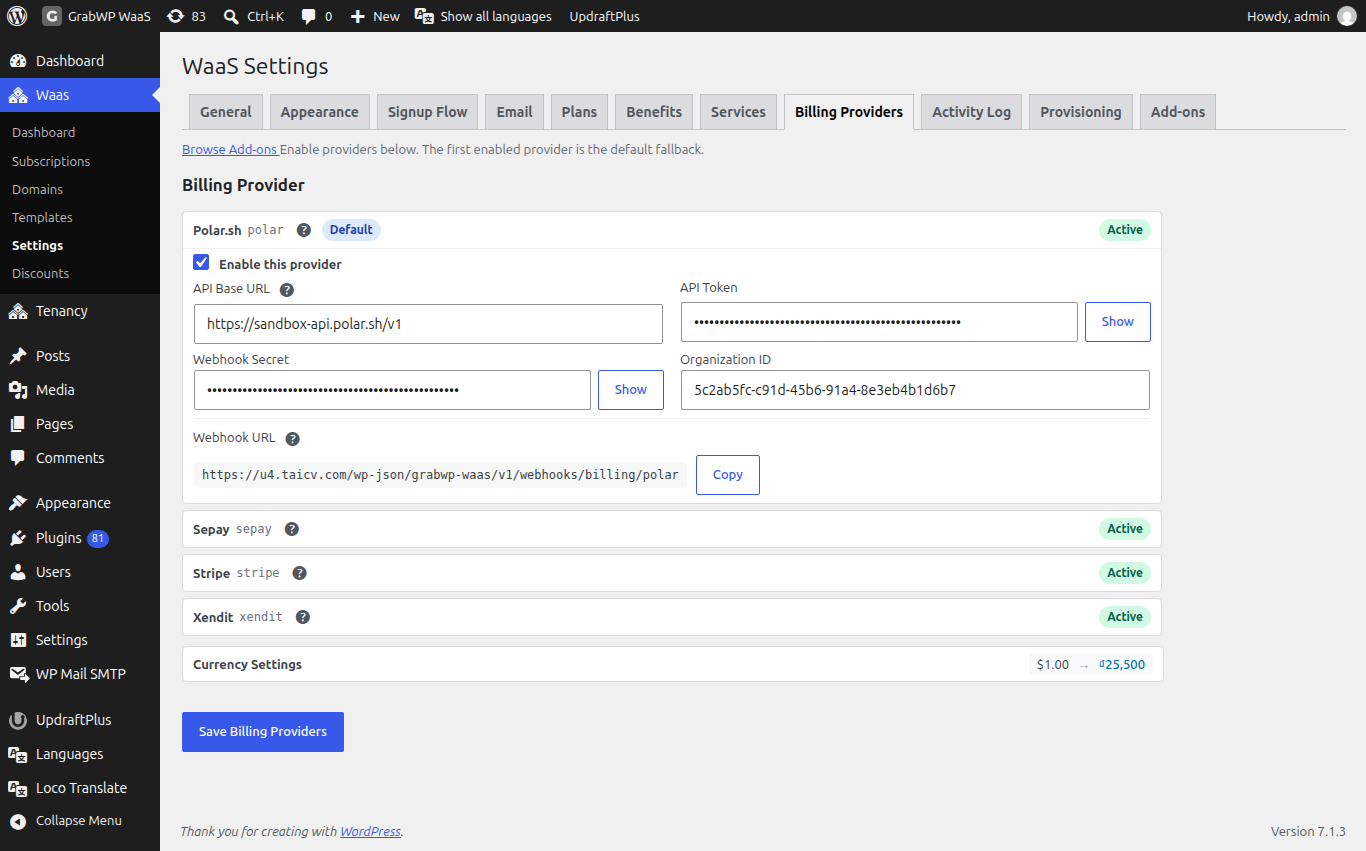
The top line reads Enable providers below. The first enabled provider is the default fallback., next to a Browse Add-ons link.
- Each provider is a card. A card is Disabled until you tick Enable this provider.
- Polar.sh shows Needs Config until API Token and Webhook Secret are saved, then Active. Other enabled providers show Active.
- The fallback provider (the first one enabled) has a Default badge. It is used when signup does not pick another provider.
- Click Save Billing Providers after filling the fields. The notice is Billing provider settings saved.
- Cards with a webhook have a Webhook URL with a Copy button. Hover the help icon next to it to see Last webhook received with a time, or No webhook events received yet.
Webhook URLs look like https://yoursaas.com/wp-json/grabwp-waas/v1/webhooks/billing/polar, ending in polar, stripe, sepay or xendit. Use Copy instead of typing them.
Currency settings
Currency Settings is the card under the providers. Set it before you enable a provider that needs a specific currency.
| Field | Notes |
|---|---|
| Primary Currency | Shown on pricing pages. Plan prices are stored in it. Default USD. With WooCommerce enabled it is locked: "Locked to WooCommerce store currency". Change it in WooCommerce > Settings > General. |
| Secondary Currency | Optional. None (single currency) keeps one currency. Set it when a provider needs a different currency (Sepay needs VND). |
| Exchange Rate | How many secondary units equal 1 primary unit (default 25500). Used before charging a provider that needs the secondary currency. Polar.sh and Stripe charge in their own catalog currency and do not use it. |
| Display formatting | Currency Position, Thousand Separator, Decimal Separator. |
Currency Position options: Left ($99.99), Left with space ($ 99.99), Right (99.99$), Right with space (99.99 $).
A provider that needs a currency cannot be enabled until that currency is primary or secondary. The error starts with Currency change blocked:
Polar.sh
Needs: Pro + WaaS
1. Prepare Polar
- Create an account at polar.sh and an organization.
- In the organization settings, create an API token.
- Copy the organization ID.
You do not need to create products in Polar by hand. Saving a plan with Polar configured can create them.
2. Connect it
-
On the Polar.sh card, tick Enable this provider.
-
Fill the fields:
Field Value API Base URL https://api.polar.sh/v1for live payments. Sandbox:https://sandbox-api.polar.sh/v1.API Token Your Polar API token. Show reveals it. Webhook Secret The secret Polar signs webhooks with. Organization ID Your Polar organization ID. -
Copy the Webhook URL with Copy.
-
In Polar, add that URL as a webhook endpoint and use the same secret as in Webhook Secret.
-
Click Save Billing Providers. The card changes from Needs Config to Active.
3. Link your plans
- Go to Waas > Settings > Plans, edit a paid plan and open Payment Configuration.
- Leave Polar Monthly Product ID and Polar Yearly Product ID blank so WaaS creates them, paste product UUIDs, or click Find existing.
- Click Save Plan.
Resync under Polar.sh Configuration refreshes the linked products. A value WaaS created shows Auto-created.
Stripe
Needs: add-on: GrabWP Tenancy Stripe
- Install and activate the add-on.
- On the Stripe card, tick Enable this provider and fill Secret Key, Publishable Key and Webhook Signing Secret. Thin Signing Secret (v2 Events) is optional.
- Copy the Webhook URL and add it as a webhook endpoint in your Stripe dashboard. Send at least these events:
checkout.session.completed,customer.subscription.updated,customer.subscription.deleted,invoice.paidandcharge.refunded. - Click Save Billing Providers.
- On each paid plan, open Payment Configuration and leave Stripe Monthly Price ID and Stripe Yearly Price ID blank so WaaS creates them, or paste your own price IDs, then Save Plan.
Recurring services get their own Stripe Configuration section on the service form. See Benefits, services and add-ons.
Sepay
Needs: add-on: GrabWP Tenancy Sepay
Sepay takes Vietnamese bank transfers by QR code and confirms them through its webhook. It does not renew by itself: customers get renewal reminders and pay again.
-
Set VND as Primary Currency or Secondary Currency first (see Currency settings). Without it, checkout stops with "Sepay requires VND currency. Please set VND as primary or secondary currency in WaaS settings first."
-
Install and activate the add-on.
-
On the Sepay card, tick Enable this provider and fill:
Field Notes API URL Default https://my.sepay.vn.QR URL Default https://qr.sepay.vn/img.API Key From your Sepay account. Bank, Account Number, Account Holder The account customers pay into. Payment Code Prefix Default DH. Starts the code customers put in the transfer note. -
Copy the Webhook URL into your Sepay account.
-
Click Save Billing Providers.
Sepay adds no product ID fields to plans; the amount comes from the plan price.
Xendit
Needs: add-on: GrabWP Tenancy Xendit
- Install and activate the add-on.
- On the Xendit card, tick Enable this provider and fill Secret API Key and Webhook Verification Token.
- Set Charge Currency (
IDRby default; alsoPHP,VND,THB,SGD,MYR,USD) and Country (Indonesia by default; also the Philippines, Vietnam, Thailand, Singapore and Malaysia). - Copy the Webhook URL into your Xendit dashboard.
- Click Save Billing Providers.
Xendit adds no product ID fields to plans.
WooCommerce
Needs: Pro + WaaS
You also need the free WooCommerce plugin. Checkout runs on your own WooCommerce checkout page, with any WooCommerce payment gateway (card, PayPal, bank transfer and others). WaaS puts the plan price on one shared hidden product, the anchor product. Plans do not store WooCommerce product IDs.
1. Install WooCommerce
- Go to Plugins > Add New, install and activate WooCommerce, and finish its setup wizard, including the store currency. See WooCommerce: getting started.
- In WooCommerce > Settings > Payments, turn on the gateways you want.
2. Enable the provider
- On Waas > Settings > Billing Providers, open the WooCommerce card. It shows only while WooCommerce is active, with the description WordPress-native checkout powered by WooCommerce.
- Tick Enable this provider.
- Leave Anchor Product at
0to create the product on the first checkout, or enter an existing product ID. - Click Save Billing Providers. The card shows Active.
The card has no Webhook URL: WooCommerce updates WaaS from its own order events.
3. Create or repair the anchor product (optional)
- On Waas > Settings > General, open Repair tools.
- Click Create/Repair WooCommerce Anchor Product. The notice WooCommerce anchor product is ready. shows the product ID.
The anchor product must stay purchasable. Otherwise checkout fails with The WaaS anchor product is not available for purchase.
What the customer does: they pick a paid plan on signup, WaaS adds the anchor product to the cart with the plan price, the customer pays on the WooCommerce checkout, and WaaS builds the site once the order is paid.
Renewals. For WooCommerce to own the renewal schedule, install WooCommerce Subscriptions. Without it, checkout still works but renewals are not synced (the message is WooCommerce Subscriptions is not active.), so handle renewals with the admin actions on Free trials and subscriptions.
Test a payment
- For Polar.sh, set API Base URL to
https://sandbox-api.polar.sh/v1and use sandbox credentials. For other providers, use their test mode. - In a private window, sign up for a paid plan and finish checkout.
- Check that the Webhook URL help tip shows a last-received time (not for WooCommerce).
- Check the new site under Tenancy > All Tenants and the subscription under Waas > Subscriptions.
- Switch back to live settings (for Polar.sh,
https://api.polar.sh/v1) before you launch.
Bank transfer and offline payments
There is no built-in checkout where customers submit a bank transfer reference for you to approve. Today you can:
- use WooCommerce with its bank transfer or cash on delivery gateways, or
- let customers start on a built-in free trial or a zero-priced plan, and once you confirm their payment, use Convert manually (paid offline, days), Change Plan or Extend Period on Waas > Subscriptions.
To ask whether something is planned, see the GrabWP roadmap.
Discount codes
With the GrabWP Tenancy Discounts add-on, customers enter discount codes at WaaS signup. Manage codes under Waas > Discounts. While a WaaS checkout runs, Polar's own discount field and WooCommerce cart coupons are hidden, so a provider coupon cannot change the price behind WaaS's back.
Check that it works
- The provider you charge with shows Active.
- Currency Settings includes every currency that provider needs.
- Each paid plan has a product or price ID on Payment Configuration for each cycle you sell, or you saved it once so WaaS could create them.