Create plans
Short answer: plans are what customers choose at signup. WaaS creates three to start with: Free (active) and Basic and Pro (inactive until you set them up). Edit them under Waas > Settings > Plans, set the prices and limits, and tick Active when a paid plan is ready to sell.
Needs: Pro + WaaS
How plans work
A plan holds:
- a monthly price and a yearly price (
0means that cycle is free), - benefit values, such as how many backups the site may keep or whether custom domains are allowed,
- which optional services can be bought with it,
- the text shown on the pricing page,
- an optional free trial,
- the product or price IDs your payment provider uses.
A fresh install seeds Free, Basic and Pro when the plans table is empty. Only Free starts active: paid plans wait until you have a payment provider or a free trial set up. The free plan cannot be deleted (notice: The free plan cannot be deleted.).
Open the plans list
Go to Waas > Settings > Plans.
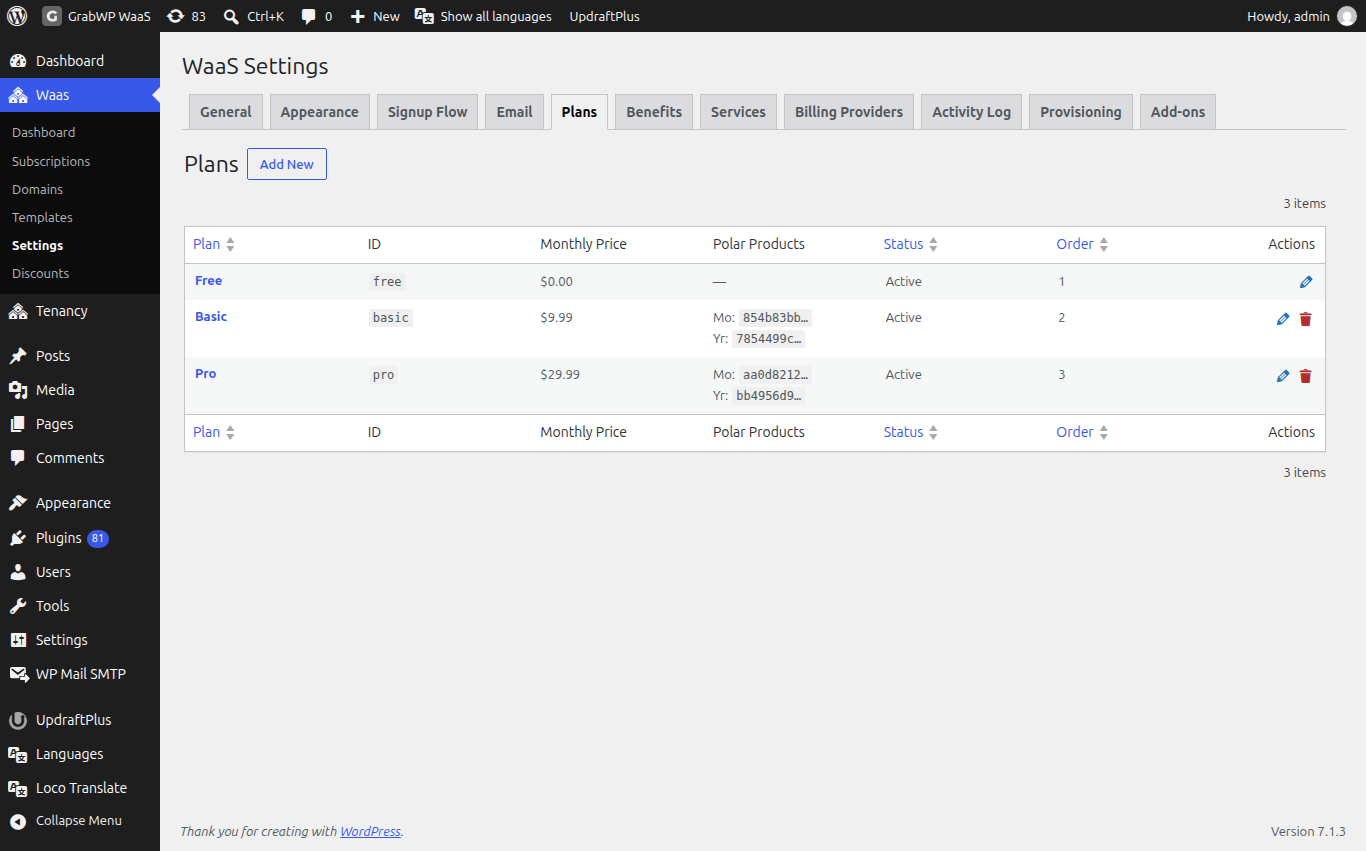
The list columns are Plan, ID, Monthly Price, Polar Products, Status, Order and Actions. Click Add New to create a plan. The pencil icon opens Edit Plan. The trash icon deletes any plan except free.
Edit a plan
The Add Plan and Edit Plan screens have four tabs. Click Create Plan on a new plan, or Save Plan when editing. Cancel returns to the list. The notice Plan saved. confirms the save.
Name and price
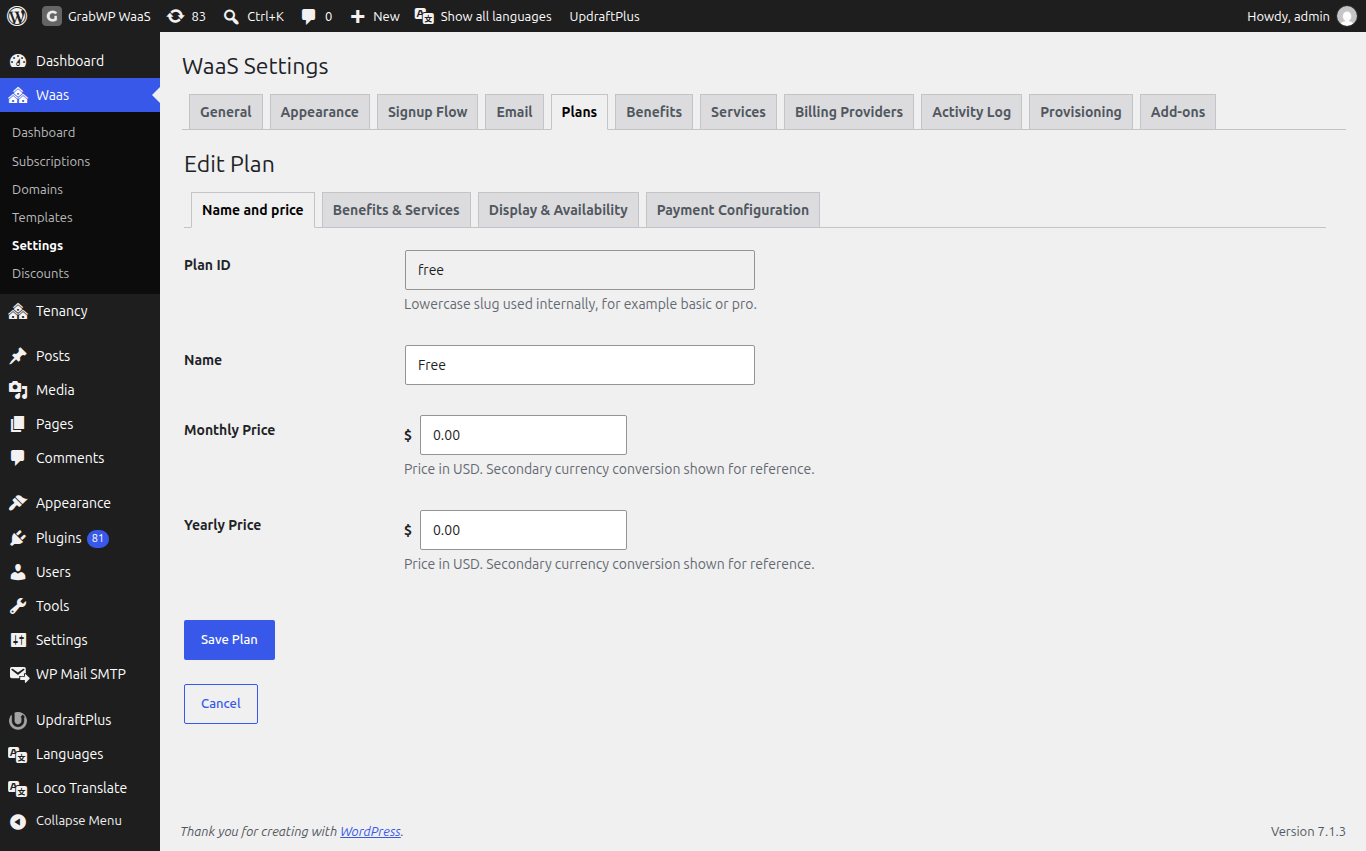
| Field | Notes |
|---|---|
| Plan ID | Lowercase letters, numbers and hyphens, for example basic or pro. Read-only after the plan is created. |
| Name | The label customers see. |
| Monthly Price | In your primary currency. 0 means the monthly cycle is not charged. |
| Yearly Price | Same rules as monthly. |
| Built-in trial | Shown only for a plan with a price. Offer a free trial that needs no payment and no payment provider, with Trial length (days) (1 to 365, default 14). |
| Provider trial (days) | Shown only when a provider that supports trials (Polar.sh or Stripe) is available. 0 turns it off. |
If a secondary currency is set, the converted amount shows next to each price for reference. Currency is set on Payments. How the two trial types work is on Free trials and subscriptions.
Benefits & Services
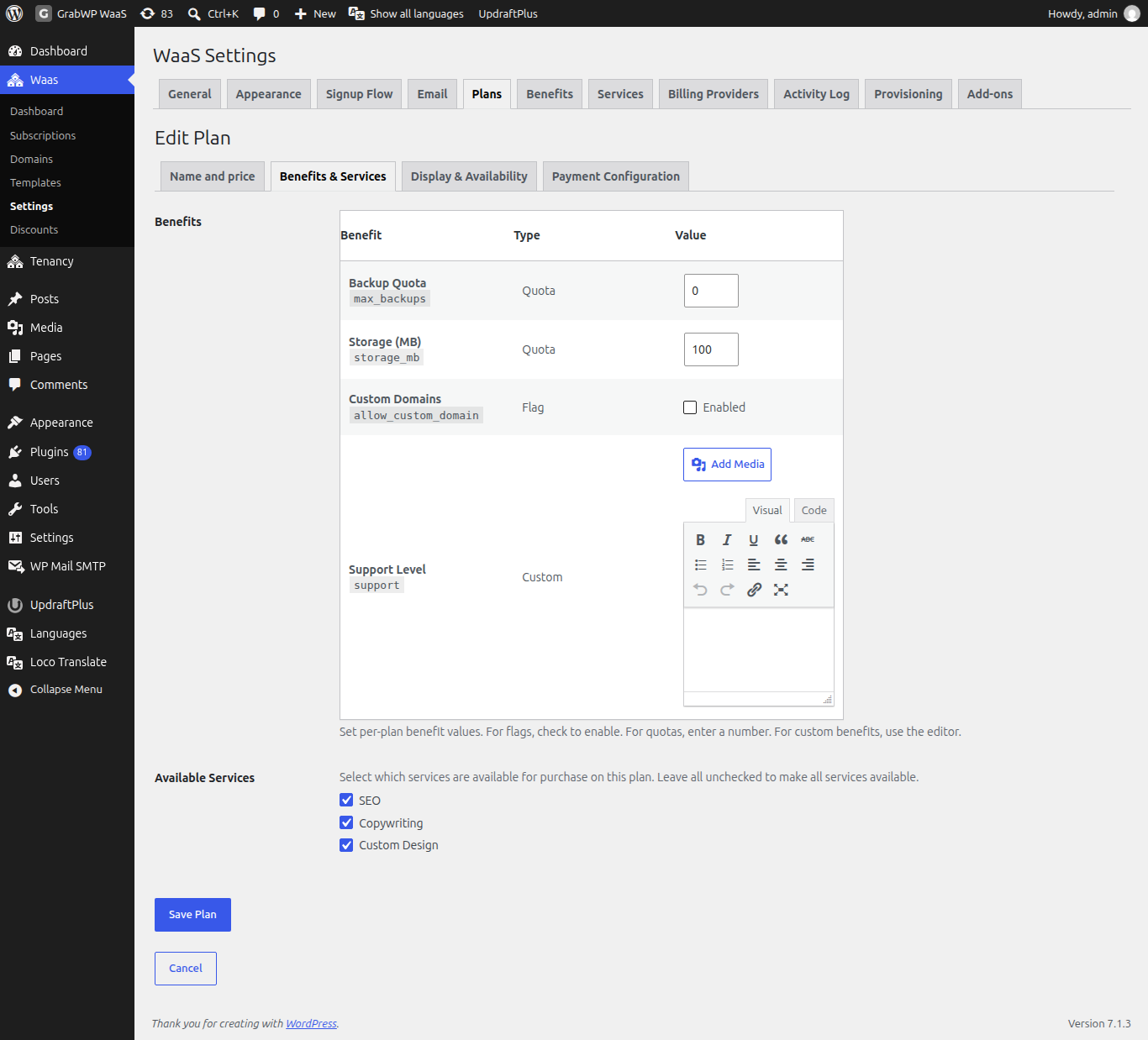
| Section | Notes |
|---|---|
| Benefits | Columns Benefit, Type, Value. Flags use an Enabled checkbox, quotas take a number, custom benefits use the editor. |
| Available Services | Check the services customers may buy on this plan. Leave all unchecked to allow every active service. |
If there are no services yet, the form links to Create a service. Define your benefits and services first on Benefits, services and add-ons, then come back here to set values.
The seeded plans start with these benefit values: Free allows 1 backup and no custom domain, Basic 3 backups and custom domains, Pro 10 backups and custom domains. Change them to fit what you sell.
Display & Availability
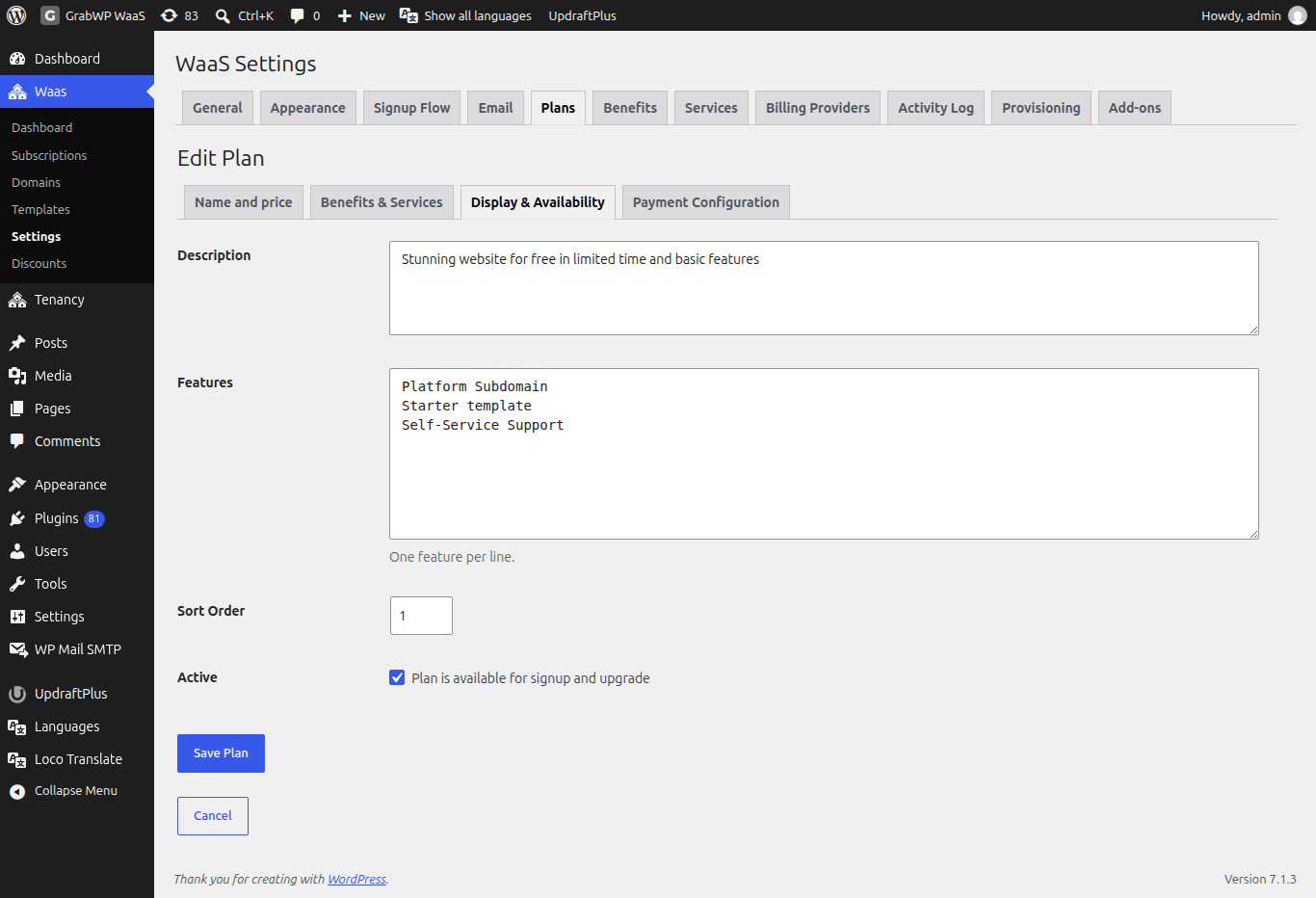
| Field | Notes |
|---|---|
| Description | Shown with the plan. |
| Features | One feature per line. Shown on the plan card. |
| Sort Order | Lower numbers appear first. |
| Active | Plan is available for signup and upgrade. |
Inactive plans stay in the list with status Inactive and are not offered at signup.
Payment Configuration
Open this tab after you enable a payment provider. You can save the plan now and come back after Payments.
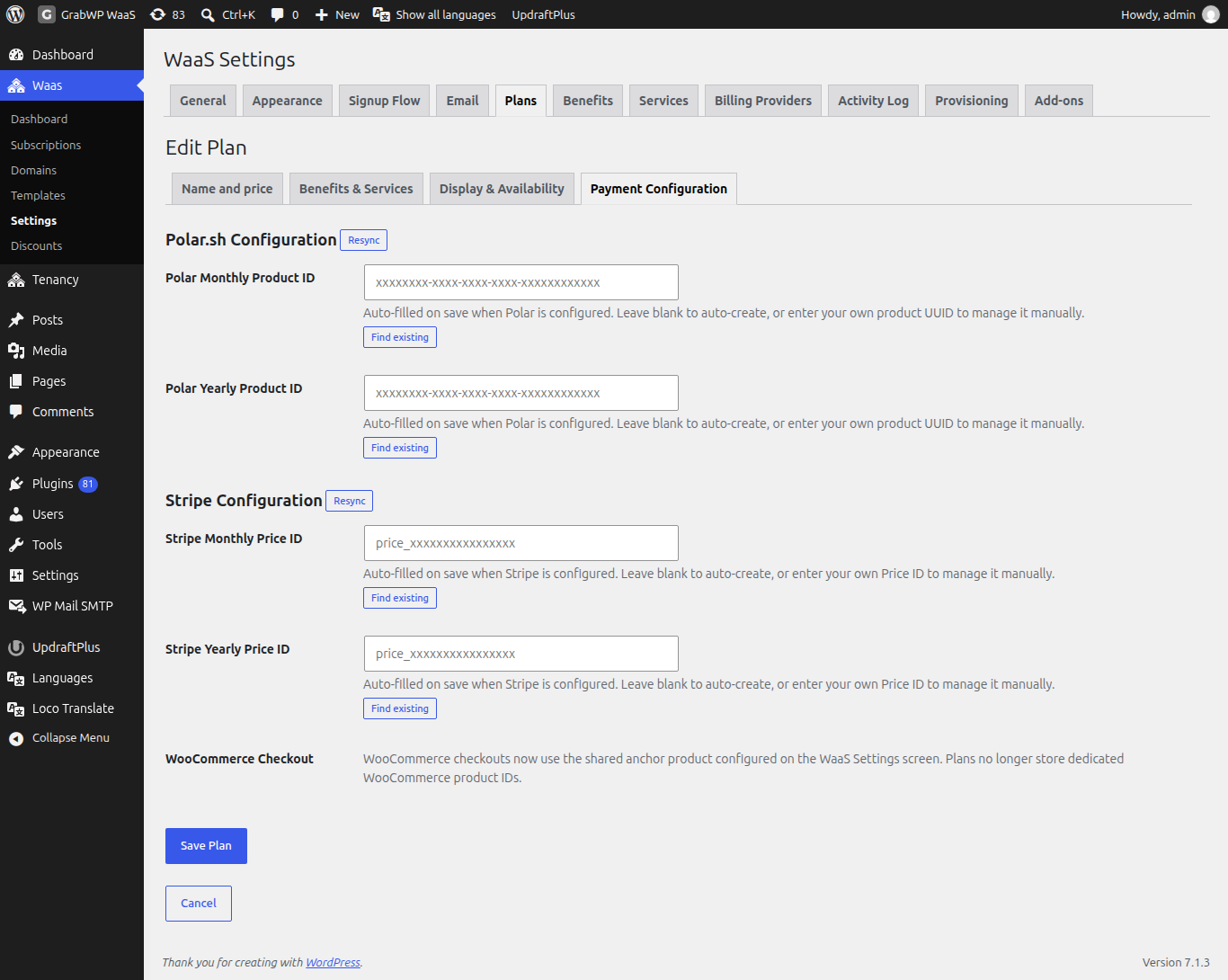
Providers that keep a product catalog show a heading such as Polar.sh Configuration or Stripe Configuration, with a Resync button.
| Field | Notes |
|---|---|
| Polar Monthly Product ID, Polar Yearly Product ID | Leave blank and save: WaaS creates the products in Polar when Polar.sh is configured. Or paste a product UUID. |
| Stripe Monthly Price ID, Stripe Yearly Price ID | Shown when the Stripe add-on is active. Same leave-blank-to-create behavior. |
Under each ID, Find existing searches the provider catalog. A value WaaS created is badged Auto-created; a value you typed is badged Manual.
- WooCommerce Checkout stores no product ID on the plan. The form says: "WooCommerce checkouts now use the shared anchor product configured on the WaaS Settings screen. Plans no longer store dedicated WooCommerce product IDs."
- Sepay and Xendit add no product ID fields. The amount comes from the plan price.
Limit a template to some plans
A template's Allowed Plans setting can limit which plans may use it. See Templates.
Check that it works
- Free is Active with both prices at
0, and it has no delete icon. - Each plan you sell is Active with a monthly or yearly price above
0. - Sort Order matches the order you want on the pricing page.
- Paid plans have IDs on Payment Configuration for each cycle you sell, or you saved them once with the provider configured.
Related
- Benefits, services and add-ons
- Payments
- Free trials and subscriptions
- Appearance (plan badge colors)