Free trials and subscriptions
Short answer: every customer site has one subscription with a plan, a status and a renewal date. A site stays online while its subscription is active, in a trial or in its grace period, and pauses when it is suspended or expired. You can offer a free trial with no payment at signup, and you can extend, change or suspend any subscription under Waas > Subscriptions.
Needs: Pro + WaaS
Free trials
There are three ways to let customers try before paying.
Built-in free trial (no payment provider needed)
Turn it on per paid plan: Waas > Settings > Plans, edit the plan, tab Name and price, tick Built-in trial (Offer a free trial that needs no payment and no payment provider) and set Trial length (days) (1 to 365, default 14). Then click Save Plan.
What happens:
- The signup page shows a badge such as "14-day free trial" on the plan. The customer signs up and gets a site without entering payment details.
- Waas > Subscriptions shows the row as Trial (built-in) with the days left. The detail screen has a Built-in trial row with its start and end dates.
- The customer's dashboard shows "Free trial: N days left" and a Keep your site after the trial card where they can subscribe at any time. When the provider can delay the first charge, the card says Billing starts when your trial ends, so you lose no trial days.
- Reminder emails go out before the end, at 7, 3 and 1 days by default (Trial reminder days on Waas > Settings > Email).
- If the trial ends unpaid, the subscription becomes Expired and the site pauses. Nothing is deleted. The dashboard says Your free trial has ended and your site is paused. and the customer can still subscribe to bring it back.
Limits:
- One built-in trial per customer account and per email address, ever.
- A template with a price cannot be used with a trial: the plan badge then reads Trial not available with this template.
- Paid one-time services are not part of the trial. Ticking one at signup turns the trial off and the order is paid (the service card says Not included in the free trial).
- The trial fields are hidden on a plan that costs nothing.
Provider trial (Polar.sh or Stripe)
On the same tab, Provider trial (days) (0 to 730) asks the payment provider to run the trial. The customer enters payment details at signup and is charged when the trial ends. The field shows only when a provider that supports trials is available. Stripe trials are raised to at least 48 hours.
Zero-priced plan
Create a plan priced at 0 with the same benefits as your paid plan. When the customer pays (for example by bank transfer), move them with Change Plan or Extend Period, see Admin actions.
:::info If you sell sites Use the built-in trial when you want card-free signups and automatic pausing at the end. Use a provider trial when you want the card on file from day one. :::
What each status does to the site
| Status (list badge) | Site |
|---|---|
| Active, Trial, Grace Period | Stays online. |
| Pending | Stays as it is. A pending subscription never blocks a site. |
| Suspended, Expired | Paused at once. |
| Cancelled | Paused after the grace period. With Grace Period (days) at 0, or when the customer cancels immediately, paused at once. |
A paused site shows a "temporarily unavailable" page (HTTP 503). The customer cannot sign in to that site, but the WaaS dashboard on your main site stays open so they can renew. The reason recorded is one of admin, cancelled, trial_ended or unpaid. All statuses and badges are listed on Statuses.
The daily job and the grace period
Grace Period (days) under Waas > Settings > General, Retention and grace period (0 to 90, default 7) is how long a site stays online after its period ends or after a cancellation. 0 means at once.
Once a day, WaaS:
- sends a renewal reminder when an Active period ends within 3 days,
- moves Active subscriptions past their period end to Grace Period and can email a grace warning,
- moves Grace Period subscriptions still unpaid after the grace days to Suspended and can email a suspension notice,
- sends built-in trial reminders and ends trials that reached their end date.
The job never cancels a suspended subscription on its own. It runs through WordPress scheduled jobs, so it needs a working cron.
The subscriptions list
Go to Waas > Subscriptions.
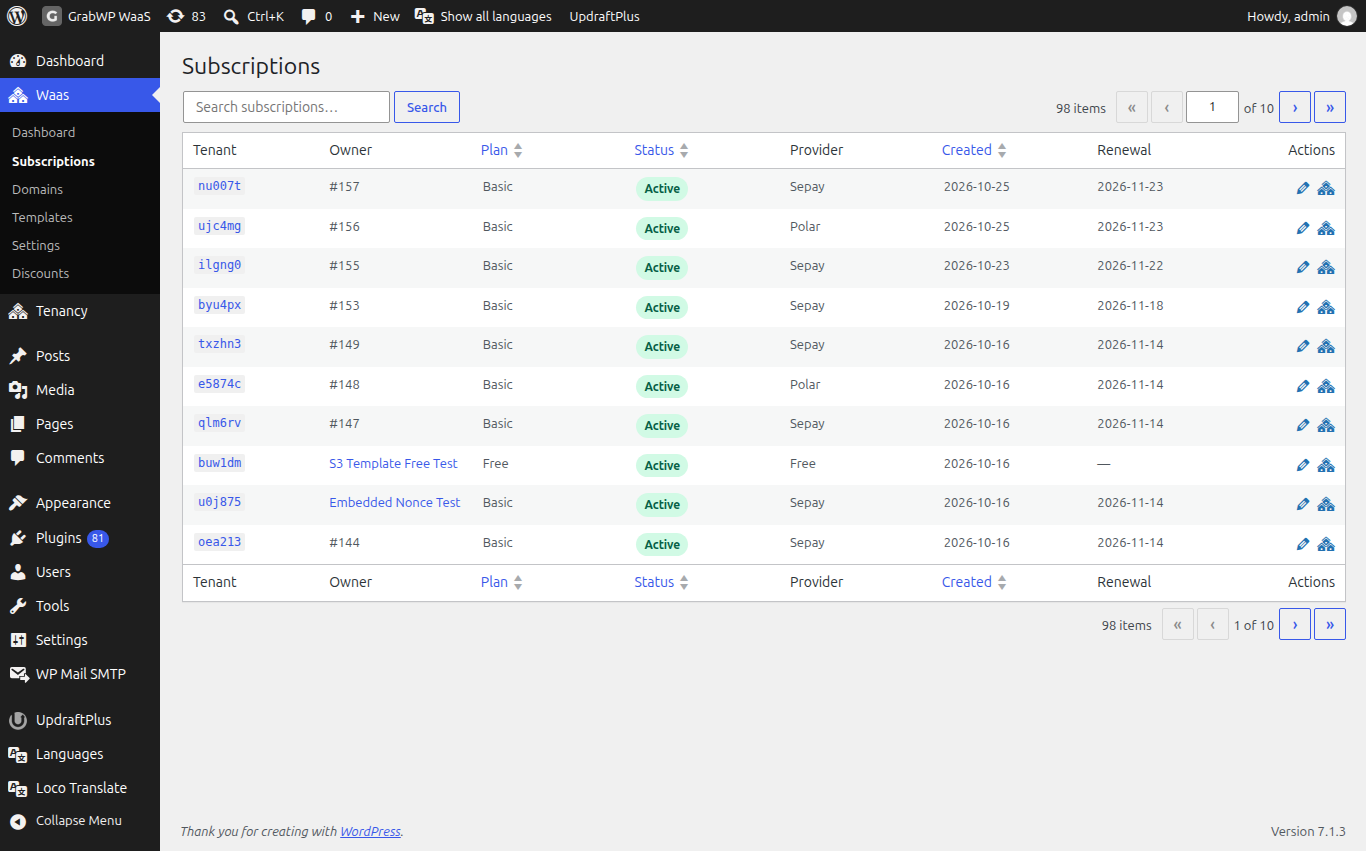
| Column | Notes |
|---|---|
| Tenant | The site ID. Opens the detail screen. |
| Owner | The WordPress user. Opens their profile. |
| Plan | The plan ID. |
| Status | Active, Pending, Trial, Grace Period, Suspended, Cancelled or Expired. Grace Period also shows "Expired N days ago". Built-in trials show Trial (built-in) with days left, or Trial ended. |
| Provider | The payment provider. |
| Created | The date. Newest first by default. |
| Renewal | The period end date, empty when there is none. |
| Actions | Edit (detail), View Tenant (opens the site editor in a new tab), and Reactivate for suspended or cancelled rows. |
You can sort by Plan, Status and Created. Search with Search subscriptions… and Search. The list shows 10 rows per page.
The subscription detail
Click the site ID or Edit.
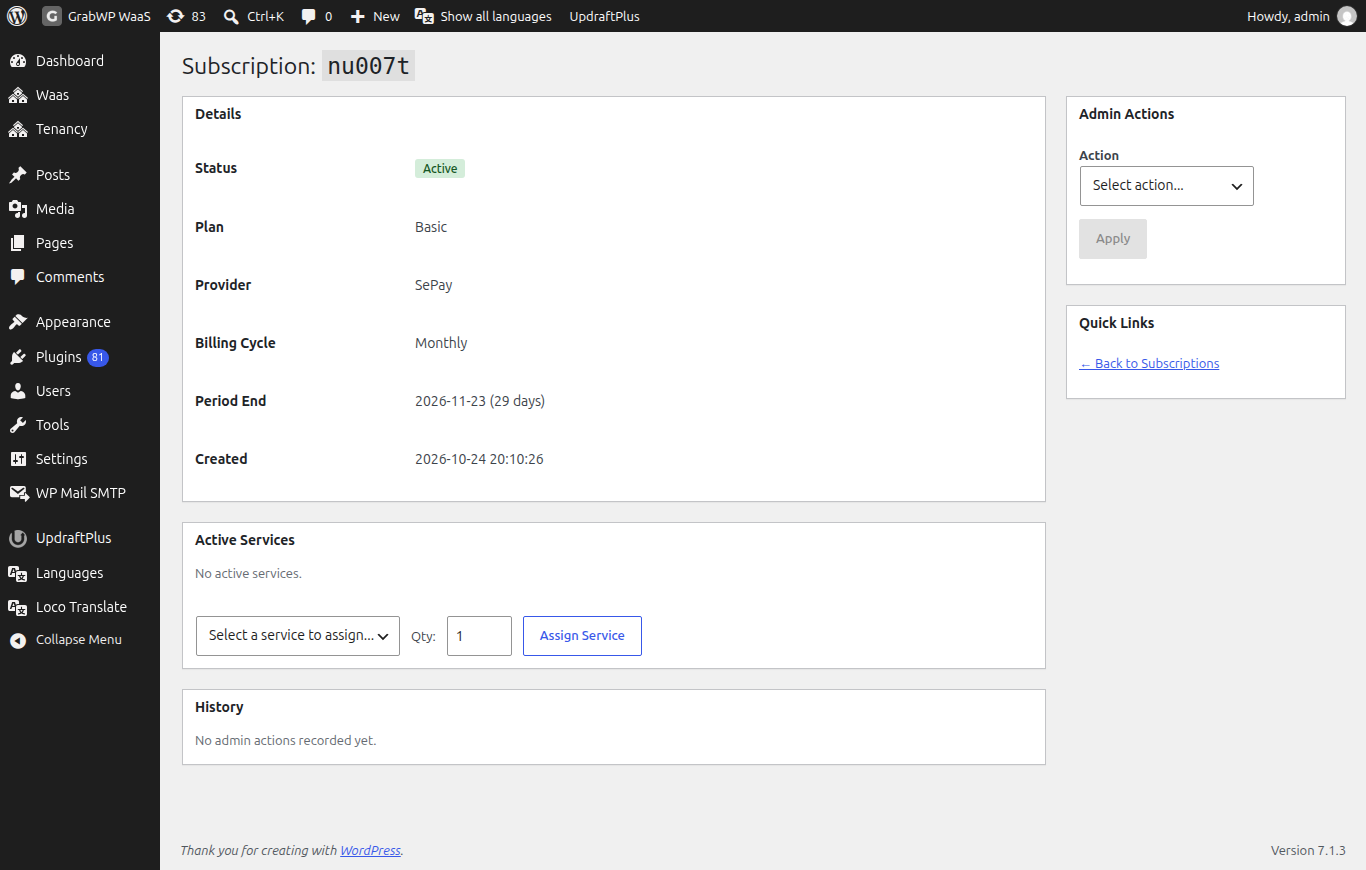
Subscription Details shows Status, Plan, Provider, Billing Cycle (Monthly or Yearly), Period End (with days left, Today or Expired), Created, the Provider Subscription ID when the provider stored one, and Cancellation (Scheduled at period end) when a cancel is queued. The detail badge can differ from the list: for example Expiring Soon (7 days or fewer left) or Cancelling (set to end at the period end). Free plans skip the date badges.
Quick Links: Back to Subscriptions, and Edit Tenant.
Admin actions
Use the Admin Actions box. Choose an action, fill the fields that appear and click Apply (it stays disabled until you pick an action). The notice is Action completed successfully.
| Action | Fields |
|---|---|
| Extend Period | Days (1 to 365, default 30) and Reason (required) |
| Change Plan | Plan (active plans) and Reason (required) |
| Grant Complimentary | Days, Plan and Reason (required) |
| Suspend | Reason (required) |
| Reactivate | Reason (required) |
| Add Note | Note only |
On a built-in trial, three more actions appear:
| Action | What it does |
|---|---|
| Extend trial (add days) | Adds days to the trial. Also reopens a trial that already ended. |
| End trial now | Ends the trial and pauses the site. |
| Convert manually (paid offline, days) | Marks the subscription paid and active for the days you enter, with no payment provider. Use it after a bank transfer you checked yourself. |
Change Plan changes the WaaS subscription at once. If the payment provider still bills the old plan, change it there too.
Active Services
Lists the services on this site with Service, Charge Type, Qty, Unit Price, Status, Purchased At and Actions (Remove while active, confirm Remove this service?). To add one, choose in Select a service to assign..., set Qty: and click Assign Service. With none, the box says No active services.
History
Records every admin action with Date, Action, Admin, Details and Reason. Empty: No admin actions recorded yet.
What customers can do
On the customer dashboard, Subscription Actions can include:
- Cancel Subscription: the customer picks a reason, clicks Continue, then Confirm Cancellation. Access lasts until the next renewal date. Cancel immediately (lose access now) ends it now. Keep Subscription closes the dialog.
- Keep Subscription Active when a cancel is scheduled (confirm Keep subscription).
- Upgrade choices when a higher plan is available.
Some providers send customers to their own billing portal instead.
Suspended sites still load?
Pausing suspended, expired and cancelled sites needs GrabWP Tenancy 1.1.12 or newer and WaaS 1.1.21 or newer. With an older GrabWP Tenancy, WaaS keeps running but does not block traffic. Update both plugins.
Check that it works
After Apply, the detail badge and the History row match the action, and the list Status or Renewal column agrees.